
Your Windows system uses the Page file (pagefile.sys) for virtual memory. It acts like extra RAM. The paging file improves your system’s performance and speed, but some users prefer to modify how it works. This is because you can’t be sure of what data Windows saves in Pagefile.sys at any time. The paging file could contain sensitive data, such as passwords, and it remains on your system even after a restart.
The danger here is that any user can access this file by navigating to the C drive and gaining unrestricted access to it. Unauthorized users, other operating systems on your server, and other devices on your network can also copy it out to their storage device and analyze it.
The Windows system rightly protects the paging file because misconfiguring or deleting it can pose a greater risk. However, you have options for protecting your data on the paging file. This guide explores those options.
How to Back up PageFile.sys in Windows 11
Pagefile.sys is located at C: drive by default. It is a hidden file, and you must make Explorer to Show protected operating system files.
Backing up pagefile.sys won’t help restore your system. It is not like a registry or user data file. It’s only useful for analysis. Windows doesn’t normally support it because it’s a system-managed file that changes constantly while your computer is running.
You can’t copy pagefile.sys because it is locked while in use. It’s constantly updated as part of virtual memory, so a direct copy would be incomplete or corrupted.
The safest way to back it up would be to create a System Image Backup using Backup and Restore (Windows 7) tool. This captures the entire drive, including pagefile.sys, in a consistent state.
Select the Start button and search for Control Panel. Open the Control Panel and go to System and Security > Backup and Restore. After this, follow one of the below steps:
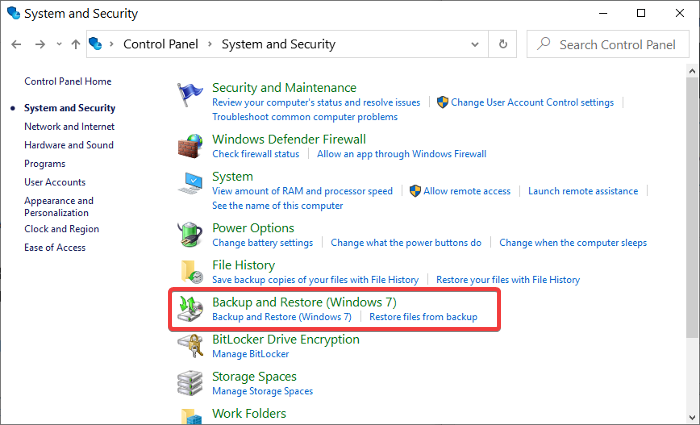
- If you recently upgraded your Windows version or it’s your first time making a backup, click on Set up backup and follow the on-screen instructions in the wizard.
- If you’ve made a backup in the past, click the Back up now option.
- If it’s not your first backup, but you want to create a new backup, choose the Create new, full backup option and follow the on-screen steps in the wizard.
Alternatively, boot into a Linux live USB or WinPE environment and from there, you can copy pagefile.sys since Windows isn’t actively using it.
How to Delete PageFile.sys in Windows 11
The pagefile.sys file in Windows is a system-managed file used for virtual memory (paging file). It is crucial and improves your system’s performance. Deleting it outright isn’t recommended because it can cause instability, but you can disable or move it safely through system settings.
To delete or disable the pagefile.sys file:
Open System Properties (sysdm.cpl) and go to the Advanced tab.
Under Performance, click Settings.
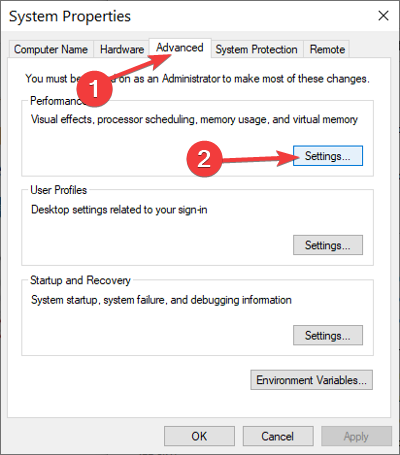
In the Performance Options window that opens, go to the Advanced tab.
Under Virtual memory, click Change.
Uncheck Automatically manage paging file size for all drives.
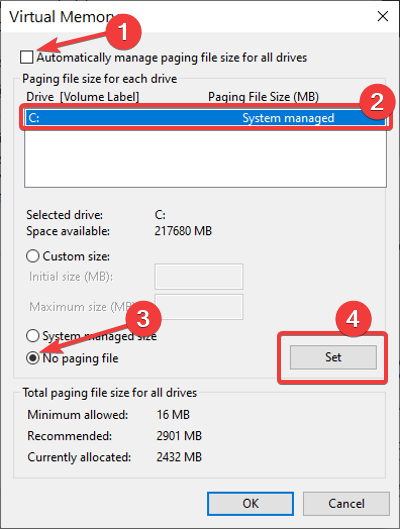
Select your system drive (usually C:).
Choose No paging file and click Set.
Click OK and restart your computer.
On restart, you can then manually delete the file if it still exists since it will not be in use.
Again, I want to emphasize that deleting the paging file can be detrimental to your computer. However, if you have good reasons to do so, do it properly by following this guide.
Read: Pagefile.sys too big in Windows 11
How to Delete PageFile.sys on shutdown in Windows 11
You can set your computer system to delete the paging file whenever it shuts down. With these methods, your computer deletes the paging file whenever you shut it down, and on each restart, Windows creates a fresh paging file.
Deleting the paging file on every shutdown and creating a new one on startup will slow shutdown and boot times.
When the Clear virtual memory pagefile setting is turned on, when the system shuts down, the computer may take longer to shut down than it usually takes. This behavior occurs because when this policy setting is turned on, the computer must physically write to each page in the pagefile to clear each page. The period of time that it takes for the system to clear the pagefile varies according to the pagefile size, and the disk hardware that is involved.
1] Use Ultimate Windows Tweaker
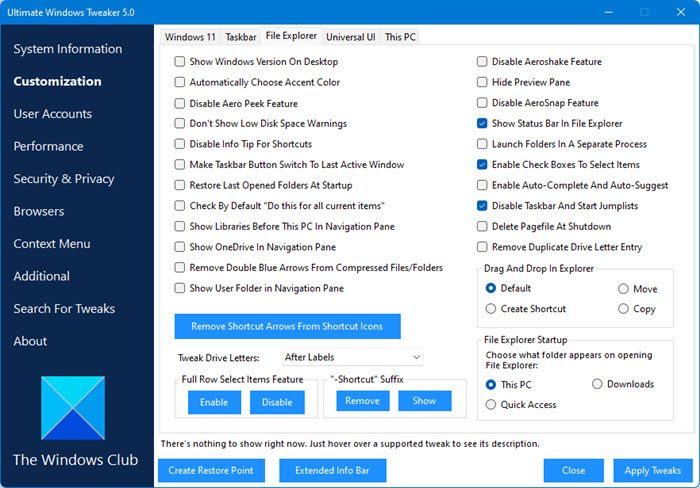
Download and use our freeware Ultimate Windows Tweaker to do so with a click. You will see the setting under Customization > File Explorer.
2] Using the Registry Editor
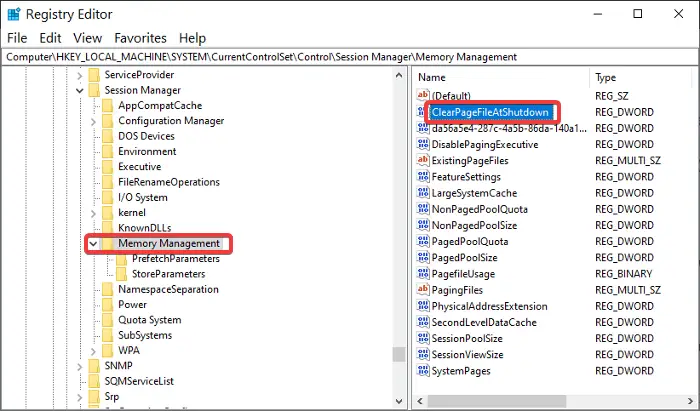
Press the Windows key + R to open the Run dialog box. In Run, type Regedit and click OK.
In the Registry Editor, navigate to the following folder:
HKEY_LOCAL_MACHINE\SYSTEM\CurrentControlSet\Control\Session Manager\Memory Management
On the right-hand pane, double-click on the DWORD named ClearPageFileAtShutdown and change the Value data to 1. Hit the OK button to save the changes.
NOTE: If you don’t find this DWORD, right-click on the white space and create it from New > DWORD (32-bit) Value. Set the name to ClearPageFileAtShutdown and the Value data to 1.
Exit Registry Editor and restart your computer.
3] Using Group Policy Editor
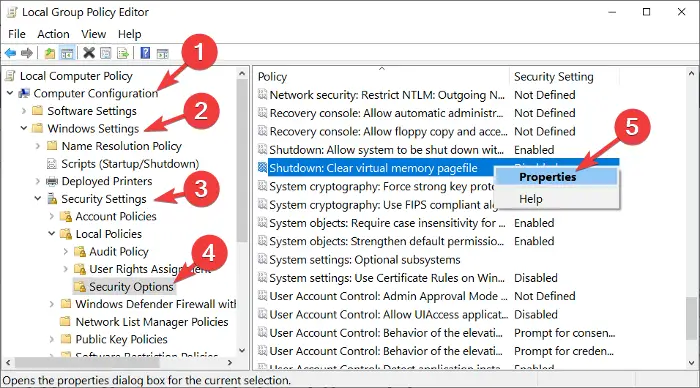
Open the Run dialog box by pressing the Windows key + R combination.
Input gpedit.msc in the Run dialog box and hit ENTER.
In the Group Policy Editor, expand Computer Configuration on the left-hand pane.
Under Computer Configuration, go to Windows Settings > Security Settings > Local Policies > Security Options.
From the right-hand pane, right-click on Shutdown: Clear virtual memory pagefile and select Properties.
Choose Enabled from the new window and finally hit the Apply and OK buttons to save the configuration.
If you have plenty of RAM (16GB+), you can safely reduce or disable it, but most users should leave it enabled. Alternatively, you can move the page file to another drive to free up space on C:.
How to Move PageFile.sys in Windows 11
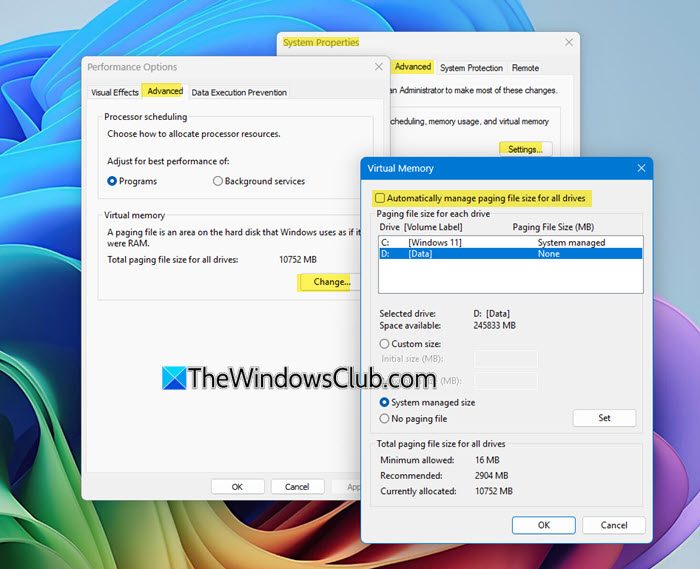
To move the pagefile.sys file to another drive, open System Properties > Go to the Advanced tab > Under Performance, click Settings.
In the Performance Options window that opens, go to the Advanced tab. Next, under Virtual memory, click Change.
Now uncheck Automatically manage paging file size for all drives and then select the drive you want to, which could be the D drive.
Then select System managed size, Click Ok and restart your PC.
On restart, you can then manually delete the file if it still exists since it will not be in use.
Windows will now use the new drive for pagefile.sys.
Read: How to reset Virtual Memory or Page File in Windows.
