
If you want to change the refresh interval of Server Manager in Windows Server 2025/2022, here is how you can do that. You can change the refresh timing in Windows Server using Server Manager and Group Policy Management Editor.
Change Refresh Interval in Windows Server using Server Manager
To change the refresh interval in Windows Server using Server Manager, follow these steps:
- Open the Server Manager on your server.
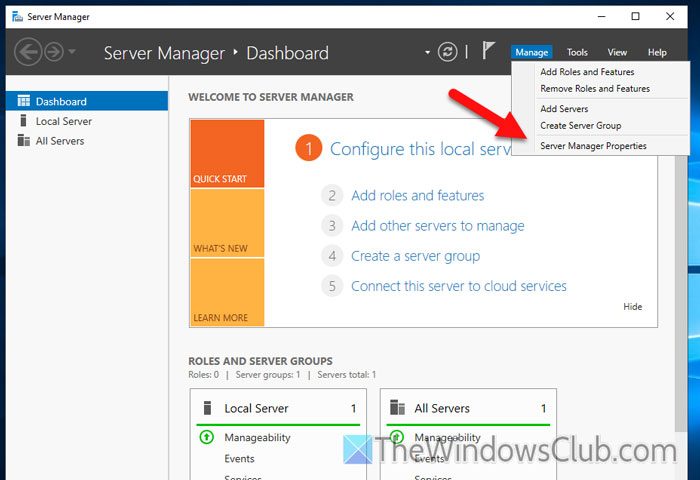
- Go to Manage > Server Manager Properties.
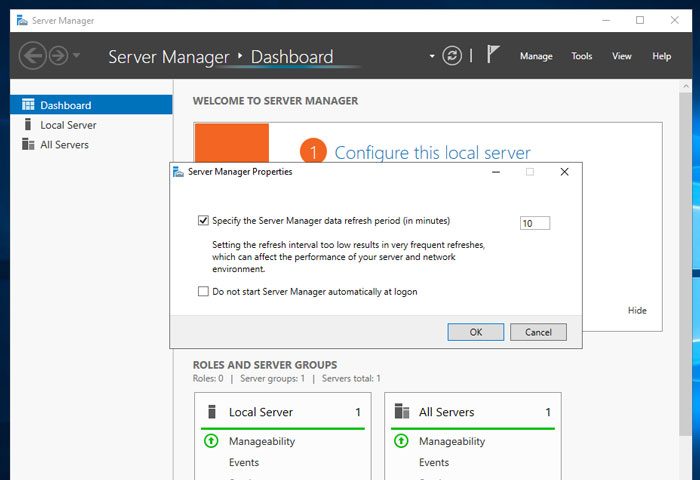
- Tick the Specify the Server Manager data refresh period checkbox.
- Set a time as per your requirements.
- Click the OK button.
To learn more about these steps, continue reading.
First, you need to open the Server Manager on your server. Then, click on Manage and select the Server Manager Properties option.
Here you can find a checkbox called Specify the Server Manager data refresh period. Ensure that this checkbox is selected. If so, set a time as per your requirements and click the OK button.
Change Refresh Interval in Windows Server using Group Policy Management Editor
To change the refresh interval in Windows Server using Group Policy Management Editor, follow these steps:
- Open the Group Policy Management Editor on your server.
- Navigate to Server Manager in Computer Configuration.
- Double-click on the Configure the refresh interval for Server Manager setting.
- Choose the Enabled option.
- Set a time as per your requirements.
- Click the OK button.
- Restart your server.
To know more about these steps, keep reading.
First, open the Group Policy Management Editor on your server. For that, open the Server Manager and go to Tools > Group Policy Management.
Then, navigate to the following path:
Computer Configuration > Administrative Templates > System > Server Manager
Double-click on the Configure the refresh interval for Server Manager setting and choose the Enabled option.
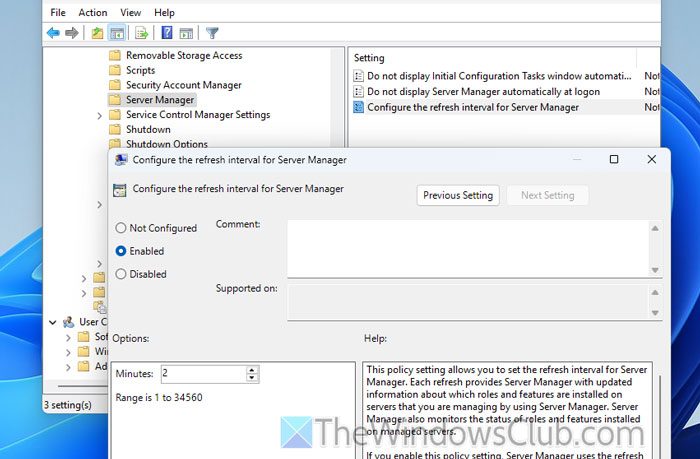
Next, set a time as per your requirements and click the OK button.
Once done, close all windows and restart your server. However, if you want to revert this change, open the same setting and choose the Not Configured option.
Read: Refresh Rate changes automatically when unplugging the Charger
How to change the server time zone in Windows?
To change the server time zone in Windows Server, open the Server Manager and click on the Time zone option. Then, click on the current time zone and select the Change time zone option. Next, expand the corresponding drop-down menu and select a time zone according to your requirements.
How do I change the refresh settings in Windows Server?
To change the refresh settings in Windows Server, open the Server Manager and click on Manage > Server Manager Properties. Then, find the Specify the Server Manager data refresh period option. Next, set the timing as desired and click the OK button.
