
Ever opened a file and seen strange symbols or jumbled text? That’s usually an encoding problem; your software isn’t reading the data correctly. The good news is that Microsoft Office makes it easy to fix. This guide shows you how to choose the right character encoding in Excel or Word.
Before we dive into the steps, keep this in mind. You can usually fix garbled text by choosing the right encoding when opening a file. If you want to save a new file with a specific encoding, such as UTF-8 for broad compatibility, use the Save As option. The key is to match the encoding the file was originally saved with or select a universal standard like UTF-8 for future use.
How to change Encoding in Excel
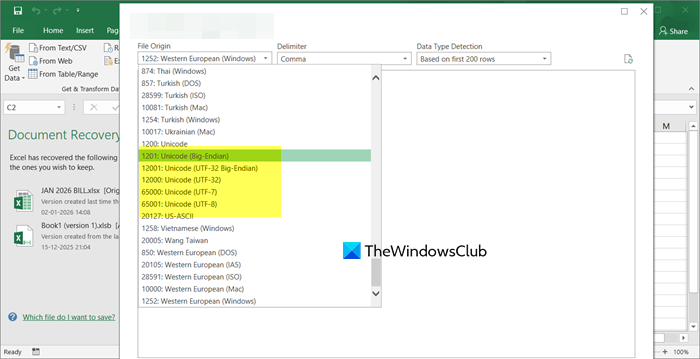
Excel encounters encoding problems most often when importing text data (like .csv or .txt files) from other systems, websites, or international sources. If you come across such a garbled file, here is how to fix it.
- First, open Excel.
- Go to File > Open and navigate to your file.
- Instead of double-clicking, click the drop-down arrow next to the Open button.
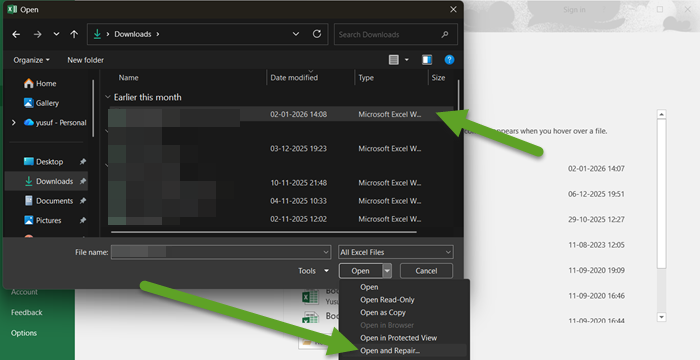
- Select Open and Repair. This sometimes auto-corrects the issue.
- If that fails, use the import wizard. From the Data tab, select From Text/CSV.
- Browse to your file and click Import. A preview window will appear.
- Look for the File Origin or Encoding dropdown at the top of this window.
- Click it and try different encodings. Common ones to try are:
- UTF-8: The modern web standard.
- Windows (ANSI): Common for files created in your region.
- Unicode (UTF-16): For broader language support.
As you select different options, the preview will update. Choose the one that makes your text appear correctly.
- Click Load to import the data with the chosen encoding.
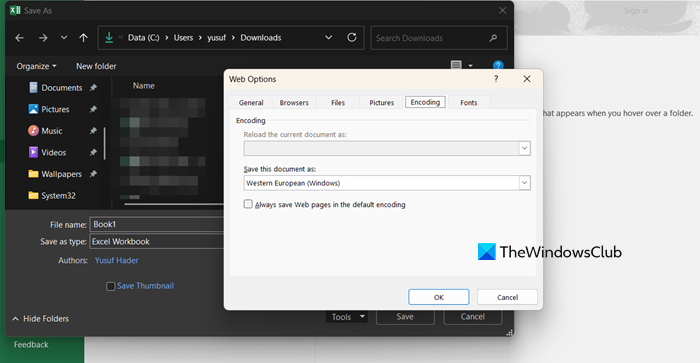
To save a file with a specific encoding, open the File menu and select Save As, then choose your location. Before clicking Save, open the Tools dropdown near the Save button and select Web Options. In the window that appears, go to the Encoding tab and choose your preferred standard.
Read: How to change default Character Encoding in Notepad
How to change Encoding in Word
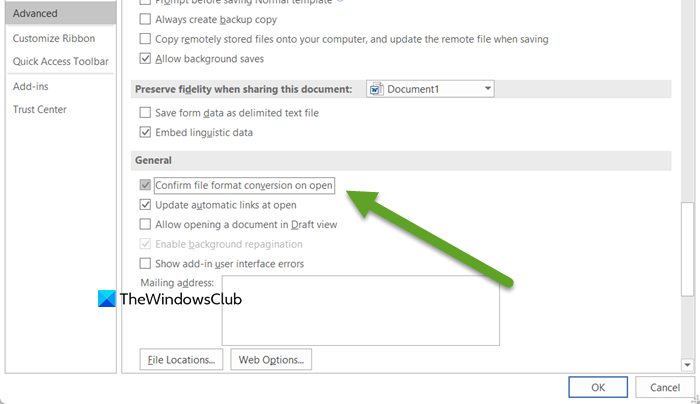
Word is excellent at detecting encoding automatically, but for stubborn files, manual control is available. Therefore, we need to choose an encoding when opening a file.
But first, we need to make some changes to Word’s settings. For that, in Word, go to File > Options. Now, go to the Advanced section, go to the General area, check the box for Confirm file format conversion on open, and click OK.
For Encoding, follow the steps below.
- In Word, go to File > Open and select your document.
- The Convert File dialog box will appear. Select Encoded Text and click OK.
- In the following File Conversion dialog, select Other encoding.
- Scroll through the list of encoding standards (e.g., UTF-8, Western European (Windows)). The Preview pane will update in real-time, allowing you to choose the encoding that makes your text readable.
When saving the file, the Encoding option cannot be selected. Word automatically uses Unicode (UTF-8/UTF-16) for its native formats, which support all characters.
If you want to use a different encoding, use File > Save As, choose Plain Text (*.txt) as the Save as type. The File Conversion dialog will appear, allowing you to select the encoding (e.g., UTF-8, Windows Default).
Read: How to change Character Encoding in Outlook
When and why would you want to change Encoding?
When text looks messy with strange symbols, it usually means the file was opened with the wrong encoding. Switching to the right encoding makes the text readable again. Changing the encoding helps the software correctly interpret characters from different languages or systems. It’s also recommended to use a universal encoding like UTF-8 when saving new files to ensure compatibility across platforms and applications.
make it simpler.
Read: How to add a Custom Dictionary in Word, Excel, and Outlook
How do I change the Encoding type in Excel?
To change the encoding in Excel, use the Save As feature. Select File > Save As, and in the dialog box, click the dropdown for Save as type or File format. To save a CSV file with UTF-8 encoding, choose the specific CSV UTF-8 (Comma delimited) option before saving. For opening files with garbled text, use Data > From Text/CSV to launch an import wizard where you can select the correct File Origin (encoding).
Read: How to import a PDF in Excel?
How to fix Encoding in Microsoft Word?
To fix encoding in Microsoft Word when opening a file, you must first enable a specific setting. Go to File > Options > Advanced, scroll to the General section, and check Confirm file format conversion on open. After closing the dialog, open the garbled file again. This will prompt the Convert File dialog box, where you select Encoded Text and can then try different encoding standards from a list until the preview text appears correctly.
