
In this post, we will show you how to change the colors of spelling and grammar underlines in Word on a Windows 11/10 PC.
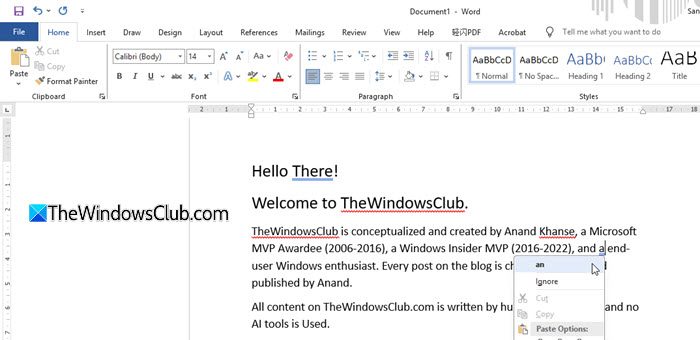
Microsoft Word uses colored underlines as part of its proofing tools to flag potential issues in text documents. By default, these underlines appear in red and blue, where red indicates a spelling error and blue (or green in some older versions) indicates a grammatical or contextual issue. These underline colors are hardcoded, so they can’t be customized through Word’s settings. But if you really want to change them, there is a way!
Can you change the color of the underline in Word?
Yes. While Word does not offer a built-in option to change the colors of spelling and grammar underlines, you can modify them using a Registry tweak, especially if you find the default colors hard to see in dark mode, prefer different shades, or need better visual contrast. This guide provides a step-by-step walkthrough on how to change these underline colors on a Windows 11/10 PC.
Change colors of spelling and grammar underlines in Word
To change the colors of spelling and grammar underlines in Word, follow these steps:
- Open the Registry Editor
- Navigate to the Proofing Tools registry key
- Add or edit registry entries for underline colors
Let us see this in detail.
Note: Changing the colors of spelling and grammar underlines in Word involves editing the Windows Registry, so you must proceed with caution. Incorrect changes to the registry can cause serious system issues. Always back up the registry before making any modifications.
Press Win + R to open the Run dialog box. Type regedit and press Enter. A User Account Control prompt will appear. Click Yes to continue.
In the Registry Editor, navigate to the following path:
HKEY_CURRENT_USER\Software\Microsoft\Shared Tools\Proofing Tools
Locate SpellingWavyUnderlineColor in the right pane. If you could not find the key, right-click anywhere within the empty area in the right pane and select New > DWORD (32-bit) Value. Then name the key SpellingWavyUnderlineColor and press Enter.
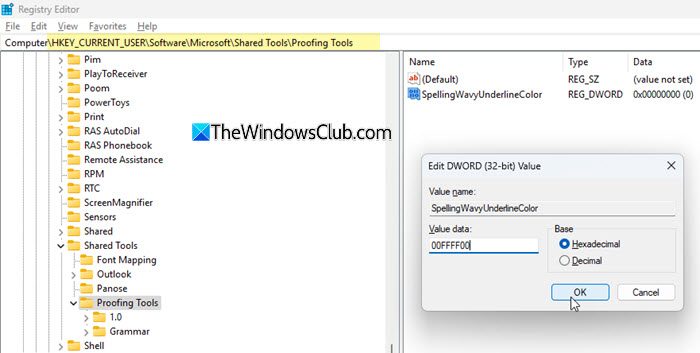
Double-click SpellingWavyUnderlineColor. In the Edit DWORD Value dialog box, select Hexadecimal as Base, and in the Value data box, type the hexadecimal code of the color that you want to use for the wavy underline that indicates spelling errors. For example, entering FFFFFF00 will set the underline color to yellow.
Click OK to save changes. Close the Registry Editor and restart Word (or your computer) for the changes to take effect.
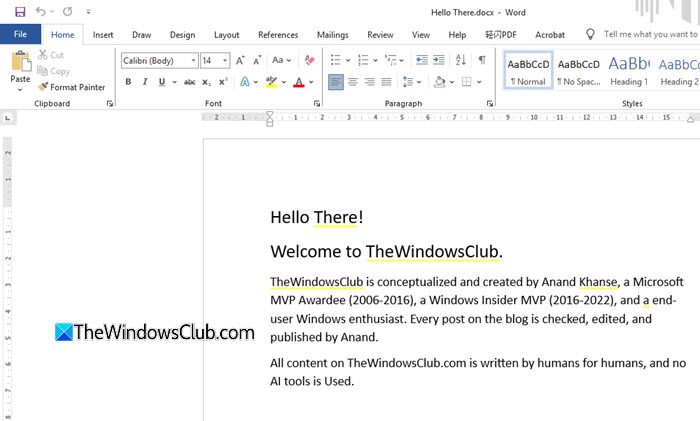
To change the colors of other proofing underlines, follow the same steps as above (create or edit the respective key under the same path and assign it a valid 8-digit hexadecimal color value).
The registry key names for other proofing underlines are as follows:
GrammarWavyUnderlineColorfor the underline color that indicates grammar errors.ContextualSpellingWavyUnderlineColorfor the underline color that flags contextual spelling errors (like using “their” instead of “there”).SmartTagUnderlineColorfor the dotted underline that appears under smart tags (available in older versions of Word).
Hexadecimal color codes for proofing underlines
Windows Registry expects color values in the form of 8-digit hexadecimal codes, which define the ARGB color format (Alpha, Red, Green, Blue). So when you create or edit these registry keys, you must enter the color using an 8-digit hex code.
Here are some sample 8-digit hexadecimal codes you can use to customize the underline colors in the Registry:
| Color | Red | Green | Blue | Registry Value |
|---|---|---|---|---|
| White | 255 | 255 | 255 | 00FFFFFF |
| Black | 0 | 0 | 0 | 00000000 |
| Red | 255 | 0 | 0 | 00FF0000 |
| Green | 0 | 255 | 0 | 0000FF00 |
| Blue | 0 | 0 | 255 | 000000FF |
| Cyan | 0 | 255 | 255 | 0000FFFF |
| Magenta | 255 | 0 | 255 | 00FF00FF |
| Yellow | 255 | 255 | 0 | 00FFFF00 |
| Dark Gray | 127 | 127 | 127 | 007F7F7F |
| Light Gray | 191 | 191 | 191 | 00BFBFBF |
| Dark Red | 127 | 0 | 0 | 007F0000 |
| Dark Green | 0 | 127 | 0 | 00007F00 |
| Dark Blue | 0 | 0 | 127 | 0000007F |
| Teal | 0 | 127 | 127 | 00007F7F |
| Purple | 127 | 0 | 127 | 007F007F |
| Tan | 127 | 127 | 0 | 007F7F00 |
Note:
- This guide applies to Word for Microsoft 365, Word 2019, Word 2016, Word 2013, and Word 2010. Features or registry paths may vary slightly in other versions.
- Always enter valid 8-digit hexadecimal color codes in ARGB format. Invalid values may cause the underline to disappear.
- Although this tweak is officially documented for Word, many Office applications rely on shared proofing tools, so color changes might affect other apps as well.
- Remember to be cautious while editing the Registry (incorrect changes can negatively affect your system).
That’s all! I hope you find this useful.
Read: How to insert a non-breaking space in Word.
How to turn on red underline for misspelled words in Word?
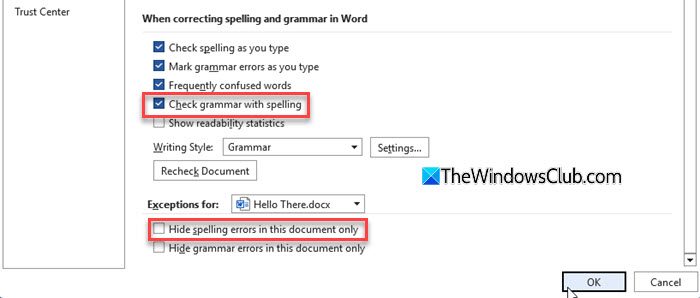
To turn on the red underline for misspelled words in Microsoft Word, click on File > Options > Proofing. Under the When correcting spelling and grammar in Word section, make sure Check spelling as you type is checked. Also, ensure that Hide spelling errors in this document only is unchecked under the Exceptions for section. Restart Word if the changes don’t show up immediately.
Read Next: How to configure Grammar and Style Settings in Word.
