
Previously, it was not possible to copy multiple pieces of text to Windows 10 built-in clipboard. But, now, it is possible. Windows 11/10 has a new and improved clipboard that stores multiple entries copied by the users. However, if you want some additional features in the clipboard, you can install third-party free clipboard manager software. The one we discuss today is called ClipAngel, and from our days of use, we have to say that it works quite well.
ClipAngel Clipboard Manager software for Windows 11/10
This program belongs to the class “Clipboard Manager”. It captures many clipboard objects and allows the user to select and paste one into any program. Inspired by analogs: ClipDiary, Ditto, AceText. Main priorities: usability, compatibility, reliability.
We will discuss the following points:
- Add content to the clipboard
- List
- Clip
- Settings
1] Add content to clipboard the easy way
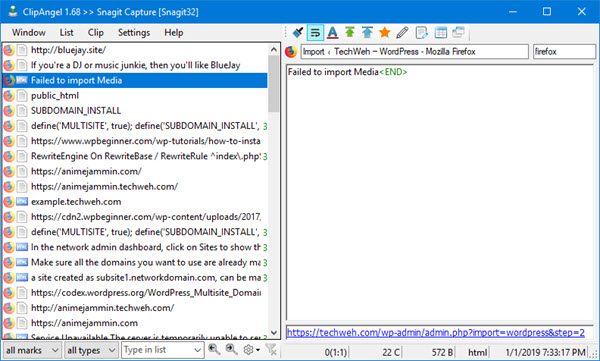
There’s nothing to learn here, to be honest. Just add stuff the same way you’ve always done when using the default clipboard feature in Windows 11/10.
Highlight the words you want to add to ClipAngel, right-click, then select Copy from the menu. Alternatively, you could highlight the words, then select CTRL-C to copy, and right away you’ll see the items in the application.
2] List
This section allows the user to control the list of items in the window. From here, folks can have an item moved to the top after use. Additionally, you can manually move an item up, or move it down at any time.
When it comes down to Filter by date, this is another great feature we tend to use often before clearing our history. When you click it, you’ll see a calendar, where you can filter to show only the items you want to see.
Now, if you want to delete all your items, click on Delete all non-favorite. Doing this will remove all items from the list except those you’ve favorited. If you want to mark an item as a favorite, right-click on it then select the option that says Mark as favorite.
The list option is filled with things you can do, so give it a thorough run-through before moving forward.
3] Clip
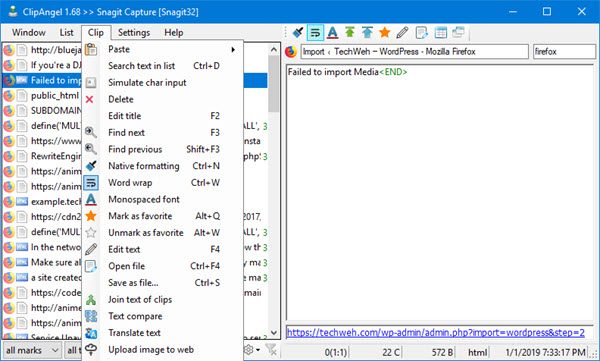
This section is pretty rich in features, so take your time going through it. From here, you can also mark items as favorites, so there’s another option. The option to delete items one by one is also here.
Additionally, if you want to search for an item, you can do that directly from the Clip section, no problem. There’s quite a lot the user can do from this section. Therefore, we suggest checking it out.
4] Settings

If you would prefer to edit the hotkey to fit your style, this is where you’ll do it. Folks can even choose to copy text from any window, though it’s not something we’d use quite often.
By default, ClipAngel checks for the latest update automatically. You might not be interested in this. Therefore, the ability to turn it off is there. Furthermore, the program doesn’t autostart when Windows 11/10 boots, but this can be changed with a simple click.
Overall, we found ClipAngel to be the most powerful clipboard tool we’ve ever used, and that’s saying a lot. Go on ahead and give it a try because we’re certain you won’t be disappointed, not one bit. You can download ClipAngel directly from Sourceforge for free.
That’s it. I hope this helps.
Can you save multiple things to clipboard?
With the new and advanced clipboard in Windows 11/10, it is now possible to save multiple entries to the clipboard. You can launch Windows 11/10 clipboard by pressing the Win + V keys. For now, it saves up to 25 entries. Scroll down the list of copied entries in the clipboard and click on the one that you want to paste.
How do I enable multiple clipboards in Windows 11?
Windows 11/10 does not have multiple clipboards. It has only one clipboard that can be launched by pressing the Win + V keys. It can store multiple entries you copy. You can view all these entries by opening the Clipboard. However, if you want to use multiple clipboards on Windows, you have to install third-party clipboard tools or software.
Read next: Sync Clipboard between computers or devices using Magic Copy.
