
Zoho Forms is a free online form builder tool that helps businesses and individuals create different kinds of forms and collect data as responses. In this article, I will show you how to build and embed forms and collect responses using Zoho Forms.
How to build and embed forms and collect responses using Zoho Forms
Zoho Forms is a free service that allows you to create different types of forms based on your needs. You can create forms for your business, lead generation, e-Commerce, order forms, sign-up forms, membership forms, and more. To build and embed forms and collect responses using Zoho Forms, you have to create an account on its website.
How to build forms using Zoho Forms
To build forms using Zoho Forms, visit its official website and create an account. Click New Form to get started.

Zoho Forms allows you to create forms in the following ways:
- Blank form
- AI forms
- Form templates
- CRM forms
- PDF to form
In the free plan, you can create all types of forms except the CRM forms. Apart from that, some features are also unavailable in the free plan. Select any of the available options as per your needs to get started. For example, if you want to create a form from scratch, click Blank Form.
Let’s discuss these options one by one.
Creating a Blank form
To create a form from scratch, click Blank Form. The Form Builder interface will open on your screen. All the elements you want to add to your form are available on the left side. To add elements to your form, drag them and drop them in the Canvas available on the right side.
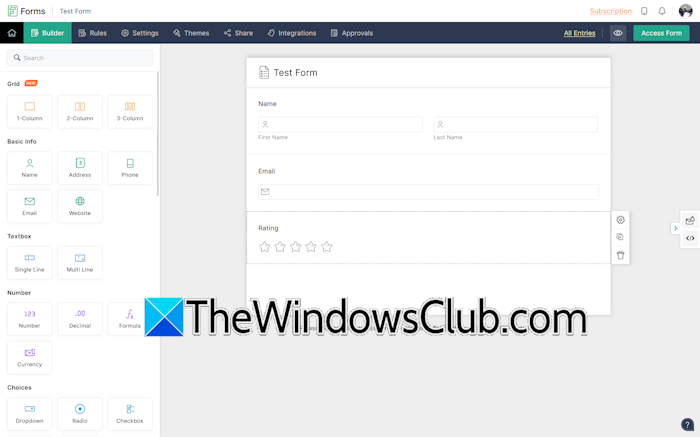
All the changes you make to your form will be saved automatically to the cloud. When you are done, you can move on to the next step, defining rules for your form. It is not a mandatory step. However, creating rules for your forms will help you get more structured and reliable data.
Click the Rules tab to define rules for your form. You can create different rules for your forms, including Field Rules, Choice-based Field Rules, Form Rules, etc. However, some rules are not available in the Free plan.
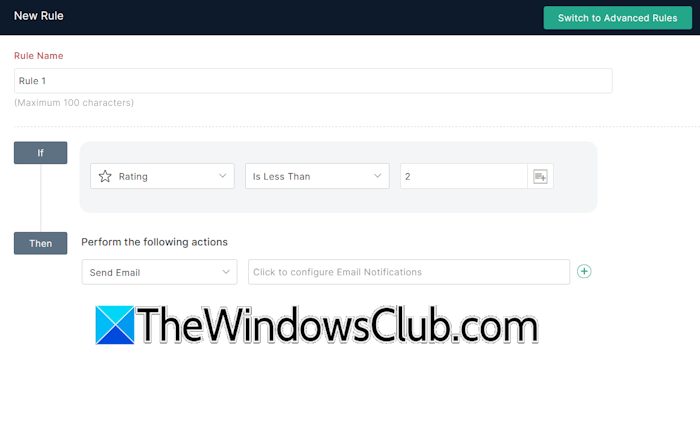
Rules are created on the If-Then concept. Select a category and click Create Now to define a rule. Select a condition, then define its action. Let’s create a rule that sends an email to your manager if a user submits a rating of less than 2, so your manager can contact the user and request feedback to improve our services.
- Select Rating in the drop-down, then select the condition “Is Less Than,” and enter 2 in the required field.
- Now, select Email as the action and configure the automated email.
- Click Add.
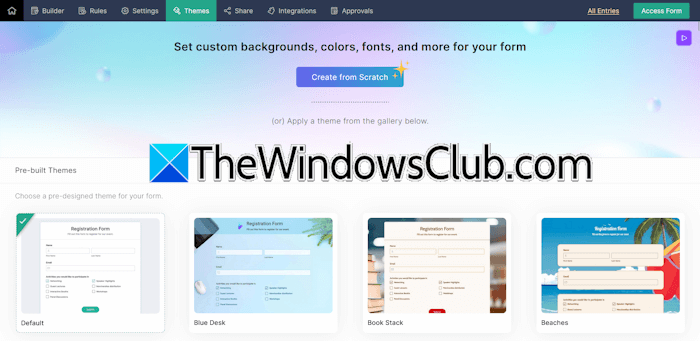
A lot of themes are available to select for your form. All themes are available under the Themes tab. You can also create a theme from scratch.
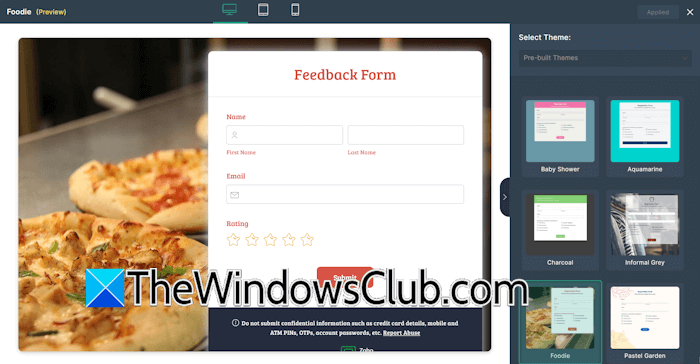
You can preview your form by clicking on the Eye icon. The preview is available in Desktop, Tablet, and Mobile versions.
Creating a form with AI
Zoho Forms allows you to create a form with AI. Click New Form > AI Forms to get started. Now, type a prompt for your form.
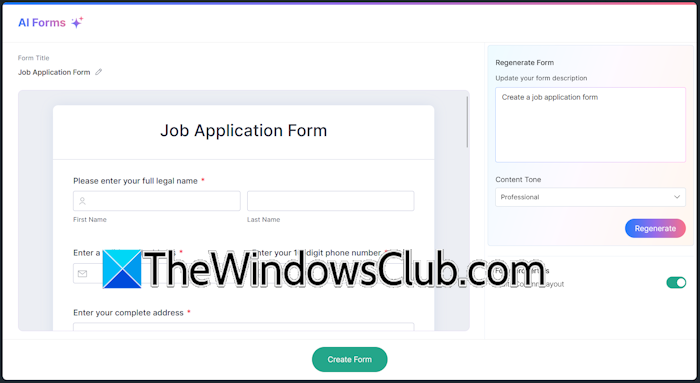
For example, if you want to create a job application form, you can type the following prompt:
Create a job application form.
Select the content tone and click Generate. It will create a job application form within a few seconds. Review the form and click Create Form or Regenerate to generate it again. After creating the form, you can customize it as per your needs.
Creating a form using pre-defined Templates
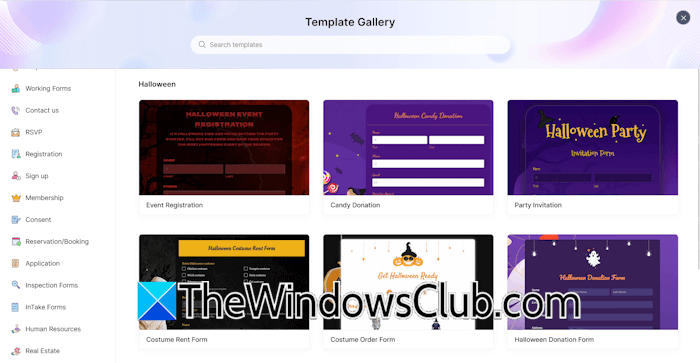
Zoho Forms also has pre-defined templates to create forms. To use templates for your forms, click New Form > From Templates. 100+ templates are available to select from. You can select them as per the required category, such as Halloween, construction, human resources, medicine, membership, etc. You can also preview a template before using it.
Convert documents into online forms
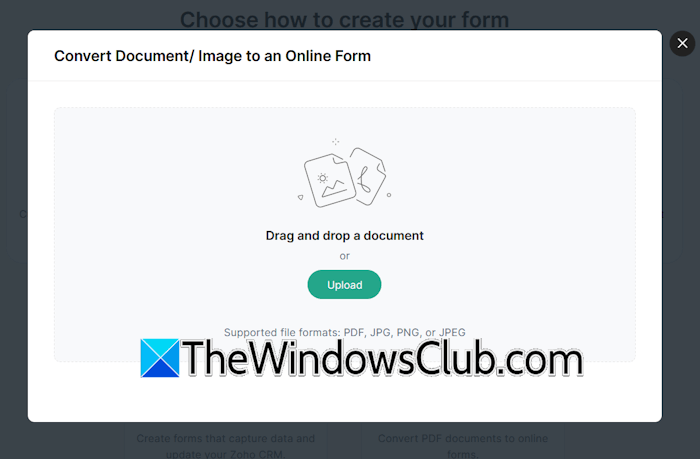
To convert your documents into online forms, select the PDF to Form option. PNG, JPG/JPEG, and PDF are the supported file formats. Click Upload to upload your document and convert it into an online form. Before converting the uploaded document into a form, you can preview it.
How to embed forms and collect responses using Zoho Forms
Embedding Zoho Forms into your website is easy. Follow these steps:
- Open your form.
- Select the Share tab.
- Now, select Embed from the left pane.
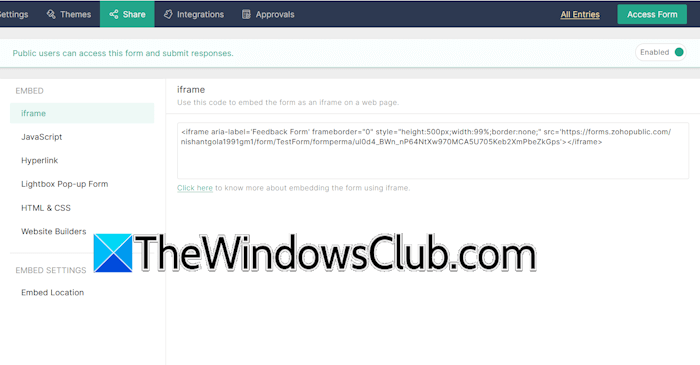
You will see different embedding options. To embed the form into your website, select iFrame and copy the code.
Now, embed this code into your website. If your website is hosted on WordPress, create a new page, then insert the HTML block. Now, paste the copied code and publish the page.
You can also embed the form as lightbox pop-ups. The advantage of this is that users get this pop-up form on every post they read on your website.
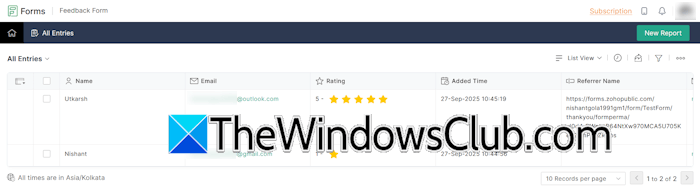
To view responses submitted by users, go to My Forms, hover your mouse cursor over the form, and click All Entries. All the entries will be available there. You can export the responses as CSV and PDF.
Zoho Forms Integration
Zoho Forms supports integration of your forms with various applications to transfer data and automate workflows. Some of these applications include Excel, Google Sheets, Google Calendar, Outlook Calendar, Zoho Desk, Zoho Analytics, Microsoft Teams, Salesforce, etc.
This is how you can build and embed forms and collect responses using Zoho Forms.
Can I customize Zoho Forms?
Yes, you can customize Zoho Forms. Zoho Builder is used to design and customize forms. You can easily add elements to your form by dragging them from the left pane and dropping them in the required place on your form. Moreover, you can also customize each element of your form by opening its properties.
Is Zoho Forms better than Google Forms?
Google Forms is also an online form builder. Zoho Forms are superior to Google Forms due to several key features. Google Forms has limited features. Pre-defined templates are available in both forms; however, Zoho Forms offers over 100 templates, whereas Google Forms offers only a few. Additionally, Zoho Forms allows you to create forms with AI and from your documents. This feature is not available in Google Forms.
Read next: Create custom Email ID with domain name with Zoho Mail for free.
