
Safe Mode is a troubleshooting mode on Windows 11/10 that starts the operating system with a minimal set of drivers so users can troubleshoot the problem. If the problem does not happen in Safe Mode, the default settings and basic device drivers are not causing the issue. Some users reported a black screen issue when entering Safe Mode on Windows 11/10, which prevents them from troubleshooting the cause of the problems. If you get a black screen issue in Safe Mode, this article will help you.

Black Screen when entering Safe Mode on Windows 11/10
Follow these suggestions if you see the black screen when entering Safe Mode on Windows 11/10:
- Perform a hard reset
- Change the cable
- Enable Safe Mode again through WinRE
- Enable the low-resolution mode in WinRE
- Update or reset BIOS
- Reset your PC.
All these fixes are explained below in detail. Before proceeding, you can try restarting your graphics card driver. Press the Win + Ctrl + Shift + B keys. This key combination will restart your GPU driver and bring back your display. If this does not work, use the following fixes.
1] Perform a hard reset
The first step is to hard reset your system. This may help fix this issue. Follow these steps:

- Turn off your system.
- Remove the power cord and disconnect all the peripherals. Disconnect the charger if it is a laptop.
- Press and hold the power button for up to 30 seconds.
- Turn on your system.
2] Change the cable
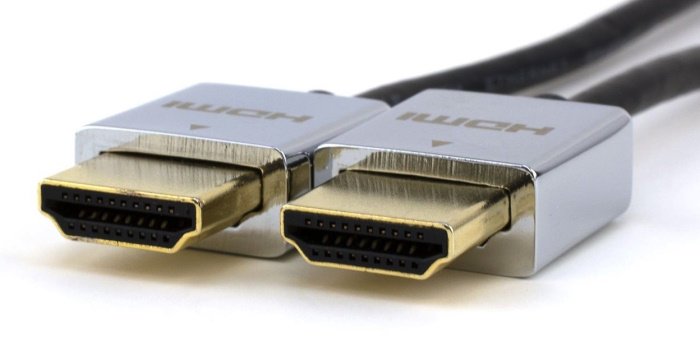
It can be the cable connecting your display to your PC. Try changing the cable. If you use the DVI cable, switch to the HDMI cable. Also, connect your monitor to another available port.
3] Enable Safe Mode again through WinRE
You can try entering the Safe Mode again through the Windows Recovery Environment. Since your screen is not visible, you have to interrupt the normal boot process to enter the WinRE. Follow these steps:
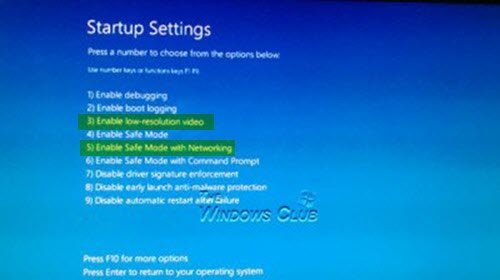
- Press and hold the power button to completely turn off your computer.
- Press the power button to turn on your computer.
- When you see the manufacturer’s or Windows logo, press and hold the power button immediately to turn your system off.
Repeat the above steps until you see the Preparing Automatic Repair message on your screen. Now, click Advanced Options > Troubleshoot > Advanced Options > Startup Options. Click Restart. Now, you will see several options on your screen. Press the required Function key to enter Safe Mode.
4] Enable the low-resolution mode in WinRE
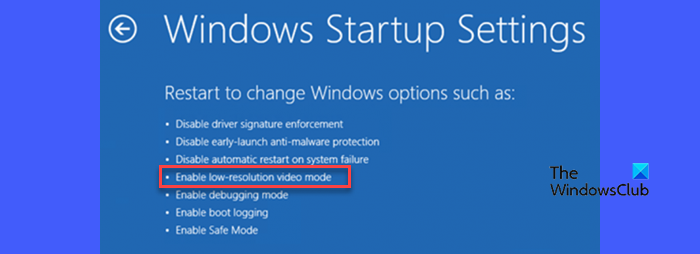
The low-resolution mode starts the Windows operating system with the current video driver at low resolution and refresh rate settings. To enable this mode, you need to enter the Windows Recovery Environment. Because your screen is not visible, enter the WinRE by interrupting the normal boot process.
Once you are in Windows Recovery Environment, select Advanced Options > Troubleshoot > Advanced Options > Startup Options. Click Restart. Now, press the required Function key to enable the low-resolution mode. Usually, F3 is the Function key to enable this mode.
If this works, you can troubleshoot in Safe Mode. Once you exit the Safe Mode, you can change your screen refresh rate and resolution in your system Settings.
5] Update or reset BIOS
The next step is to update the BIOS to the latest version. A BIOS update increases hardware compatibility and boosts system stability. Before proceeding, it is good to check the current BIOS version on your system using the System Information. Now, visit the official website of your computer manufacturer and download the latest version of BIOS from there (if available).
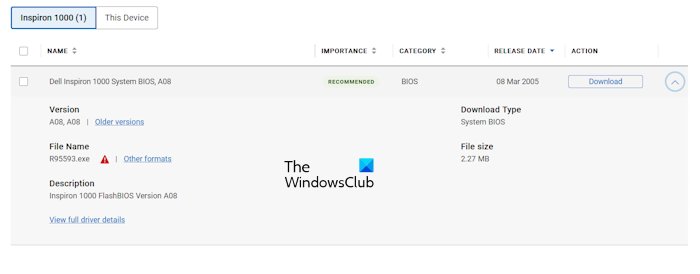
During the BIOS update, provide a continuous power supply to your PC and laptop, even if your laptop is completely charged. An interruption in the power supply can damage your motherboard.
If the BIOS update does not work, reset the BIOS to its default settings.
6] Reset your PC
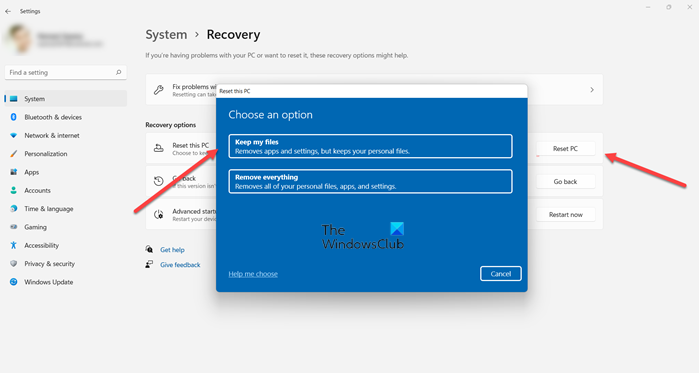
If none of these suggestions help, reset your PC. Resetting a computer is a better option than reinstalling Windows, as it works in most cases. Reset it to the factory default settings without deleting the data.
That’s it. I hope this helps.
How to boot into Safe Mode Windows 11 black screen?
If you cannot use your computer due to a black screen, you can use the Windows Recovery Environment to boot into Safe Mode. To enter Windows Recovery Environment, interrupt the normal boot process until you see the Preparing Automatic Repair message on your screen. Once you are in WinRE, you can boot into Safe Mode by using the required Function key.
How do I fix Windows 11 stuck on the black screen?
If your computer is stuck on a black screen, you can run startup repair in Windows Recovery Environment. You can also uninstall the Windows Update, as sometimes Windows Updates cause issues. If nothing works, the last resort is to reset your PC to the factory default settings.
Read next: Black Screen with cursor problem in Windows.
