
The BCD or Boot Configuration Data is a security-sensitive file which is a firmware-independent database for boot-time configuration data. BitLocker encryption has to work in sync with the BCD file, and it verifies the file every time the user boots the machine.
When using BitLocker Drive Encryption Tool, at times, users might encounter the following error on the system:
The BitLocker Setup failed to export the BCD (Boot Configuration Data) store, You may need to manually prepare your drive for BitLocker.
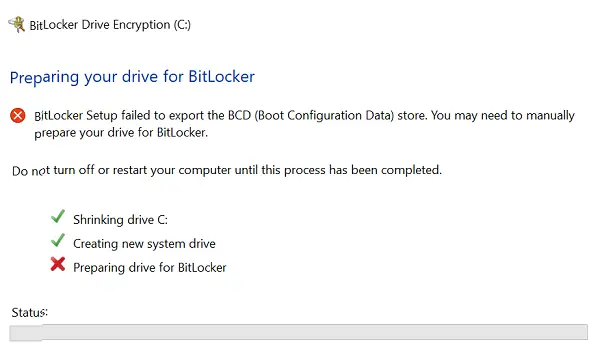
Why does BitLocker fail to export the BCD store?
The error occurs because the Boot Configuration Data (BCD) file is corrupted or misaligned. BitLocker must verify the BCD every time the system boots, and if entries point to the wrong partition, setup fails. A non-active system partition, a damaged MBR, or incorrect BCD paths can also cause this issue. This can also happen if Windows Boot Manager, Memory Tester, or Hibernate Resume entries point to the wrong drive.
The BitLocker Setup failed to export the BCD (Boot Configuration Data) store
If you face this issue, here are three things you could try:
1] Mark Partition as active
First, check if the drive is active. To do this, open Disk Management from the WinX Menu and check whether the target drive is active. If not, right-click on it and select Mark as Active. Finally, click Yes on the confirmation dialogue box.
2] Repair the MBR and rebuild the BCD file
Is the BCD file corrupt? You could try and repair the MBR as well as rebuild the BCD file and see if that helps.
The issue with the BCD could result in this.
3] Make BCD point to the correct path
This problem can also occur if one of the following entries in the Boot Configuration Data (BCD) store points to the incorrect partition:
- Windows Boot Manager
- Windows Memory Tester
- Resume from Hibernate
To ensure the Windows Boot Manager points to the correct partition, Microsoft recommends the following. Right-click on Start and select Command Prompt (administrator). Type the following command and press Enter to execute it:
bcdedit -set {bootmgr} device partition=C:
Where C: is the system partition drive.
To make the Windows Memory Tester point to the correct partition, open Command Prompt (administrator) as mentioned in the previous step. Type the following command and press Enter to execute it:
bcdedit -set {memdiag} device partition=C:
Where C: is the system partition drive.
Resume from Hibernate could be made to point to the correct system partition by executing the following command in Command Prompt (administrator):
bcdedit -enum all
When you press Enter, it will show the details for the Resume from Hibernate entry. Note down the “identifier” value for that information. Then enter the following command:
bcdedit -set {identifier} device partition=C:
Where {identifier} is the identifier value we noted earlier and C: is the system partition drive.
Related read: BitLocker Setup could not find a target system drive to prepare.
How to manually prepare drive for Bitlocker?
To manually prepare a drive for BitLocker, first confirm you’re on Windows Pro or Enterprise and check if a Trusted Platform Module (TPM) is available. Next, ensure you have a separate unencrypted system partition (usually 500 MB) for boot files; if not, create one using the bdehdcfg -target default -size 500 command. Mark this partition as active so Windows can boot from it correctly. Back up your data before making changes, since partition adjustments can risk loss. Finally, restart your PC and enable BitLocker from Control Panel, choosing TPM or a USB key for startup protection.
Also read: How to use BitLocker Drive Preparation Tool using Command Prompt.
