
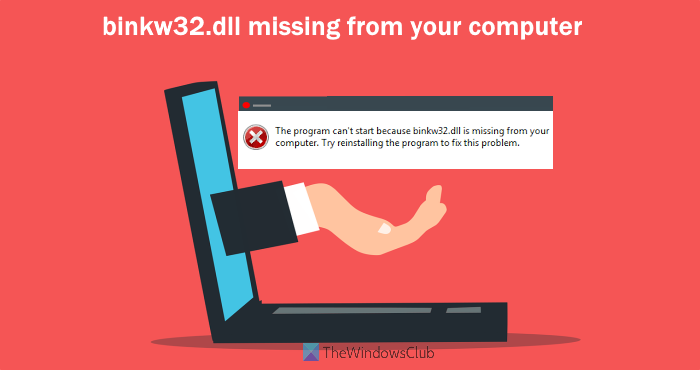
In this post, we will help you fix binkw32.dll not found or missing error on your Windows 11/10 computer. Most often, such an error occurs in a game that uses the Bink Video codec. So, when you try to install or play such a game, this binkw32.dll missing error appears. You may see one of the following error messages:
The program cant start because is missing from your computer
This application failed to start because was not found
Fix binkw32.dll not found or missing error
If you receive binkw32.dll was not found or is missing error on your Windows 11/10 computer, then try the solutions mentioned below. Before doing that, try some simple fixes like completely closing the game and then relaunching the game, running System File Checker, etc. If such fixes don’t help, try the following solutions:
- Copy the binkw32.dll file from the game’s disk
- Copy the binkw32.dll file from the game’s System folder
- Add the binkw32.dll file to the Windows System32 folder
- Verify integrity of game files
- Download and install the missing DLL
- Update the game
- Reinstall the game.
Let’s check these solutions one by one.
1] Copy the binkw32.dll file from the game’s disk
If binkw32.dll is not present in the game folder, then you can get it from the game’s installation disk. Here are the steps:
- Insert the game disk
- Open File Explorer
- Open the game disk
- Find and double-click on Disk1C~1.cab file
- Copy binkw32.dll file
- Now access the folder where your game is installed. For example, if your game’s installation location is
C:\Program Files (x86)\Microsoft Games\Gamefolder, then access that folder - Paste the copied binkw32.dll file into your game folder.
After this, restart your computer, and launch the game. It should open now.
2] Copy the binkw32.dll file from the game’s System folder
Sometimes, if a file is in the wrong directory, it can cause various problems with that application. This can happen in this case, too. So, what you need to do is access the System folder of your game, copy the required DLL file from that folder to the game folder.
For example, if the path of your game’s System folder is:
C:\Program Files (x86)\Microsoft Games\Game\System
Then, go to that System folder, and copy the binkw32.dll file from that folder.
After this, paste that file to the game folder. The path would be:
C:\Program Files (x86)\Microsoft Games\Game
3] Add the binkw32.dll file to the Windows System32 folder
If even after adding the binkw32.dll file to the game folder doesn’t help, then copy the binkw32.dll file from the game folder to the System32 folder of your Windows 11/10 computer. The path is:
C:\Windows\System32
After this, restart your game, and your problem should be fixed now.
4] Verify integrity of game files
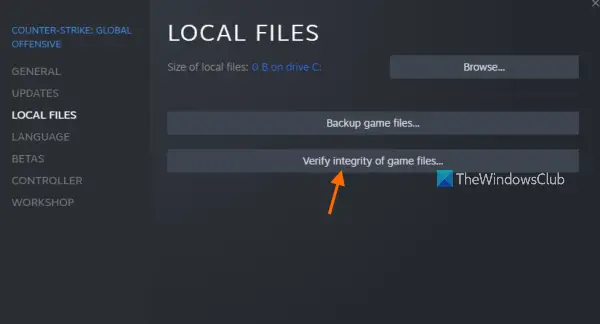
If some content in the game is missing, verifying the integrity of that game’s files helps fix the issue. If you are using Steam and the problem is occurring with a specific Steam game, this solution might work. So, verify the integrity of your game files and see if it helps. The steps are as follows:
- Exit from the Steam
- Run Steam as an administrator
- Go to the LIBRARY section
- Select the game for which you are having this issue
- Click on the Manage (Settings or gear icon) button available on the right middle section
- Click on the Properties option available in the Manage menu
- Select the LOCAL FILES option present on the left section of the Properties window
- Click on the Verify integrity of game files option.
Now the validation process for Steam files will start, which may take time. Let the whole process complete, and then restart your computer.
Also read: Fix d3dx DLL file is missing error in Windows.
5] Download and install the missing DLL
This is an easier solution. What you need to do is grab the missing DLL file from some trusted source. After this, access the game folder, and place the downloaded DLL file there. Restart your computer and check if you are able to launch and play the game.
6] Update the game
This is another easy solution that might work. Check if the latest update is available for your game. If yes, download and install the latest update for your game. That would add or fix the corrupt DLL file, and then you might be able to play the game.
7] Reinstall the game
This is the last option to try. Since you are most likely receiving this error because of the video codec required for your game, you should reinstall the game. This will include the correct video codec in the right location for that particular game. After this, you may be able to launch and play the game.
What is binkw32.dll in computer?
As the name suggests, binkw32.dll is a DLL required to run certain popular games. Binkw32.dll is a component of the Bink Video codec of RAD Game Tools. You won’t be able to install or launch any game that requires binkw32.dll. Therefore, some users experience issues when playing such games. If you also encounter an error, such as “binkw32.dll not found” or “binkw32.dll is missing from your computer,” you need some fixes to resolve the problem. Some of those fixes are also covered in this post, which you can try.
How do I fix all DLL files missing errors in Windows?
A DLL file missing error can occur for any application, program, or game. If you receive such an error on your Windows 11/10 computer, then you can try some helpful solutions to fix missing DLL file errors. Some of those solutions include the System File Check tool, DISM tool, getting DLL file from another system and pasting it in the required place, and repairing or reinstalling the tool for which you are receiving that error.
Read next: MSVCR100.dll, MSVCR71.dll, or MSVCR120.dll is missing from your computer.
