
Text editors, aren’t they just the best, right? We can’t live without them, at least not right now. Therefore, it’s always best to have one at your fingertips at all times. Now, we all know that Windows 11/10 comes with Notepad as the default text editor, but it’s quite limited. Today we’re going to talk about AkelPad, a simple text editor for Windows 11/10 that brings to the table several cool features not found on Notepad.
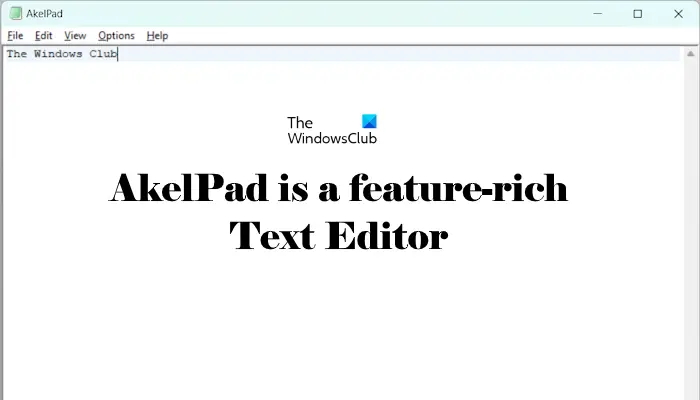
When installing AkelPad, the app will ask if you want to install it on its own, as an editor for Total Commander, or as a replacement for the default Notepad. Bear in mind that if installed as an alternative to Notepad, the registry will be edited to make sure any calls to Notepad will be redirected to AkelPad instead. We instead chose to go with the default option because we see no need to have the registry edited for something as simple as a text editor.
AkelPad Text Editor & Notepad replacement
Let us take a look at its features.
1] File
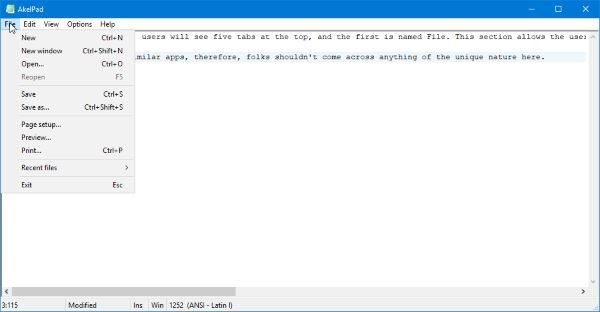
When the software is opened, users will see five tabs at the top, and the first is named File. This section allows the user to perform several actions, including opening a new window, opening a saved file, saving files, and more. From here, users can also preview files and view recent edits.
It works the same as many similar apps. Therefore, folks shouldn’t come across anything unique here.
2] Edit
By selecting the Edit tab, then, users will see features they’re used to with other text document editors. If you’re interested in undoing or redoing your work, you can do so with relative ease.
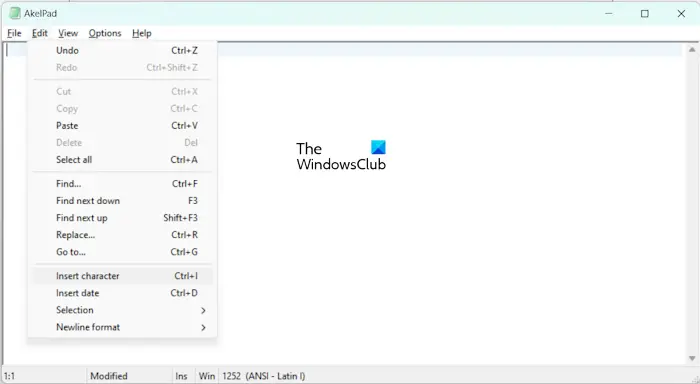
In terms of cutting, copying, and pasting with ease, yes, these options are there to take advantage of them as much as you want.
If you compare it with Windows Notepad, you will see a few more options in the Edit menu. You can directly insert a character via “Edit > Insert Character” or by pressing the Ctrl + I keys. Doing so will open the Character Map so you can select and insert the required character. In addition to this, you can also change the letter case of the selected words to upper case, lower case sentence case, etc. All these options are also available in the Edit menu.
Others are there, but as we’ve stated above, if you’re an expert text editor, then nothing here should surprise you in the slightest.
3] View
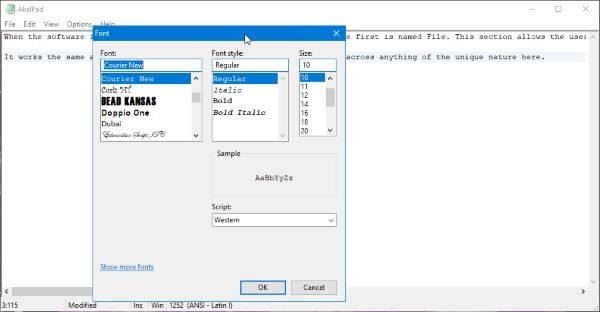
OK, so this option is all about customizing how texts are viewed within AkelPad. Here the user can change the font and the color of the selected font. By default, the font is Courier New, and as expected, the default color is black.
Now, we like that folks can easily turn on Read Only to ensure no one changes anything they’ve written. Users can also wrap words among other things, so as we can see, this is a feature-rich editor, and as such, you should check it out.
4] Options
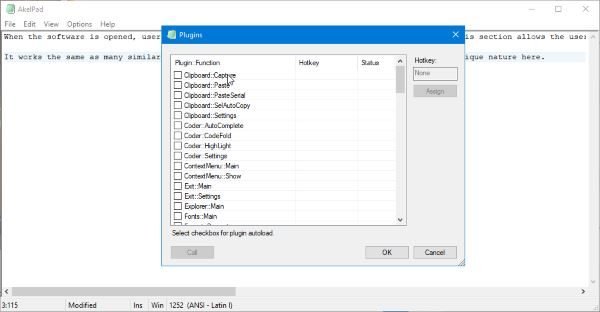
Here’s the thing, we like what the Options area has to offer. Clicking on it allowed us to find out that AkelPad comes pre-packed with Plug-ins. Select this feature and users can choose from a list of several plug-ins to improve the experience and the usability of the software.
It’s very straightforward, and guess what? There’s no need to restart the app or the computer.
Another thing we like is that AkelPad lets you choose a window mode. There are three window modes overall, so simply select the one that best fits and move on with your work.
The Settings window is hidden under the Options area. From here, users can decide whether to save data to the Registry or to an INI file. Additionally, if you want to auto-switch the keyboard, then no problem, friend.
There are a lot more folks who can do here to have AkelPad work the way they want it to. Just look at all the options in the Settings to find what works best for you, then be off your way. Download the tool right now from the official website.
Is Text editor same as Notepad?
Notepad is a text editor software and comes pre-installed on all Windows computers. You can consider a text editor similar to Notepad, but it may have more or fewer features than Windows Notepad.
Is WordPad a text editor?
No, WordPad is not a text editor. It is a basic word-processing software program that comes preinstalled on all Windows computers. However, in WIndows 11/10, Microsoft has made it an optional feature. So, if you do not require it, you can remove it via Optional Features and install it again later when needed.
Read next: Best Free Open Source Document Editor software for Windows.
