
I have written an article on how to add Recycle Bin to the Taskbar. Today, I will show you how to add programs to the Quick Launch menu using the right-click context menu in Windows 11/10. Sure, you can always drag-and-drop the program shortcuts into the quick launch menu, but sometimes it can get awkward. This method will let you simply right-click any file and add it to the Quick Launch. Here is how you can do it
Add Programs to Quick Launch via Context Menu in Windows 11
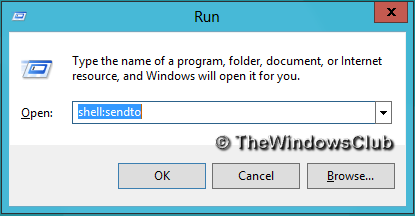
1. Press Windows Key + R combination on the keyboard to open Run. Type shell:sendto command.
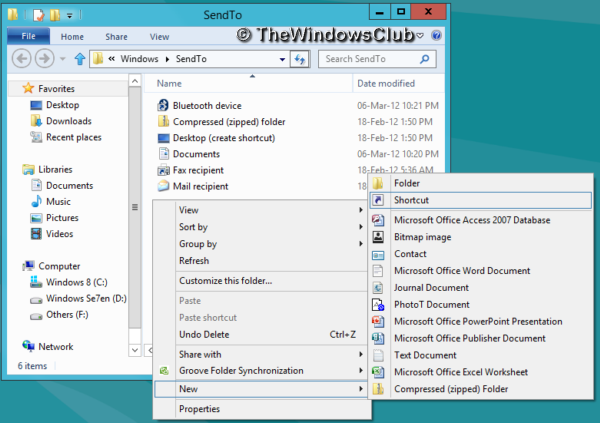
2. Now in the SendTo explorer window which opens, right-click on the blank space, and select New > Shortcut.
3. Moving on, type the following location of the shortcut:
%UserProfile%\AppData\Roaming\Microsoft\Internet Explorer\Quick Launch
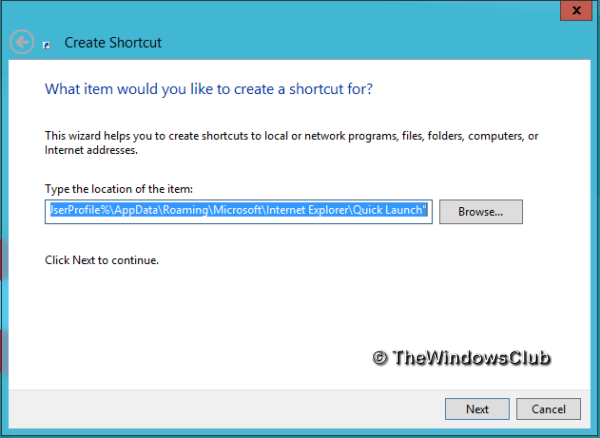
Click on Next and provide the name to the shortcut. Windows will automatically give you the Quick Launch name – but you can give another name of your choice if you wish.
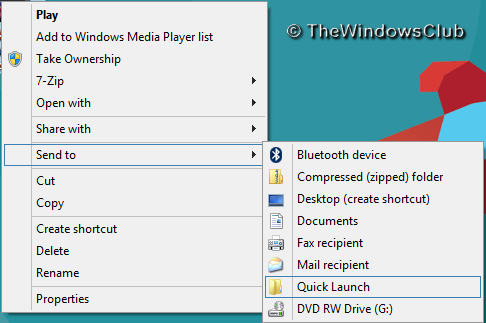
4. When all is done, right-click on any file on your computer and select Send to. Now you will see your shortcut name provided in the last step. Click on that name and the file will be automatically added to the quick launch menu.
I hope you like this handy tip. And do remember to share it with your friends if you like it.
What is the Context menu in Windows?
The context menu in Windows appears when you right-click an object. It lists relevant options and actions for the selected object or the clicked area. The context menu’s content varies based on the object type and installed applications. It provides convenient access to functions such as opening, copying, deleting and renaming.
How do I create a custom context menu?
Creating a custom context menu involves modifying the Windows Registry to add your desired options. You can also use software to edit the context menu to add, hide or delete menu items.
