
In this article, we tell you how to add & use, addons, plugins and extensions to VLC Media Player on Windows computers.
The media player is of paramount importance for playing multimedia files, such as movies and videos. While there are many options available for media players, VLC is the most popular. The reason is that it is free and offers extremely impressive features that play most multimedia files, including streaming protocols. The VLC media player also supports a wide variety of video formats and runs on all platforms such as Windows, Linux, Android and macOS. The free open-source media player is extremely powerful, easy to use and can be easily customized according to user needs more than the paid media player.
Despite all the amazing features, most VLC users still find some missing. VLC supports some basic features, such as video playback controls, automatic subtitles and so on. For instance, the VLC player doesn’t remember the positions in the last video or movie files that were played. In this particular scenario, say if by any chance you closed the video. The VLC player starts the video from the beginning instead of automatically resuming from the position it left off at when the file was closed. This is quite annoying when users can’t watch the video at a single shot. Also, VLC does not restart the playback where left off. There are many other features that users find missing. To overcome this inadequacy, users can add features and customize options using VLC extensions and plugins.
VLC extensions are available on the official VLC website. The official website offers a list of verified extensions available for free download. Unlike extensions for Edge and Chrome that install with just a click of a computer mouse, installing the VLC extension is not at all easy. The VLC media player makes use of files with .lua extension and installing them is quite a tedious job packed with chicanery.
In this article, we provide some tips for installing and using extensions in VLC media player. But before we begin, it’s worth noting that most extensions are available for the desktop version, while only a few are available for the mobile version of the VLC app. Also, the add-ons need to be installed manually, and users have to enable the installed extensions manually.
How to add Plugins & Extensions to VLC
Open VLC media player.
Go to Tools and click on Plugins and extensions from the drop-down menu.
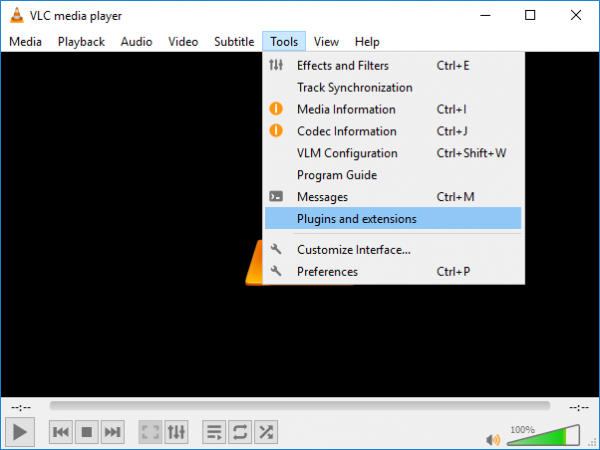
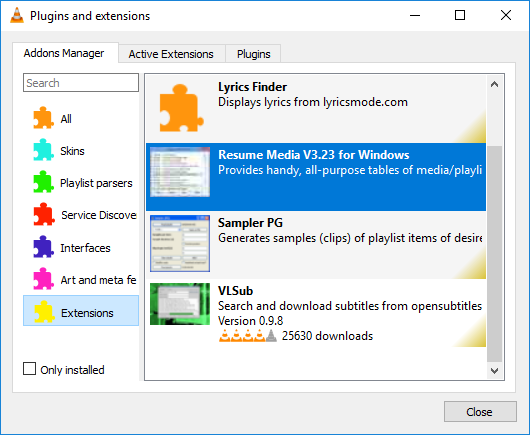
This will show a list of plugins, interfaces, and extensions. If you find any interesting extensions in the list, simply click the Install button.
In order to install the extension in .lua go to the file path C:\Users\UserName\AppData\Roaming\vlc\lua\extensions. Copy the lua file to install the extension.
If the lua folder is not found, simply create a folder with the name lua.
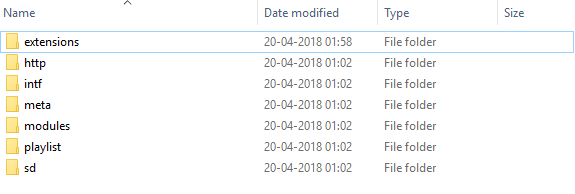
Inside the lua folder, create another folder by name “extensions”. Now copy the lua file inside it.
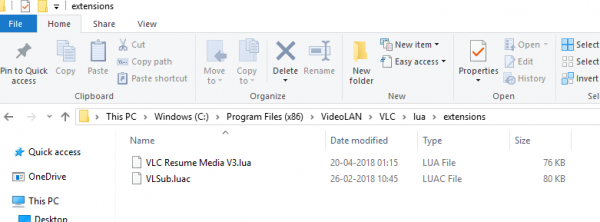
Once the lua file is copied, the extension will be uploaded and installed. Close all the folders.
Run a video in VLC media player to test and enable the extension.
If you don’t find the list to be impressive, go to the official VLC page to check on all the extensions available for VLC here. If you come across any impressive extension then simply hit the Download button.
The extensions are Zip files containing .lua files.
Navigate to the following path C:\Users\UserName\AppData\Roaming\vlc\lua\Extensions\. Copy the .lua files in the extension folder to install the extension.
If you see a webpage with few codes while downloading the extension, copy the code in a Notepad.
Go to File and click on Save As option. Name the file as VLC Extension.LUA and click on All files under Save as type.
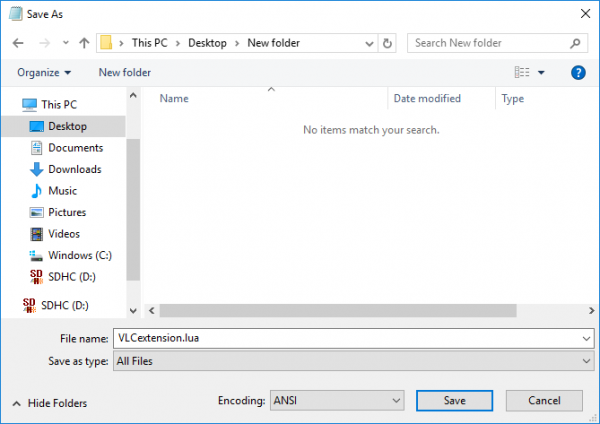
Now click the Save button.
Navigate to the following path – C:\Users\UserName\AppData\Roaming\vlc\lua\Extensions\ and copy the .lua files in the extension folder to install the extension.
Run a video to enable the extension.
That’s all there is to it!
Read next: Best VLC Extensions, Addons & Plug-ins.
