
The Windows 7 Action Center can be considered as a place where you can find all the messages relating to your PC, on which you need to take action.It contains messages about the running of your PC which help you diagnose and solve issues, if any, relating to your PC. This includes information about Security & System Maintenance.
Windows 7 Action Center
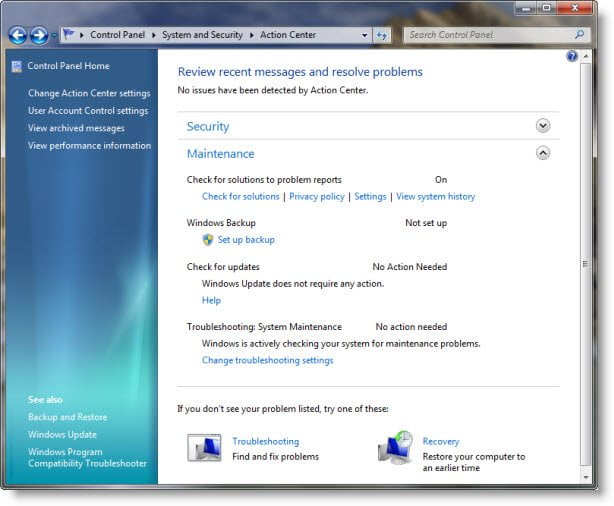
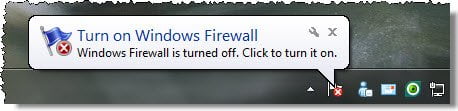
When the status of a monitored item changes Action Center notifies you with a message in the notification area on the taskbar, the status of the item in Action Center changes color to reflect the severity of the message, and an action is recommended.
To change which items Action Center checks:
– Click to open Action Center.
– Click Change Action Center settings
Select a check box to make Action Center check an item for changes or problems, or clear a check box to stop checking the item. If you cleared a check box, click OK in the dialog.
Click OK.
If you prefer to keep track of an item yourself, and you don’t want to see notifications about its status, you can turn off notifications for the item.
When you clear the check box for an item on the Change message settings page, you won’t receive any messages, and you won’t see the item’s status in Action Center. We recommend checking the status of all items listed, since many can help warn you about security issues.
However, if you decide to turn off messages for an item, you can always turn messages back on. On the Change message settings page, select the check box for the item and then click OK. Or, click the appropriate Turn on messages link next to the item on the main page.
To change how solutions to problems appear in Action Center, click Change message settings, and then click Problem report settings. On the Change problem report settings page, you can choose how much information is sent, and how often to check for new solutions.
You can also control the behaviour of the Action Center.

From the taskbar, click Customize to open Notification Area Icons window. From here, choose how you wish Action Center to behave, from its drop down menu. Click OK.
