
Whenever you connect a USB to your computer, it creates registry entries and leaves traces behind. Over time, you may have connected many different USB or Flash drives to your Windows computer, and each time you did, it created new registry entries.
How to check USB History in Windows 11
Most such traces are usually left behind in the following registry keys:
- System\controlset\
- CurrentControlSet\Control\DeviceContainers
- CurrentControlSet\Control\DeviceClasses
- Software\Microsoft\Windows\Shell\MuiCache
- HKEY_LOCAL_MACHINE\SYSTEM\CurrentControlSet\Enum\USB
- HKEY_LOCAL_MACHINE\SYSTEM\CurrentControlSet\Enum\USBSTOR
All these traces pile up, and even registry cleaners may miss them. Such entries can let others view which USB drives had been connected to your PC.
USBDeview, USBOblivion and USBDriveLog let you log, view all the present & previously connected USB devices and erase all traces of USB-connected drives & CD-ROMs from the Windows Registry. You can also use Windows Registry and PowerShell to check the USB History.
USBDeview lets you view & uninstall previously connected USB devices
USBDeview is freeware that lets you view all USB devices connected to your PC and the history of previously connected USB devices. Whatever it is—a USB Flash Drive, Mobile Phone, Camera, or any device you’ve ever plugged into your PC’s USB port – USBDeview records all its information and shows it to you.
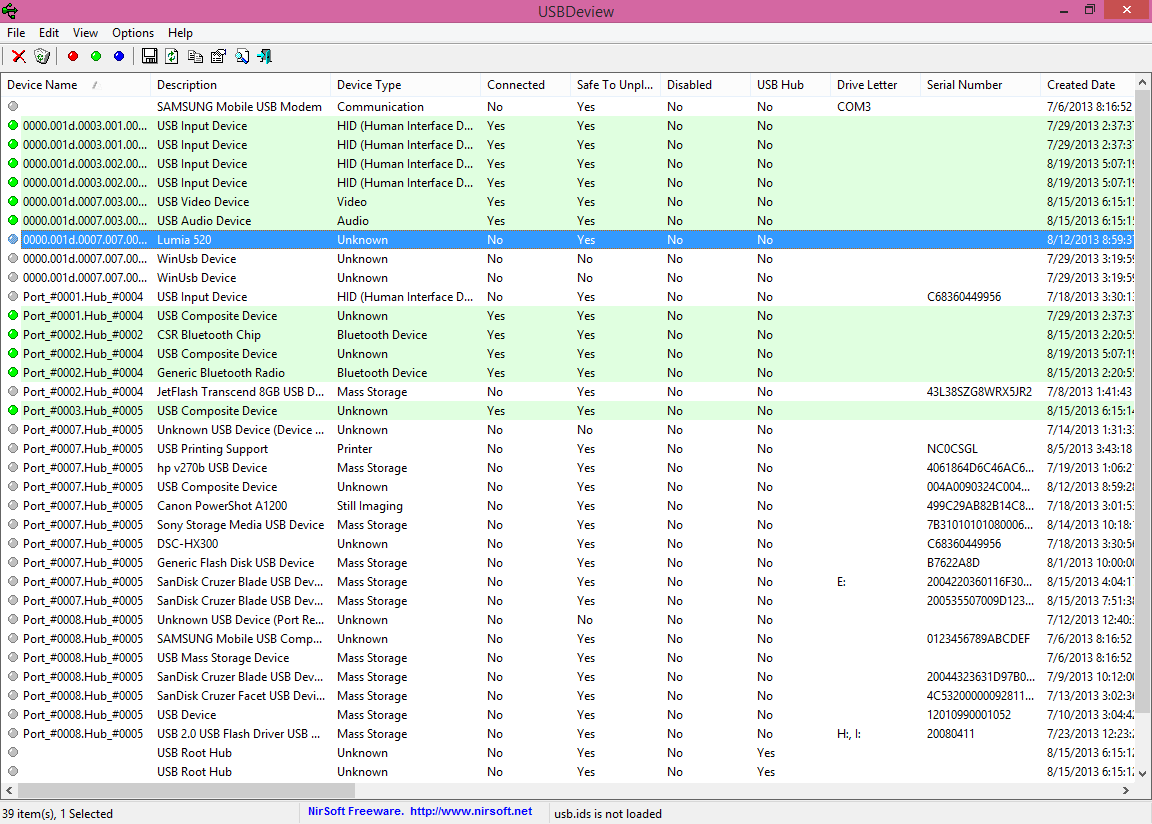
USBDeview shows the device’s description, type, connection state, safe-to-unplug status, serial number, connection date and time, firmware version, driver version, and many other details. The most useful detail is whether you can safely remove a connected device.
In addition to these details, the program lets you disconnect and disable connected devices. You can also uninstall the previously connected USB devices. With this amazing utility, you can also change the drive’s assigned letter.
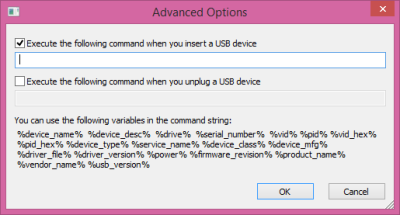
Under Advanced options, you can add commands to run when you plug a USB device into or unplug it from your PC. You can add as many commands as you like, and they will run every time you connect or disconnect a USB device.
You can create an HTML record of the USB Devices connected to your PC so you can review it later. In the file’s Properties, you can see key elements to learn more about the connected device.
We’ve already seen many more customization features in many of Nirsoft’s applications.
USBDeview is a great and useful tool. It lets you view the history of USB Devices connected to your PC. It tells you what devices have ever been connected, with detailed properties and management options. It’s unique and works amazingly well. Visit Nirsoft to download USBDeview.
USBOblivion lets you erase all traces of old connected USB Drives
USBOblivion is another portable freeware that is designed to erase all traces of USB-connected drives and CD-ROMs from the Windows registry. The first time you run USBOblivion, make sure that the Do real clean box is unchecked. This will only scan your computer and list the entries. This is the test mode.
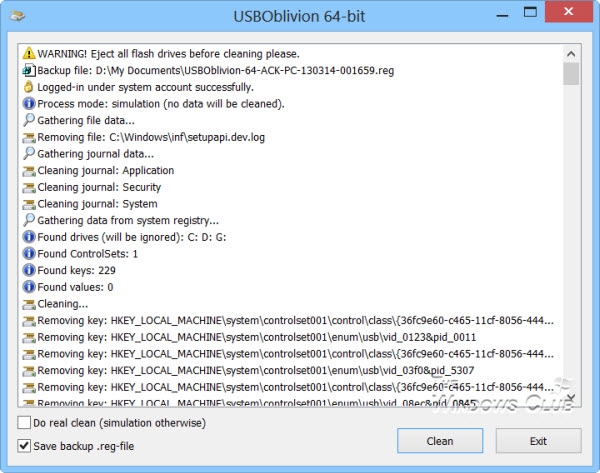
Once you are sure that you want to clean the traces, remove or disconnect your USB Drives, check the Do real clean box and click on Clean. By default, the Save backup .reg file check box is selected. This is good because, before removing the traces from the registry, they’re backed up as a .reg file saved in the user’s Documents folder. Should you need it, you can always restore the deleted keys using this backup.
You can download USB Oblivion from Cherubicsoft. It worked just fine on my Windows 11 64-bit. Remember to create a system restore point first so that you can restore your computer if necessary.
USBDriveLog logs activity and tells you when a USB drive was plugged in or removed
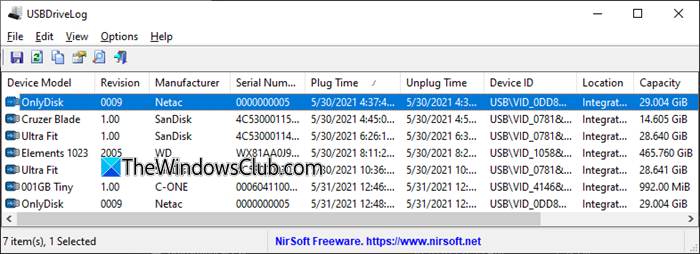
USBDeview is a more comprehensive USB device inventory and management tool. In short: USBDriveLog tells you when a USB drive was plugged in or removed. Its key feaatyres are:
USB Connection History
- Shows a complete timeline of USB storage devices plugged in and removed.
- Records both plug-in and unplug times with millisecond precision (optional).
Detailed Device Information
- Displays device model, revision, manufacturer, serial number, capacity, and device ID.
- Includes Vendor ID and Product ID, with optional mapping to vendor/product names via the usb.ids file.
You can save logs in CSV, TXT, JSON, HTML, or XML formats. Download it from Nirsoft.
Check USB History in Windows using Registry
You can check USB history in Windows directly through the Registry, since Windows keeps records of every USB storage device ever connected. To do this, open REGEDIT and go to the following key:
HKEY_LOCAL_MACHINE\SYSTEM\CurrentControlSet\Enum\USBSTOR
Expand the folders listed here. Now, each subkey here represents a device that has been connected, with details like:
- Device name/model
- Vendor ID (VID) and Product ID (PID)
- Serial number
- Driver information
Click on a device folder and look for the FriendlyName value to see the actual name of the drive.
For your information, the following path lists all the general USB devices like keyboards, mice, webcams, Bluetooth adapters, etc.
HKEY_LOCAL_MACHINE\SYSTEM\CurrentControlSet\Enum\USB
Check USB History in Windows using PowerShell
Execute the following in an elevated PowerShell prompt:
Get-ItemProperty -Path HKLM:SYSTEM\CurrentControlSet\Enum\USBSTOR\*\* | Select-Object FriendlyName, DeviceDesc, HardwareID
This will list all the USB devices that were connected.
TIP: You may also want to check out GhostBuster. It lets you remove old, unused, ghosted, hidden device drivers in Windows.
