
This post shows how you can take full ownership of files and folders in Windows 11/10. After introducing the User Account Control in Windows Vista, Microsoft increased the security of its core system files by hardening its Effective Permissions. Most of the time, to replace a System file, rename a System folder or a folder under the root C drive, you have to take ownership of the file or folder. Windows 7 onwards, system files and folders are owned by the Trusted Installer. So, even members of the Administrators group are restricted from modifying objects in it or changing permissions unless they have ownership.
TIP – You can also use our freeware to do this easily:
- Ultimate Windows Tweaker will let you add the Take Ownership of Files and Folders easily to Windows 11/10 context menu.
- RegOwnIt to easily take ownership of Registry keys
Take Ownership of Files & Folders in Windows 11/10
To take full Ownership of Files & Folders in Windows 11/10:
- Open File Explorer
- Navigate to the File or Folder you want to take ownership
- Right-click on the target file or folder and select Properties
- Select Security tab.
- Click Advanced button.
- Select the Owner tab.
- Here you can change Permissions.
Let us see how to do this in detail below.
With the release of Windows 11/10/8, Microsoft has changed the way to Take Ownership a bit. On Windows 7, it is pretty much the same as what we saw in the previous versions of Windows. There isn’t much difference even now – just that the screen has changed a bit and the way we take control has been changed, but the command line still remains the same. For instance, on Windows 7 you had an Owner tab.
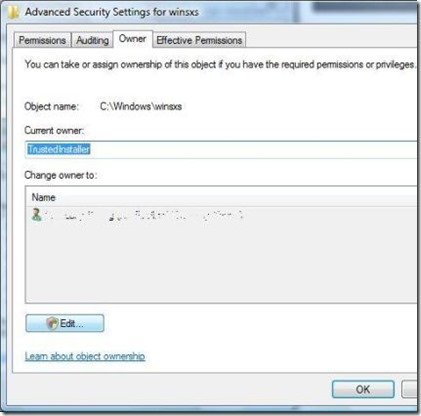
We click on Edit, enter the Object name (It could be Administrators or your Windows username) or select your username from the list, and click OK to make changes.
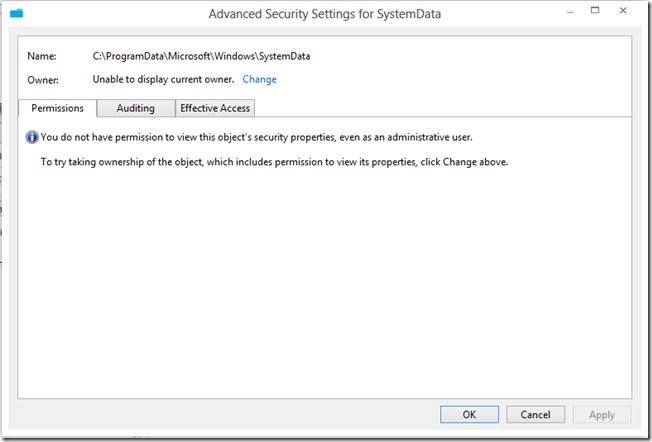
But in Windows 11/10, Microsoft has removed the Owner tab and moved it to the top. See the following screenshot.
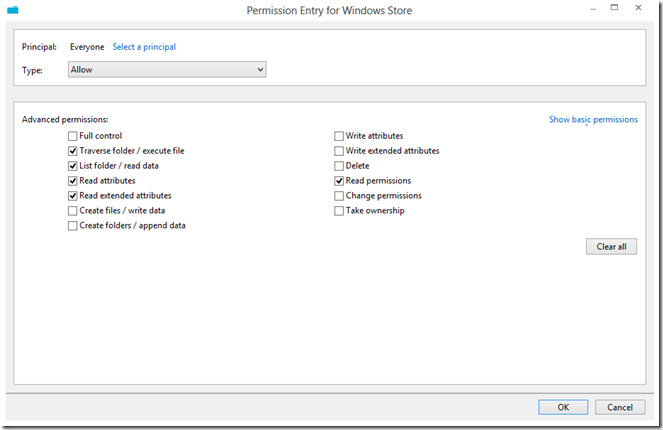
Also, under the Permission tab, when you add a new object, you have two different views – one, the Basic permissions and the other one is Advanced permissions. Here is a screenshot of the Advanced permissions window.
How to take Ownership of files & folders
Now I’ll show you how to Take Ownership of files and folders
Step 1: Right-click on the file or folder and go to Properties Windows. Under Properties click on “Security” Tab.
Step 2: Now you can see in the above screenshot, you don’t have any permission to change it. In such cases, you need to Take Ownership of the file or folder. To do so, click on “Advanced”.
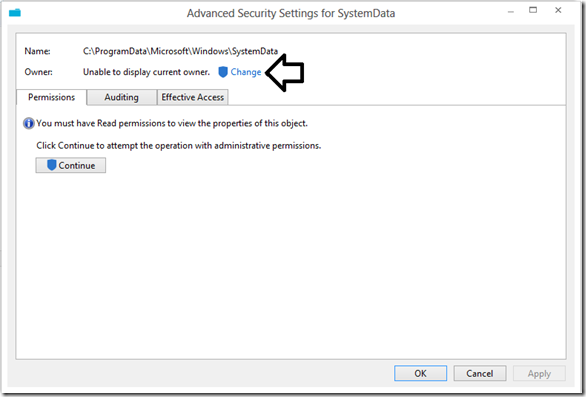
Step 3: Next, in the window that appears, you have to click on “Change” and enter the object name.
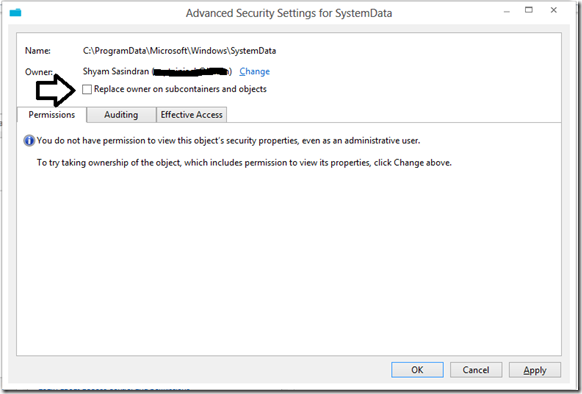
I typed in my Windows username and clicked “OK”. Now you will be able to see that the owner has changed to Shyam Sasindran.
Click on “Replace owner on subcontainers and object” and click Apply.
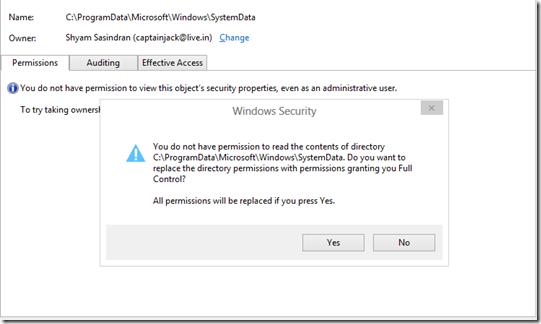
Once you click on Apply, you’ll see this warning message. Click on Yes to proceed.
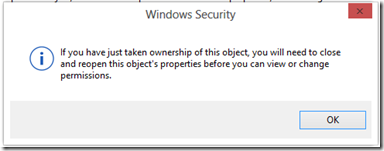
Now, you will need to click “OK” twice.
Next, again, click on Advanced.
Step 4: Now under the Advanced permissions, you will see a change, and you will see the option to add Multiple Objects
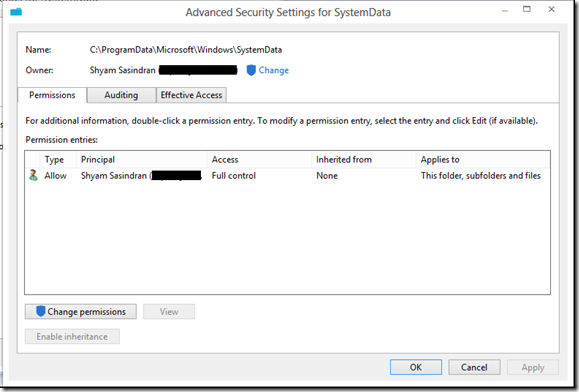
To add multiple objects and to inherit permission, you can click on “Change Permissions”.
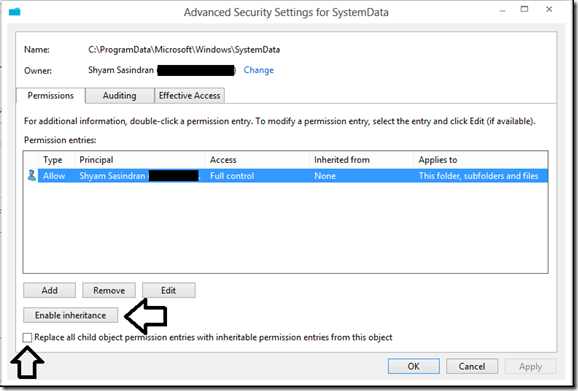
To inherit permissions, click on “Enable inheritance”. To add a new object, click on “Add” and click on “Select a Principal” and type in the Object name.
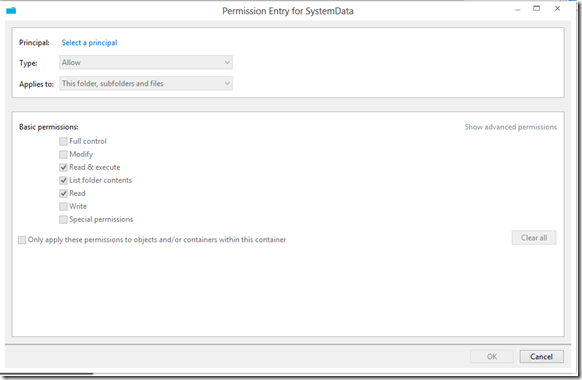
Now, you can enable the Basic Permission. If you want to enable advanced permission, click on “Show advanced permissions”.
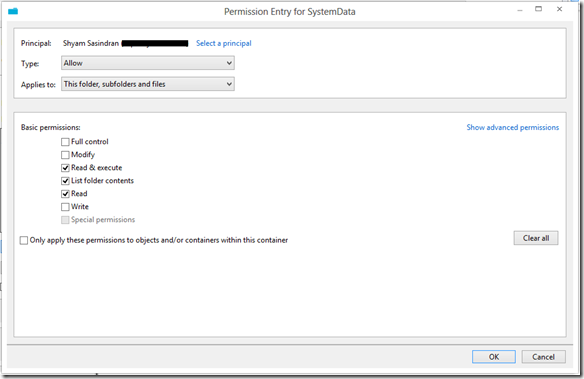
Once you complete everything, click OK and close the window.
You should be able to access that particular file or folder. Be careful when you alter the permission for System file or folder it may cause serious damage to your system and compromise security. So please create a system restore point first and then proceed with caution.
If you are unable to change File or Folder Permissions, then this post will show you how to troubleshoot File and Folder Permission Issues in Windows.
How to change the Ownership of a File or Folder?
To change the Ownership of a File or Folder, open File Explorer, and navigate to the file or folder of which you want to change the ownership. Right-click on it, and then click properties. Switch to Security Tab in the properties window, and click on the Advanced button at the bottom right. It will open the Advanced Security Settings of that file or folder. This post shows in detail how to change the Ownership of a File or Folder.
Read: How to check NTFS Permissions using Command-line or Free tools.
