
This article discusses Hardware Interrupts in Windows and how to show the boot menu in Windows.
A video at the MSDN blog shows Windows booting real fast – under seven seconds. The computer used was an Ultrabook, a product of Intel that offers super-fast computing with the latest technologies embedded inside. The ‘problem’ with Windows 11/10/8 is that it boots really fast. For a moment, let us forget Ultrabook and consider a current-day PC. These types of PCs too, come with the latest technologies and reduce the time taken for instructions to be carried out by operating systems.
What is Hardware Interrupts in Windows 11/10
The question arises, if it boots faster, how can it be a problem in Windows? The problem is not faster booting but the side effects: Reduction of F2 and F8 time periods to almost negligible intervals. This, in other words, means that you will not get sufficient time to press F8 for invoking the boot menu. That would be a problem – because you might want to start Windows in Safe Mode – for troubleshooting, system restores or any other purpose.
According to the blog posted on MSDN, the interval wherein Windows waits for the F8 interrupt is reduced to less than 200 milliseconds and thus, the chances of it detecting the F8 interrupt is extremely low.
Earlier, it was the hardware interrupts – pressing DEL for BIOS, F8 or F2 for the boot menu – that helped computers take the necessary action. Now it is the software that boots so fast – making use of advanced technologies – that your chances of making use of hardware interrupts are very low.
With that in mind, another question pops up. If we cannot use F8 to bring out the Windows Boot Menu or even press DEL to reach BIOS, how can we make the necessary changes to the BIOS or boot into the Safe Mode for troubleshooting and other purposes?
Advanced Boot Options in Windows 11/10
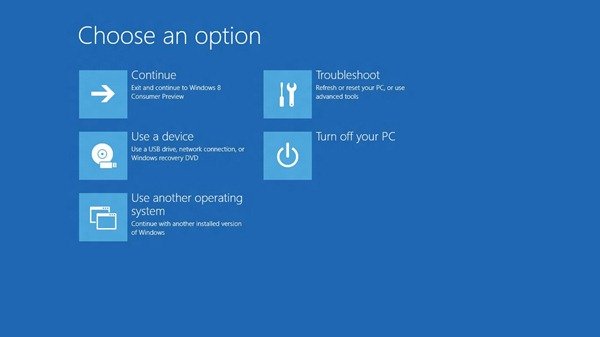
Instead of using hardware interrupts to bring forward the boot menu, Windows offer you three software-based methods that present the boot menu. The boot menu contains options for:
- Loading another operating system
- Troubleshooting
- Turn off the PC
- Use a network device for booting
When you click on Troubleshoot, you are given further options:
- Use System Restore
- Use System Imaging
- BIOS Access
- Automatic Repair option – helps you diagnose and fix problems automatically
- Command Prompt and
- Windows Startup Settings – helps you change the startup settings (enable/disable debugging mode, enable/disable boot logging, enable safe mode, etc. options are present under this group).
Read: System interrupts high CPU usage in Windows
Show Boot Menu in Windows 11/10
As said earlier, there are three methods to show the boot menu in Windows 11/10.
- Via Settings
- Using the Shift+Restart keys
- Using CMD.
The first method is to get it through Settings.
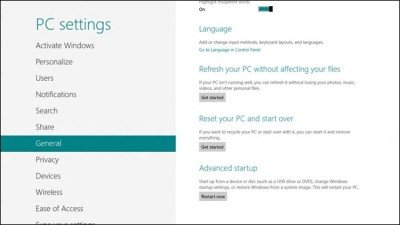
In Windows 8, the PC Settings charm is available under Settings. Open the PC Settings and in the dialog box, click on General and select Restart Now under Advanced Startup.
In Windows 10, open Settings > Update and Security > Recovery.
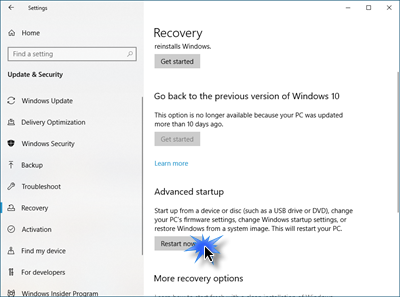
Press the Restart now button.
In Windows 11, open Settings > System > Recovery to see the Advanced startup Restart now button.
The second method is easier. Press SHIFT key when you click on Restart. This will shut down the computer and restart it to present you with the Boot Menu.
The third method is a bit tough to remember. You have to open the command prompt and type the following:
Shutdown.exe /r /o
All of the above-mentioned methods will show the boot menu in Windows 10/8. However, there is no way to show the boot menu during the first startup. Putting it the other way, if you have to use the options in the boot menu, you have to start and boot the computer and then select restart using one of the above methods. You can, however, try your luck by pressing the F8 key and holding it down as soon as you turn on the computer. If Windows detects it, you may save some steps.
You can also Enable F8 key & boot into Safe Mode.
Also, read:

