
If you are having a problem with your Windows and you are just unable to fix it yourself, you can allow an expert to have a look at your computer remotely, using Windows Remote Assistance.
Ask for help using Remote Assistance in Windows 11/10
It is important that you only allow people who you trust completely, to give access to your computer, using this feature, as once he is logged in, he will be able to see and access almost all your files and documents on your computer.
To ask for help using Remote Assistance in Windows 11/10, follow these steps:
- Open Control Panel on your computer.
- Search for remote assistance in Control Panel.
- Click on the Allow remote access to your computer option.
- Tick the Allow Remote Assistance connections to this computer checkbox.
- Click the OK button.
- Search for remote assistance in the Taskbar search box.
- Click the individual search result to open the Windows Remote Assistance wizard.
- Select the Invite someone you trust to help you option.
- Select an option to send the invitation.
- Send the password to allow the person.
To learn more about these steps, continue reading.
First, you need to open the Control Panel on your computer and search for remote assistance in the Taskbar search box. Click on the Allow remote access to your computer option to open the System Properties.
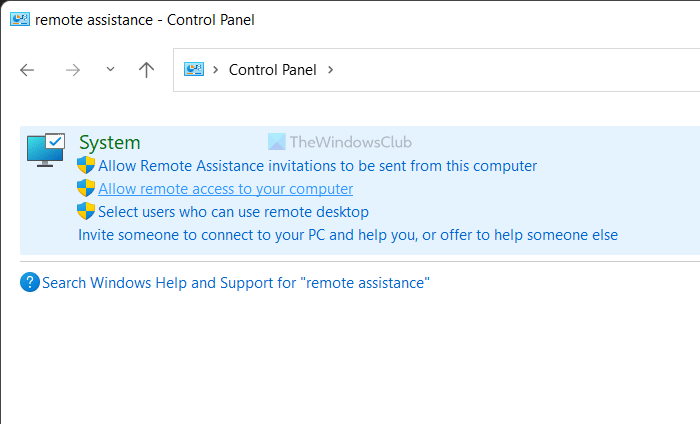
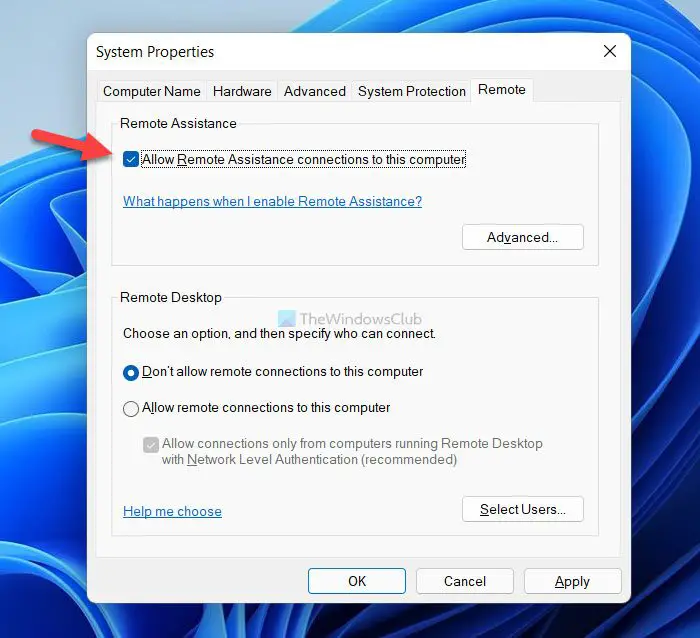
Make sure that you are in the Remote tab. If so, tick the Allow Remote Assistance connections to this computer checkbox and click the OK button.
Next, you need to search for remote assistance in the Taskbar search box and click on the individual search result to open the Windows Remote Assistance panel.
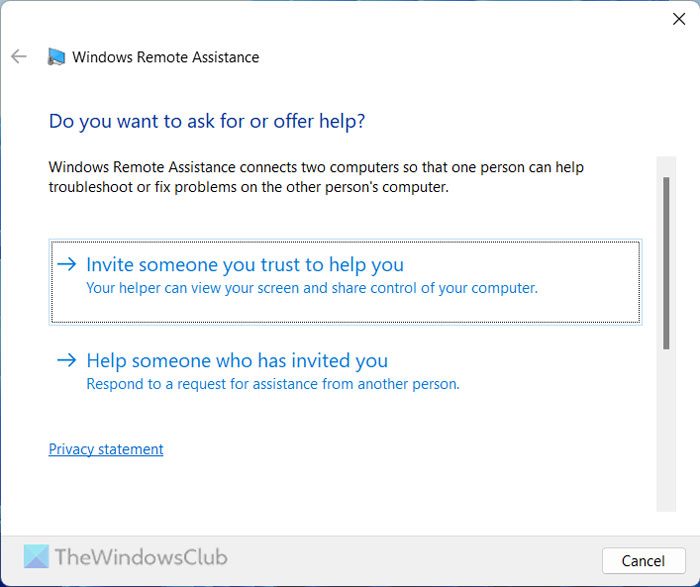
Here, you can find two options:
- Invite someone you trust to help you
- Help someone who has invited you
You need to select the first option.
Then, it asks you to choose a medium to send the invitation. Let’s assume that you have selected the email option. If so, it opens the default email app and asks you to enter the email address of the recipient.
Once the mail has been sent, the following windows will open up, mentioning the password. The password will be valid only for the current session.
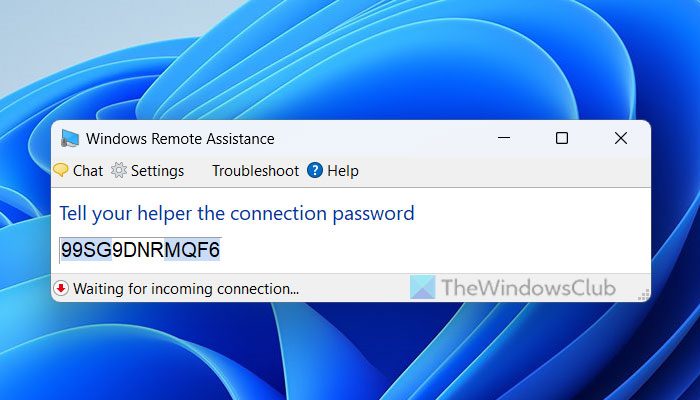
Now, wait for the other person to approach you. He, too, will open up Remote Assistance and click on Help someone who has invited you. Once he does, and a request appears on your computer, give him the access password.
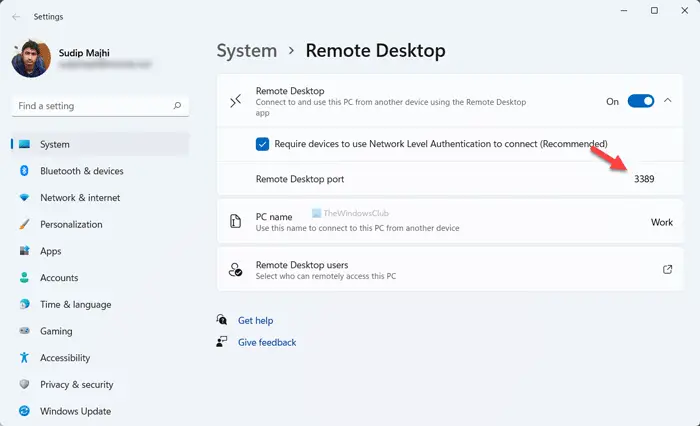
At times, you might need to you need to give the person your port. You can find the port in Windows Settings > System > Remote Desktop. Then, expand the Remote Desktop section.
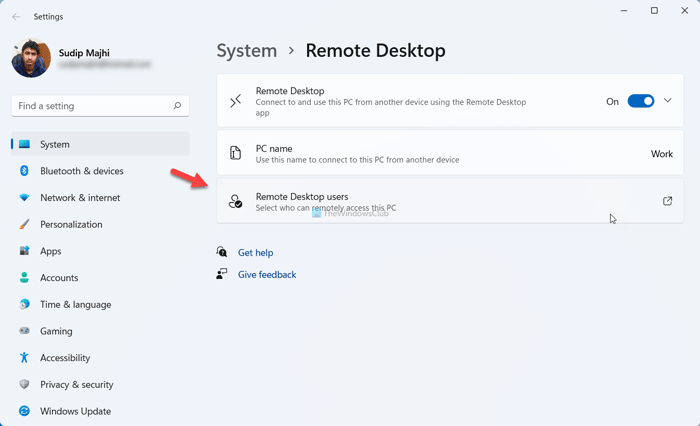
However, Windows 11 users need to use the Remote Desktop Users panel. For that, open Windows Settings and go to Remote Desktop section. Here you can find an option called Remote Desktop users.
After that, click the Add button and enter the user account name.
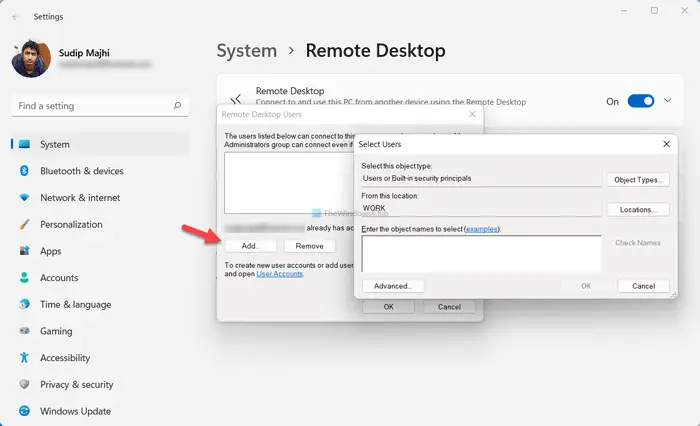
Once done, click the OK button.
That’s it. Once the connection is complete, your friend will now have access to your computer and will be able to help you.
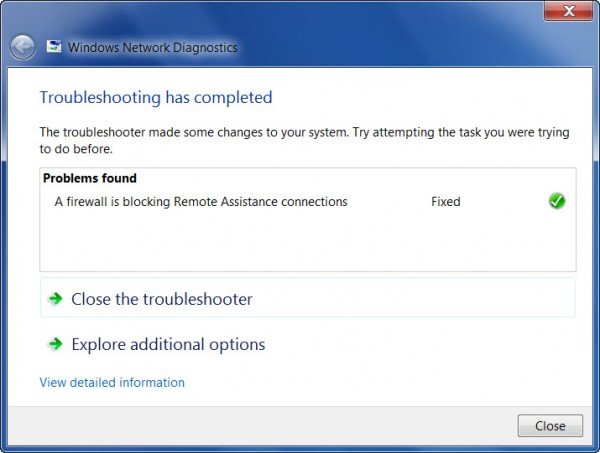
If you find that you are unable to connect, use the inbuilt Windows Network Diagnostics tool to fix the problem. If your firewall is blocking Remote Assistance connections, it will fix the problem automatically.
It’s always a good idea to close all your open programs, files, and folders before you allow remote access to your friend.
How do I allow remote assistance connections to this computer?
To allow remote assistance connections to your computer, you need to open the corresponding settings. For that, search for remote assistance connections in the Taskbar search box and click on the individual search result. Following that, tick the Allow Remote Assistance connections to this computer checkbox, and click the OK button.
You may also want to check out freeware TeamViewer.
