
Have you ever imagined yourself playing PC games on a mobile device or for that matter, any device? Mobile devices are usually not capable of handling games with high graphics requirements. But you can still enjoy all your PC games on any other device by streaming them. Streaming also lets you play from anywhere in the world without carrying bulky gaming equipment.
While many companies offer to game on their hardware, in this post we’ve talked about a tool from NVIDIA that lets you stream games from your computer to any device. Moonlight is an open-source GameStream client that is based on NVIDIA’s GameStream Protocol.
NVIDIA GameStream Protocol
NVIDIA’s GameStream protocol was designed to let users stream their games, enabling an unmatched gaming experience on any device. This also enables users to play games on devices with lower hardware configurations by using the gaming hardware to stream its content. GameStream has been written very efficiently and supports poor connections to some extent.
You can enable GameStream on your computer by following these simple steps.
- Search for GeForce Experience in the Start menu and open this application. Most likely this should have come preinstalled on your PC. If not, then you can download it from here.
- Once opened, sign-up for the program and continue.
- Open Settings.
- Now from the left menu, go to Shield.
- Now enable GameStream from here.
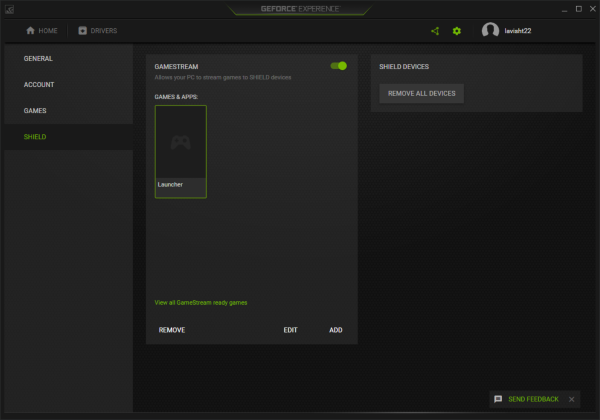
GameStream has minimum system requirements, which can be found here. GameStream should automatically pick up your games from your computer, but if it doesn’t, you need to manually add them in GameStream settings.
Moonlight GameStream Client forPC
Now talking about Moonlight, it is a free GameStream protocol client. Moonlight is available on most platforms, including Windows, Chrome, Android, iOS, Embedded Devices (Raspberry Pi), PS Vita and Samsung Gear VR. Using Moonlight, you can connect to any computer that is running GameStream and start playing your games.
The connection part is straightforward. Once you’ve installed and opened Moonlight, it will automatically scan for available GameStream devices. Or you can manually add one by entering the IP Address. Next, pair the devices by entering the PIN displayed on the screen.
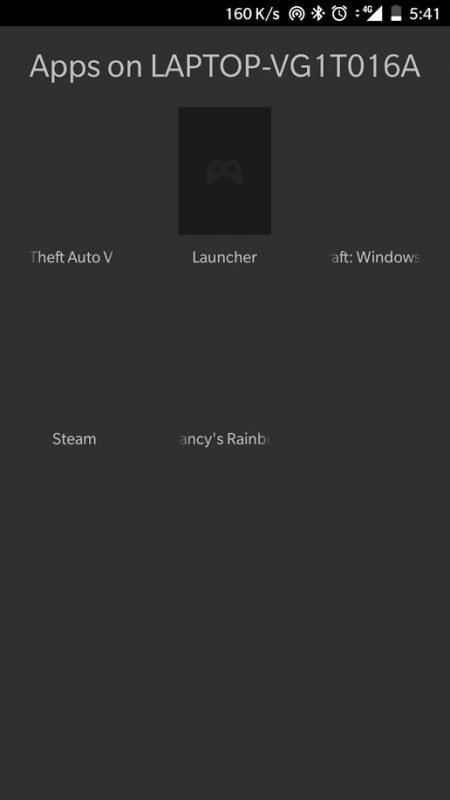
Moonlight allows you to play your PC games on almost any device, whether you’re in another room or miles away from your gaming rig
Once connected, the Moonlight client will display a list of available applications to stream. You can run any of them and start playing right from your mobile device. Moonlight supports up to 4 controllers for a better multiplayer experience. And you can stream in up to 4k qualities. You can also change the resolution and FPS of the incoming stream and set the target bitrate.
If you do not have an external controller or device, you can enable on-screen controls to play your game without one. Other than that, there are a few other quality and efficiency-related settings that can be changed to improve the experience.
Once you are done playing your game, you can easily quit your session from the Moonlight app itself. Closing the session ensures that the application is not left running on the host computer.
Using Moonlight was quite an experience. It gives you the flexibility to play your favorite game anywhere, anytime, without worrying about carrying your gaming equipment. The best part about streaming your games is that you can even play them on devices with lower hardware configurations. The main tagline of the tool is, if you can play it on your PC, you can play it anywhere. Moonlight is a must-have if you have a GeForce Graphics Device on your computer. Click here to download Moonlight.
