
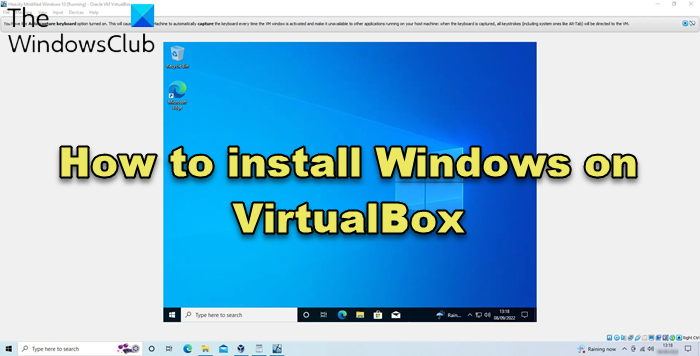
In the article, I will show you how to install Windows OS on Oracle’s VirtualBox. This post applies to Windows 11, Windows 10, Windows 8.1 as well as Windows Server operating systems.
A few things you need to know before you start:
- Your hardware should be compatible with Virtualization
- You need to have a 64-bit processor
- you need to enable Virtualization in your BIOS. Refer your motherboard manual for more information.
- You need at least 20GB of free space on your hard drive before proceeding.
Install Windows OS on VirtualBox
Step 1: Download the Windows OS edition which you want to install, and VirtualBox (Windows Host). Next, install VirtualBox on your computer and open the application.
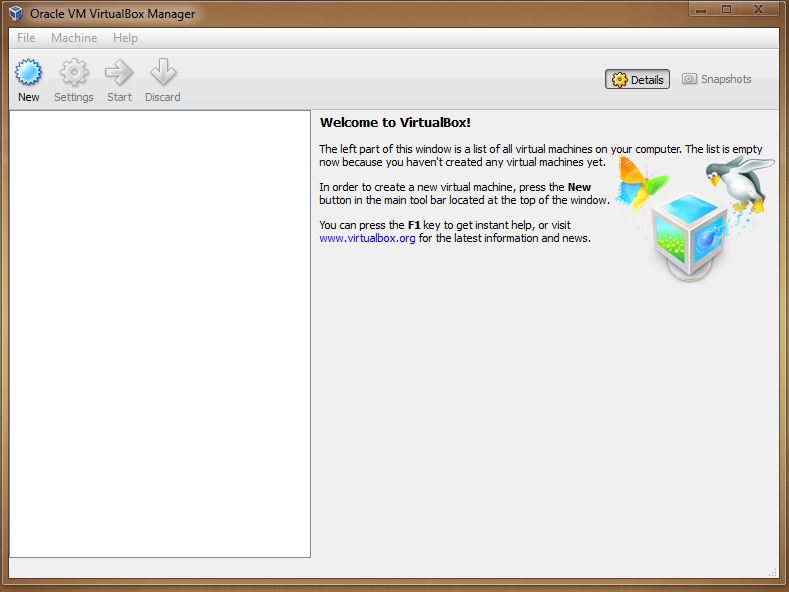
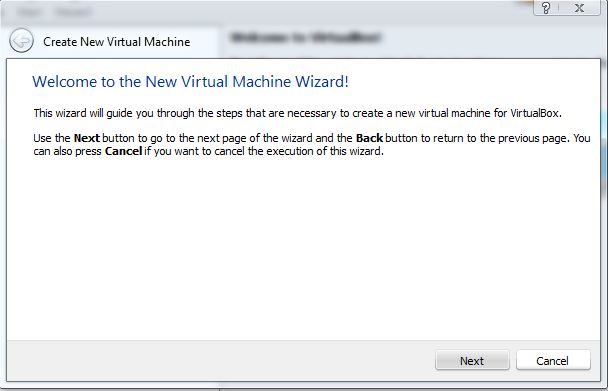
Step 2: Click on “New” from the Toolbar, and you will see the Virtual machine creation wizard. Click Next.
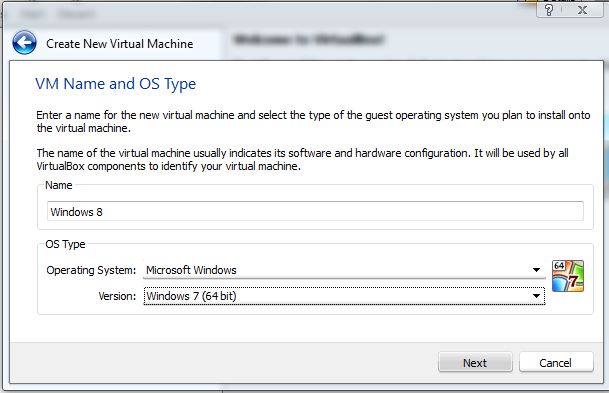
Step 3: Enter a name for your VM then select the OS type. For Windows 32-bit, select “Windows” and for Windows 64-bit edition select Windows (64-bit) from the drop down menu.
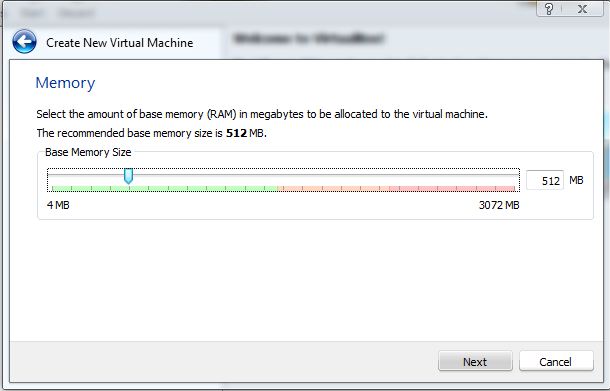
Step 4: Adjust the Memory (RAM) you want to allocate for your VM.
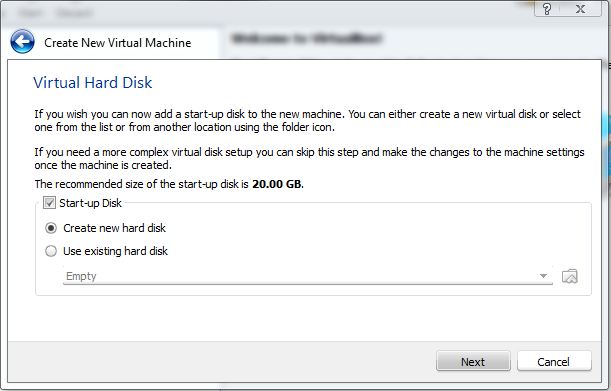
Step 5: Now we need to create the Virtual Hard drive. Leave the default option as shown in the below screenshot and click Next.
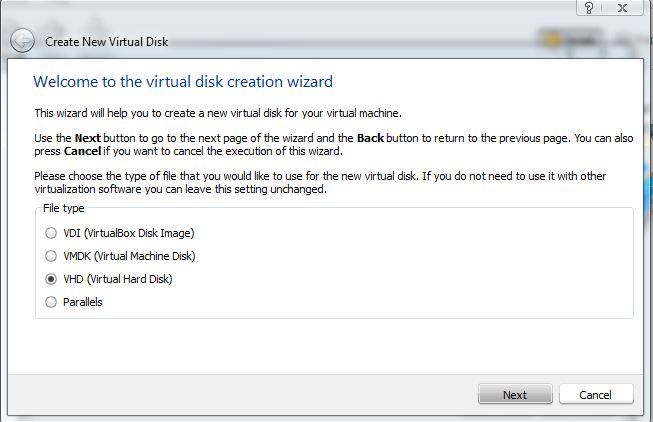
Step 6: Select the type of Virtual hard drive you want to create. I have selected VHD (Virtual hard drive).
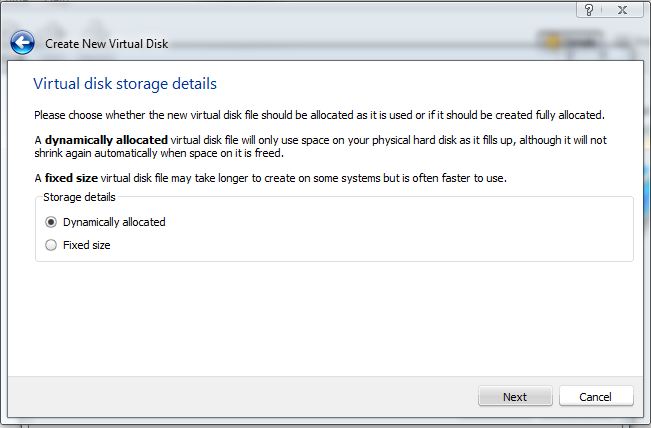
Step 7: Next, select the storage allocation for the VHD as “Dynamically Allocate”.
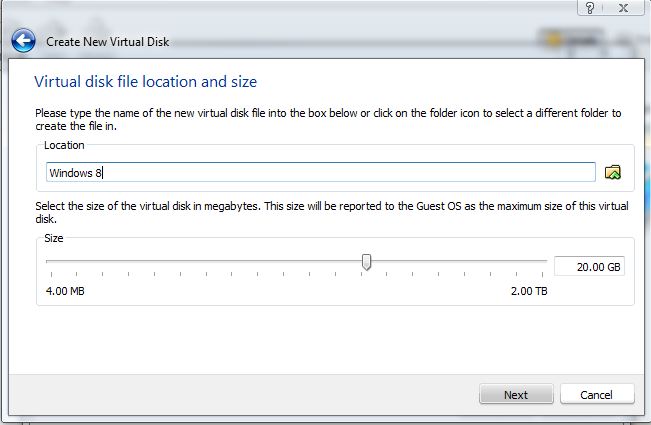
Step 8: In the next step you can allocate the size of your VHD. The recommended size is 20GB.
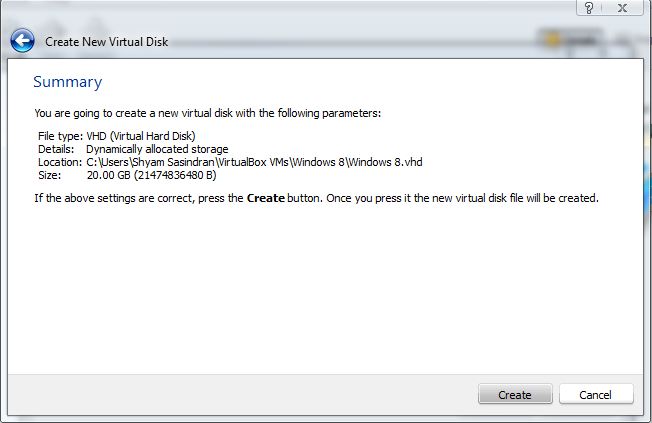
Step 9: Finally you will see the summary of the configuration. Click Create to proceed.
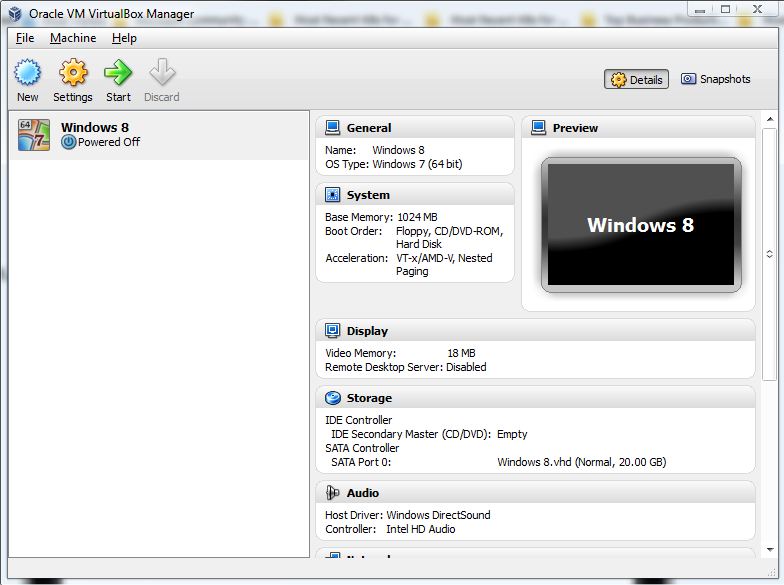
Step 10: Now you can see your Virtual Machine configuration in the Virtual Box Manager. Select your VM and click on Start from the toolbar.
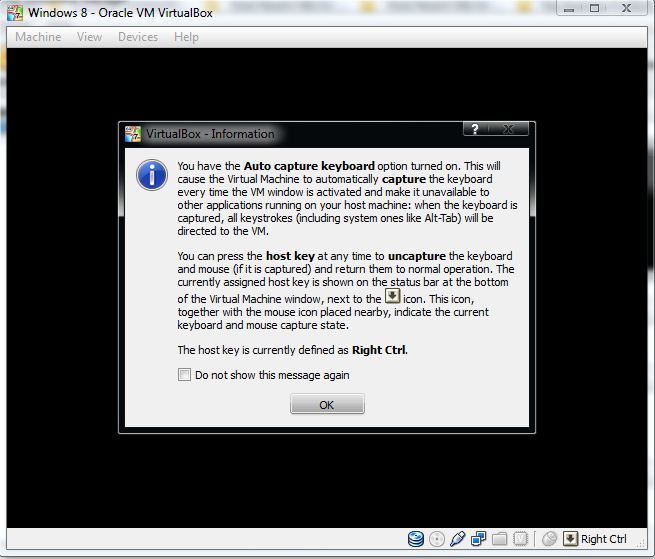
Step 11: You’ll see an Information message. Click OK to proceed.
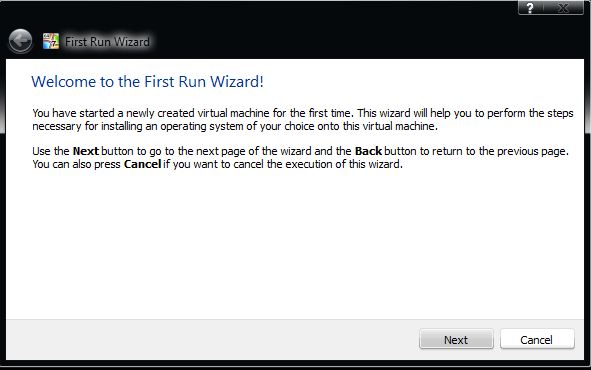
Step 12: You’ll see the “First Run Wizard”. Click Next.
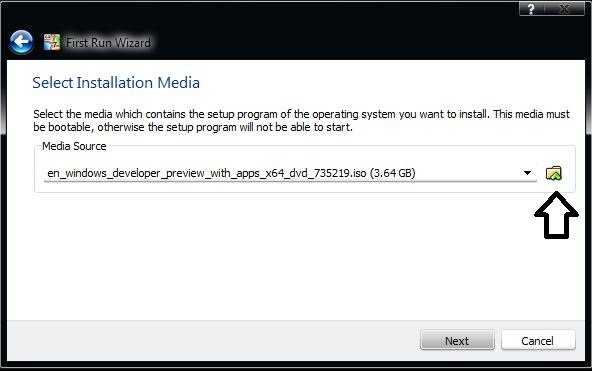
Step 13: Now you have to select the installation media. If you have Windows burned to a disk, select the drive or click the browse button and select the ISO image. If not, from Devices > CD/DVD Devices > Choose the downloaded ISO file.
Step 14: Next, click on Start. It will take you to the Windows setup screen.
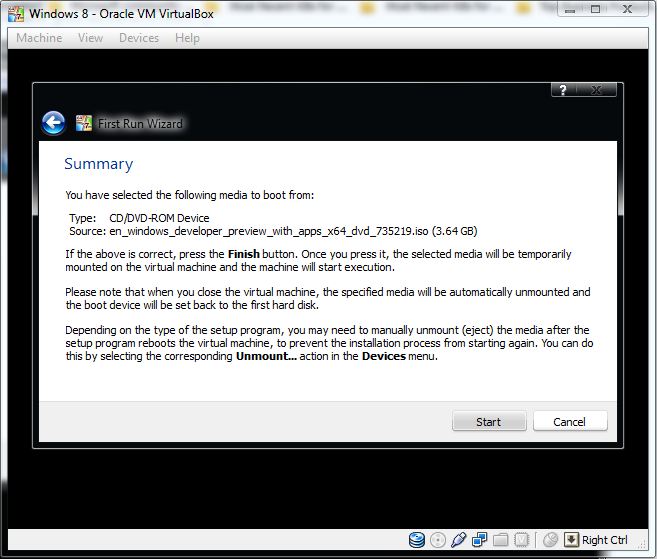
That’s it; you will have successfully created Virtual Image for Windows.
I also have put together a video tutorial.
If you have any questions, please do let us know.
Go here if you want to learn how to Remotely Control a Windows Virtual Machine.
This link may also interest you:

