
Windows Store Apps are something that will make the Windows operating system more lovable. Microsoft, therefore, brought in Windows Store in Windows 8. With Windows Store present, users can easily find and install apps of their interest.
TIP: Windows 10 user? Go here to see how to install or uninstall Microsoft Store apps in Windows 10.
Install UWP Apps Windows Store
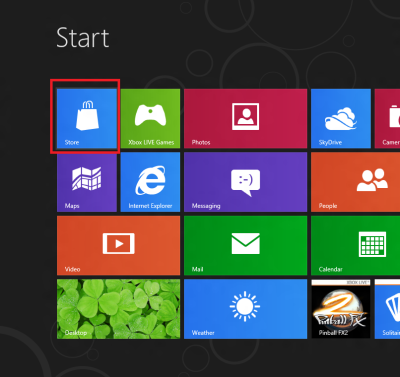
First, locate the ‘Store’ tile in the Windows 8 Start screen and click on it. Check the screenshot below.
If not, access the Charms bar from the corner of your computer screen, choose ‘Search’ and then select ‘Store’. The action should immediately bring up the Windows Store.
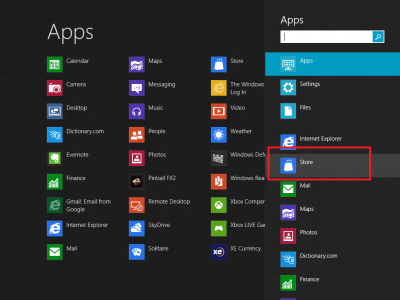
If it doesn’t, wait for some time and allow it to get loaded.
Once loaded, you will notice a tile-based user interface along with all apps neatly organized and smartly categorized.
Here is a list of categories available:
- Games
- Social
- Entertainment
- Photos
- Music & Videos
- Books & Reference
- News & Weather
- Food & Dining
- Travel
- Productivity
- Tools
- Education and much more
Don’t get worried by looking at the number of categories. A horizontal scrolling bar will help you browse different categories of applications.
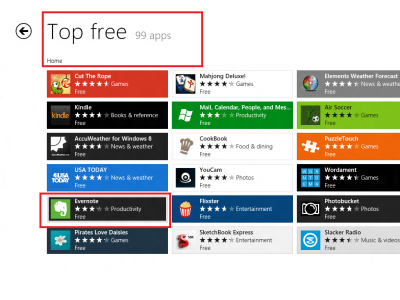
After viewing some apps from the above-mentioned categories, I chose ‘Evernote’ and clicked on it.
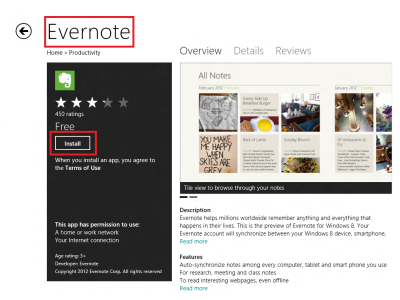
Immediately, I was presented with the install screen of the app. After reading its description and finding it suitable for my use, I clicked on the ‘Install’ button.
Instantly, I was prompted to sign in with a Microsoft account to install the app. You will have to log in your Microsoft account.
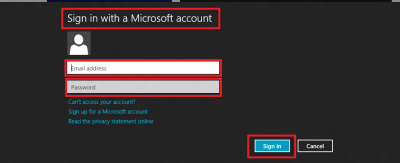
If you do not have one, I strongly recommend you to sign up for a Microsoft Account first. You can simply do so by clicking on the ‘SIGN UP FOR A MICROSOFT ACCOUNT’ option, located just below the ‘Email Address’ and ‘Password’ field shown in the picture below.
Once done, you can click on the ‘Install’ button and go back to the Start screen and wait for some time until the installation process is completed.
Likewise, you can install as many apps as you want at an unbeatable price, FREE! Sure some of them may be paid, but you will find many free options there too!
How to Uninstall Microsoft Store App in Windows 8
If you wish to uninstall any UWP app in Windows 8, go to the Start screen and right-click the app you want to uninstall. An Actions bar will slide up from the bottom of the screen, showing you available options for the app. Select Uninstall.

That’s it! The app will be uninstalled.
In Windows 8.1, open Charms > PC Settings > PC and Devices ? Disk Space. Here you will get an idea of how much disk space each app is taking up.
UPDATE: Windows 8.1 lets you uninstall multiple Windows Store apps at once, with ease!
For touch-screen devices, you will be required to carry out a swipe on the app tile that you want to uninstall. Now from the options which appear, select Uninstall.
Also, read:
- Use PowerShell to remove multiple Windows Store apps at the same time
- Uninstall & Completely Erase All Pre-Installed UWP Apps.
