
If for some reason, you need to restart your Windows File Explorer in Windows 11/10, this is the procedure you can follow. You may use the Task Manager, a desktop shortcut, or the Context Menu.
How to restart Explorer in Windows 11/10
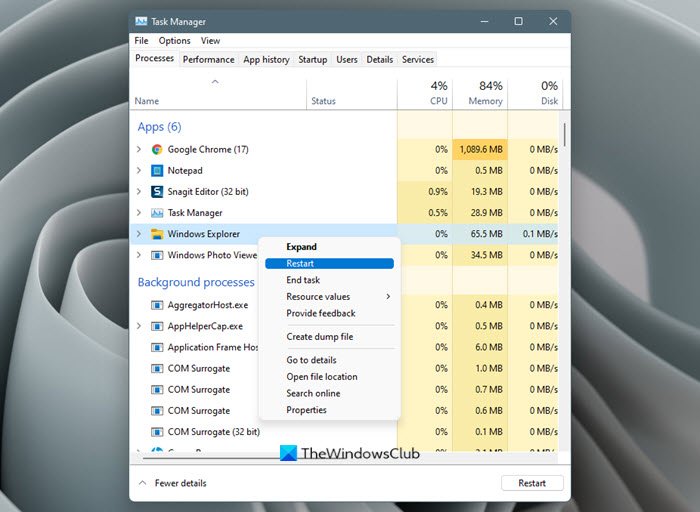
To restart File Explorer in Windows 11, do the following:
- Right-click on Start to open the WinX Menu
- Select Task Manager
- Locate Windows Explorer process
- Right-click on it
- Click on Restart.
To restart File Explorer in Windows 10, do the following:
- Right-click on the Taskbar
- Select Task Manager
- Locate Windows Explorer process
- Right-click on it
- Click on Restart.
Windows 11/10/8.1/8 offers the context menu option to easily Restart Explorer in its Task Manager.
Alternatively, if you find that your explorer.exe freezes frequently or you are really into experimenting and testing customizations, creating a desktop shortcut to restart explorer would definitely be a more convenient option!
To do so, copy-paste the following in a Notepad and save it as (All files) as a .bat file. Name it as RestartExplorer.bat, if you wish!
@echo off
taskkill /f /im explorer.exe
start explorer.exe
In Windows 7, you have to start the Task Manager. Select explorer.exe from the processes, and click on the End Process button.
This would kill explorer.exe.
Next, you’d click on File tab, choose New task (Run…), type explorer.exe in the box, and click OK.
This will restart explorer.exe.
That’s it!
Read:
- Right-Click Restart Explorer adds Restart Explorer option to Context Menu
- How to kill explorer.exe may also interest you.


