
The Shutdown Event Tracker is a workstation or server feature which can also be accessed in Windows 11/10, to track the reason for system shutdowns consistently. You can then use this information to analyze shutdowns and develop a more comprehensive understanding of your system environment. This is an extra set of questions that is displayed when you invoke a shutdown to collect information related to why you are shutting down the computer.
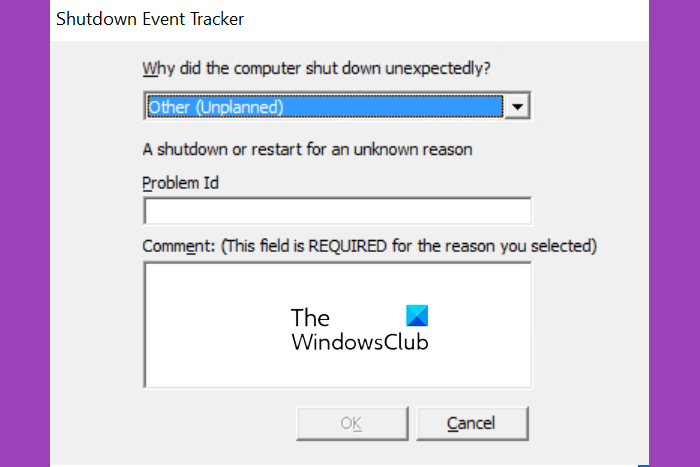
What is a Shutdown Event Tracker?
Shutdown Event Tracker is a Windows Server and Windows 11/10/8/7/Vista feature that you can use to track the reason for system shutdowns consistently.
Enable Shutdown Event Tracker using Group Policy
To enable this policy setting in Windows, type gpedit.msc in start search and hit Enter to open the Group Policy Editor.
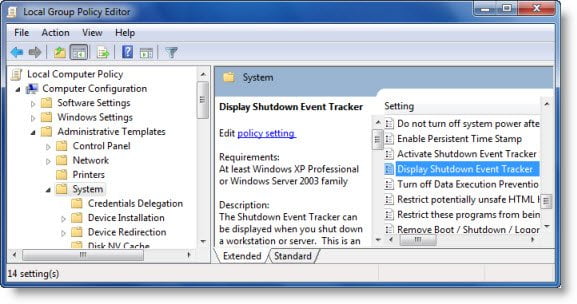
Navigate to Computer Configuration > Administrative Templates > System > In the right side, double-click Display Shutdown Event Tracker policy.
Now in the dialog box which opens, select Enabled; and from the drop-down menu select Always.
If you enable this setting and choose “Always” from the drop-down menu, the Shutdown Event Tracker is displayed when you shut down.
If you enable this setting and choose “Server Only” from the drop-down menu, the Shutdown Event Tracker is displayed when you shut down a Windows Server computer.
If you enable this setting and choose “Workstation Only” from the drop-down menu, the Shutdown Event Tracker is displayed when you shut down a Windows workstation.
If you disable this setting, the Shutdown Event Tracker is not displayed when you shut down.
If you do not configure this setting, the default behavior for the Shutdown Event Tracker occurs. By default, the Shutdown Event Tracker is only displayed on the Windows Server family, and not in Windows 11/10/8/7/Vista.
Alternatively, you can also set the policy through the Registry Editor.
Type regedit in start search and hit Enter to open it.
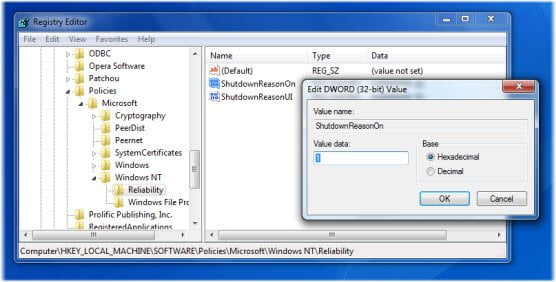
Navigate to the following key:
HKEY_LOCAL_MACHINE\SOFTWARE\Policies\Microsoft\Windows NT\Reliability
In the right side, double-click on each of these values and change both their values to 1.
- ShutdownReason
- OnShutdownReasonUI
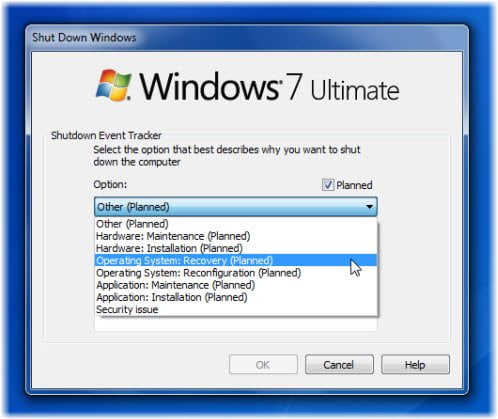
The ShutDown Windows dialog box will now appear with the Shutdown Event Tracker feature enabled, every time you click on shutdown.
Shutdown Event Tracker keeps popping up
If Shutdown Event Tracker keeps popping up every time you restart or close your computer, you will have to edit the Registry setting and change the value of the ShutdownReason & OnShutdownReasonUI keys to 0.
You may also want to enable Verbose Status Messages if your Windows does not shutdown.

