
If you find that the search box is missing in the Start menu and the Windows Explorer, then here is what you need to do. By following this tutorial, you will be able to enable or disable Windows Search in Windows 8, Windows 7 or Windows Vista.
Search Box is missing
In Start Menu:

In Windows Explorer :

Open Control Panel > Programs and Features > Turn Windows Features on or off.
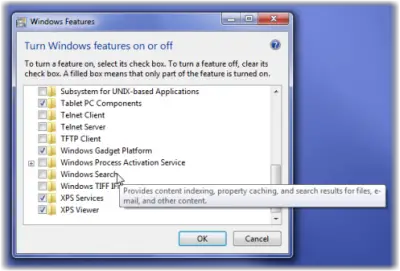
Check ‘Windows Search’ to get it back.
To disable Windows Search, uncheck the option. Click OK and for Windows to configure the settings.
Restart your computer.
TIP: See this post if the Windows 10 Search bar is missing.
Disable Windows Search
Using Windows Registry
Alternatively or additionally, you may also have to check if this registry key exists. Open Registry Editor and navigate to the following registry key:
HKEY_CURRENT_USER\Software\Microsoft\Windows\CurrentVersion\Policies\Explorer
If a value called NoFind exists in the right pane, delete it. A value 1 would mean that search and the following features have been disabled:
- The Search item is removed from the Start menu, and the right-click context menu.
- The system does not respond when users press F3 or Win+F
- The search item does not appear in the drive or folder right click context menu.
- The search item may appear on the Standard Buttons toolbar, but Windows will not respond when you press CTRL+F.
If the key does not exist or has a value 0 then it is the default state; i.e., Search is enabled.
Exit regedit.
It is always a good idea to back up the registry or create a system restore point first before touching the Windows Registry.
Using Group Policy Editor
You can also open Group Policy Editor and navigate to:
User Configuration > Administrative Templates > Start Menu & Taskbar > Remove Search link from Start Menu
Ensure that Remove Search link from Start Menu is Disabled or Not Configured.
This should help.
If you turn off Windows Search the following things could happen:
- All the search boxes in Windows will disappear
- Programs that rely on Windows Search, including Internet Explorer, will not function properly.
- Tablet PC handwriting recognition won’t work.
- Windows Media Center won’t have enhanced search capability.
- You’ll no longer be able to arrange your library views by metadata, and your column headers will only sort items, not stack or group them.
- Options that affect Windows Search functionality will be removed, including indexing in Control Panel and the Search tab in Folder Options.
- Windows will no longer recognize these search-based file types like search-ms, searchconnector-ms, and osdx.
Check this post if Help window keeps opening automatically.
Also, see:
