
IIS or Internet Information Services is a technology included in Windows Server, which provides a security-enhanced, easy-to-manage web server for developing and reliably hosting web applications and web services. This enables organizations to deliver rich, web-based experiences. IIS is not turned on by default on the Windows desktop editions. You have to turn it on.
Let us see now how to enable or turn on Internet Information Services on Windows Server. The procedure remains the same as it was in earlier editions.
Turn On IIS or Internet Information Services on Windows 11/10
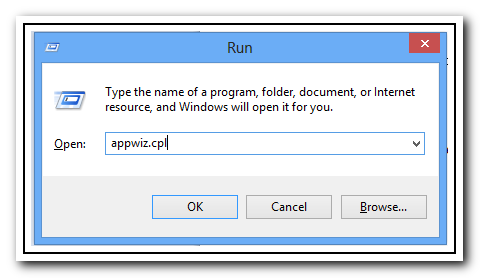
Press Win+R key in combination to bring up the ‘Run’ dialog box. In it, type ‘appwiz.cpl’ and hit the ‘OK’ button.
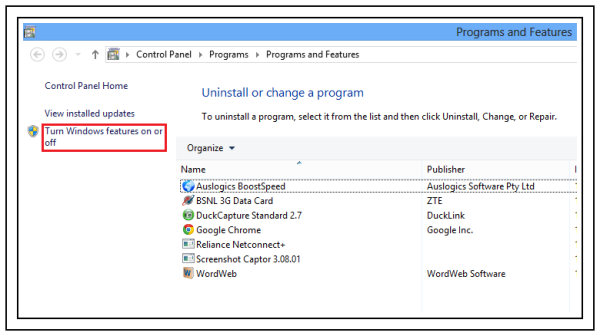
You will be directed to ‘Programs and Feature’ screen of the ‘Control Panel’. There, in the left pane you will find a link to Turn Windows features on/off. Click on that link.
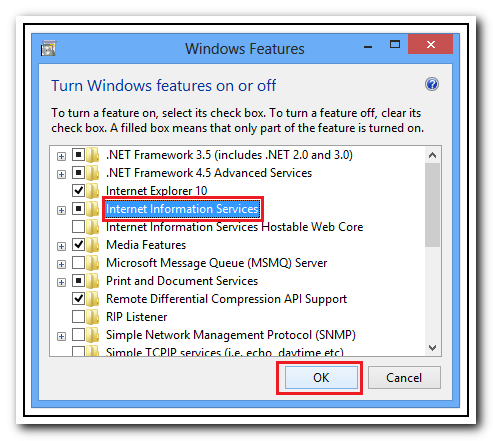
Now, a new ‘Windows Features’ screen should appear. Scroll down to find the Internet Information Services option and select the check box to turn on the feature.
At this point, you can leave settings as default and say OK, but you can certainly expand it and check the other components as well if you are interested in selecting all or deselecting some.
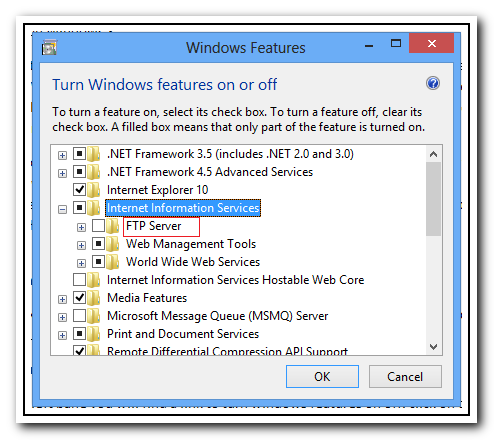
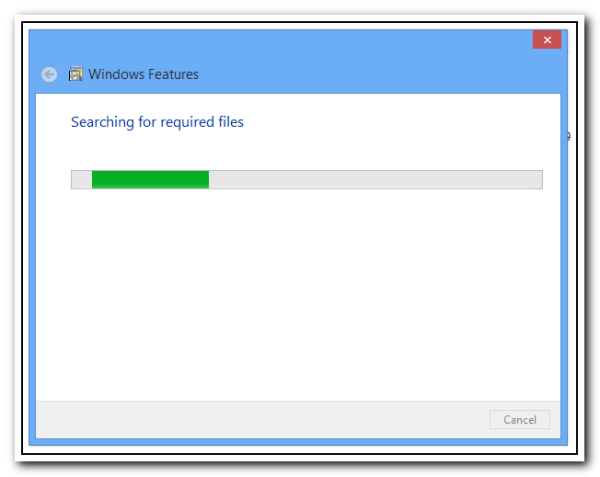
Once you have configured the desired options as well, hit the ‘OK’ button and wait patiently for a few minutes to allow Windows Features to search for required files, install them and apply the changes.
That is all.
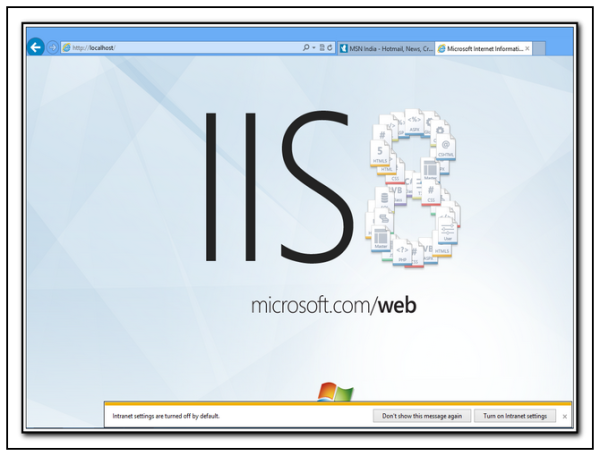
You will have now successfully installed the new version of IIS Internet Information Services on Windows, you will see a new localhost start page.
This is how you can enable or turn on Internet Information Services (IIS) on Windows 11/10.
Go here if you want to learn how to Host your own WordPress blog with Microsoft IIS.
What is the inetpub folder in Windows 11?
The inetpub folder, located in the C drive (C:\inetpub), is the default directory for Microsoft Internet Information Services (IIS) which contains the website content and web applications. It includes the following subfolders are: adminscripts, iissamples, mailroot, scripts, wwwroot, etc. If the inetpub folder is empty, you may delete it; however Microsoft recommends that you keep it. Says Microsoft:
After installing Security Updates for your operating system, a new %systemdrive%\inetpub folder will be created on your device. This folder should not be deleted regardless of whether Internet Information Services (IIS) is active on the target device. This behavior is part of changes that increase protection and does not require any action from IT admins and end users.
How to check the installed version of IIS on Windows?
To check IIS version in CMD, enter the following command: %SystemRoot%system32inetsrvInetMgr.exe
It will now open the IIS or Internet Information Services Manager panel.
Click on Help on the menu bar and then click on About Internet Information Services.
You will see the version number of IIS installed on your computer.
How to check if Internet Information Services (IIS) is running in a 32bit or 64bit mode?
Run this command: c:\inetpub\adminscripts\adsutil.vbs GET W3SVC/AppPools/Enable32BitAppOnWin64
If you see Enable32BitAppOnWin64:<BOOLEAN>True IIS runs in a 32-bit mode.
If you seeEnable32BitAppOnWin64:<BOOLEAN>False IIS runs in a 64-bit mode.
How do I enable IIS on Windows Server?
To enable IIS on Windows Server, open the Windows Features panel first. Then, find the Internet Information Services and tick the checkbox. Click the OK button and let it finish the installation. You need to restart your computer to get the job done.
How do I enable Web services in IIS?
To enable Word Wide Web Services in IIS, open the Windows Features panel first. Then, find and expand Internet Information Services. Tick the World Wide Web Services checkbox and click the OK button. The installation will take a few moments to finish. Once it is done, you can close all windows and restart your computer.
