
You can, if you wish, display your favorite file or its shortcuts directly in the This PC folder on Windows 11/10/8 or the (My) Computer folder of Windows 7/Vista. In this post, we will guide you through the process.
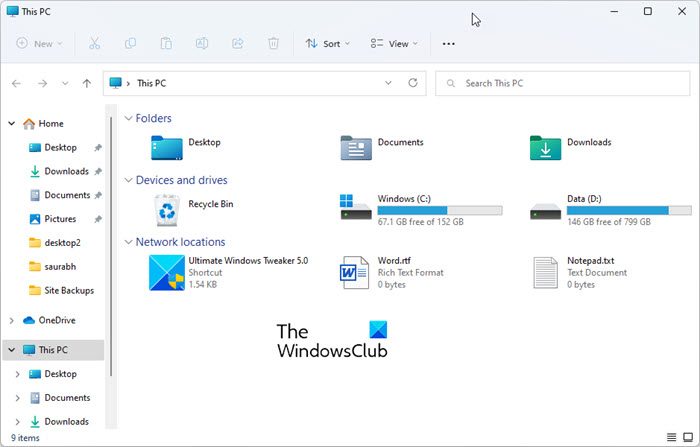
Display any file, folder, program in This PC folder of Windows 11/10
To display any file, folder, program in This PC folder, open Windows File Explorer and through Organize > Folder Options, allow the showing of Hidden & also System files & folders.
Next, navigate to the following folder:
C:\Users\UserName\AppData\Roaming\Microsoft\Windows\Network Shortcuts
Place the files or the shortcuts to the files in this folder.
That’s it!
It’s so simple. No need to hack the registry!
Open This PC folder and you will be able to see them.
If you have set it to sort by None or Name that is how you will see it. But if you have set it to sort by Type, you will see them placed under Network Location.
For those who need to access select files fast, this is yet another way to do it easily.
Gopal a student from India, currently studying in the US, came up with this bright yet simple idea and shared it with me over Facebook.
You can also easily add or display any folder in This PC folder using our Ultimate Windows Tweaker.
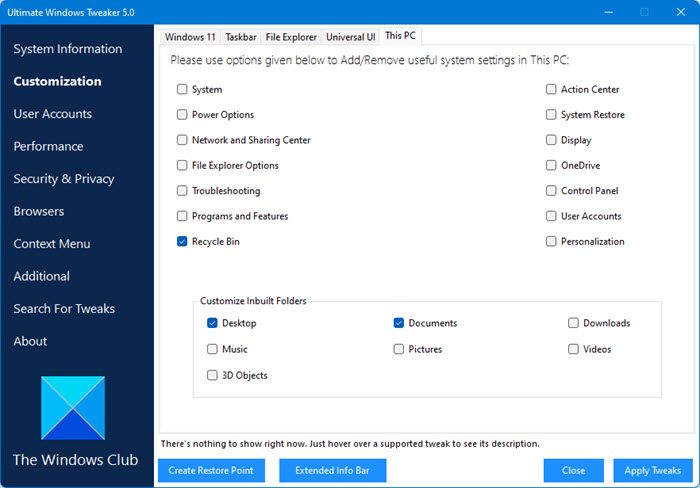
Go here if you want to choose Folder details to display in Explorer columns.
Read:
- How to add a Folder to This PC in Windows 11 using Registry
- How to display Recycle Bin in This PC folder.
