
Microsoft’s webmail service, Outlook.com comes with all the goods, such as a huge amount of storage space, better editing features, an immersive interface and, of course, support for social networking sites. All these features and many more make the webmail service the first choice of users. But for some reason, if you wish to close or delete your Outlook email account permanently, this is how you can do it.

It is essential to change all the email addresses to alternate ones before deleting your Outlook.com account if you have been using the same Outlook address for any other services.
You should also know this. To permanently close your Outlook.com email account, you need to close your Microsoft account. When you close your Microsoft account, your email and contacts are deleted from Microsoft servers and can’t be recovered. If you use your Microsoft account with Xbox, Skype, OneDrive, or other Microsoft services, you’ll no longer be able to access those services.
How to Delete or Close Outlook.com email account
To close your Outlook or Hotmail or Live email account, do the following:
- Log into your email account
- Visit this Microsoft link.
- Enter your password again
- verify your identity via the alternative email ID or telephone number.
- Follow the instruction to the end to delete the account.
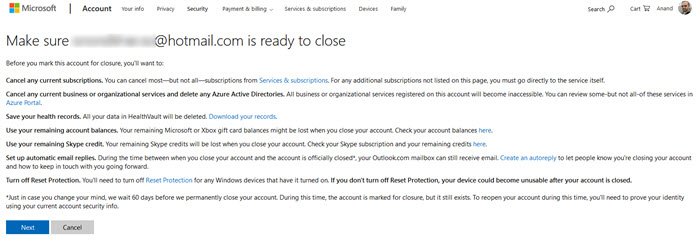
When you click on Next, Outlook will request you to check ‘privacy and cookies’ statement. In addition to this, it will provide you with information on – what happens to your info if you choose to close your account.
Then finally, it will ask you to verify your account to close it down.
In the end, you will be asked to deactivate your Outlook/Hotmail account. Once you do it, your account will be closed.
Read: How to Prevent Email from going to Junk in Outlook.
Microsoft reserves your email address even after you have closed your account for a period of 60 days. Within this period, if you would like to reactivate your account, you could easily do so.
Related reads:

