
Windows 11/10 includes a feature that allows you to schedule and run Automatic Maintenance on your computer. The task, when run, will carry out a task like security updating and scanning, Windows software updates, Disk Defragmentation, Disk Volume Errors, System Diagnostics, etc., and also includes enterprise-level Network Access Protection scanning and security standards scanning on all enterprise workstations.
In Windows 7 and earlier versions, performance and energy efficiency are impacted to a certain extent, but in Windows 11/10/8, this maintenance activity is designed to run in the background – in a prioritized fashion – with limited user interaction and minimal impact to performance and energy efficiency.
Says MSDN:
Automatic Maintenance automatically stops currently running maintenance activities if the user starts interacting with the computer. Maintenance activity will resume when the system returns to idle status.
Windows Automatic Maintenance
Automatic Maintenance in Windows 11/10 will run daily and will combine all the background maintenance activities, like updating Windows software and apps, attending to Action Center messages, running background maintenance tasks, etc., without negatively impacting performance and energy efficiency. It will allow the user to be in control of maintenance activity scheduling and configuration, too. However, responsiveness of the operating system to users may be reduced when maintenance activity runs while users are actively using the computer.
The process is named MSchedExe.exe, and it is located in the System32 folder. To access Automatic Maintenance, open Control Panel and navigate to System and Security > Security and Maintenance. Here, under Maintenance, click on the small arrow on the right side. This will expose Automatic Maintenance.
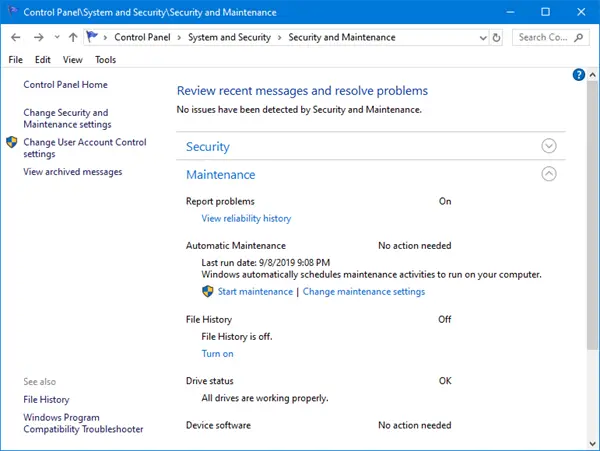
Clicking on Start maintenance will start the task manually right away.
Clicking on Change maintenance settings will open the following window where you can change the settings.
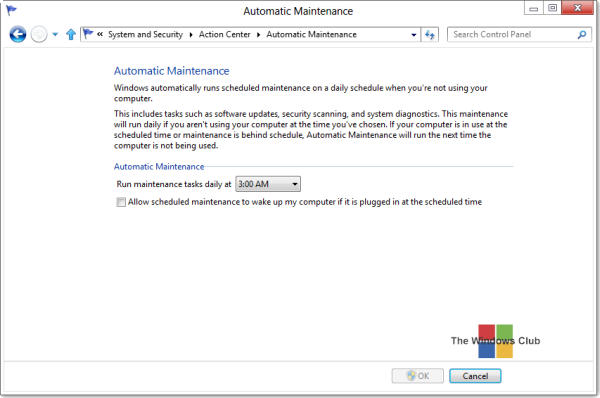
By default, Automatic Maintenance runs in the fully Automatic Mode, i.e., your PC is intelligently scanned during idle time and at scheduled times, without user intervention. The complete task is executed silently, and you will not even notice anything.
If your computer is busy, it will run the next time your PC is not being used.
If your computer is in Sleep mode, while on AC Power, it will be resumed, and the maintenance activity will be carried out using full system resources to execute the task as fast as it can. After completion of the task, the system will be returned to Sleep mode. You will, however, have to check the Allow scheduled maintenance to wake up my computer if it is plugged in at the scheduled time option.
If you wish to change the schedule of this Automatic Maintenance, click on Change maintenance settings, and from the drop-down menu, you will be able to set the timing.
If, for some reason, you wish to start the Maintenance task right away, you can do so by clicking on the Run Maintenance button. This will allow you to run this task at unscheduled times. This is referred to as the User-Initiated Mode.
You can also use the following command in CMD to start it manually:
mschedexe.exe start
To stop the Maintenance job, you can simply move the mouse cursor. If it does not help, then you may click on the Stop maintenance button anytime. The task will be stopped in a few seconds.
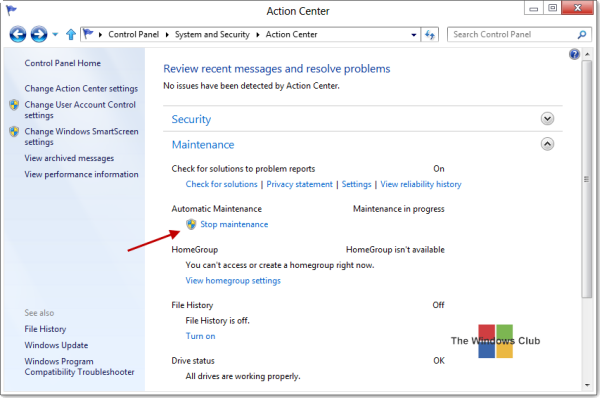
When Automatic Maintenance is being run, you will see its indication in the taskbar icon.

If you find that this is not being monitored, you may click on Turn on messages about Automatic maintenance.
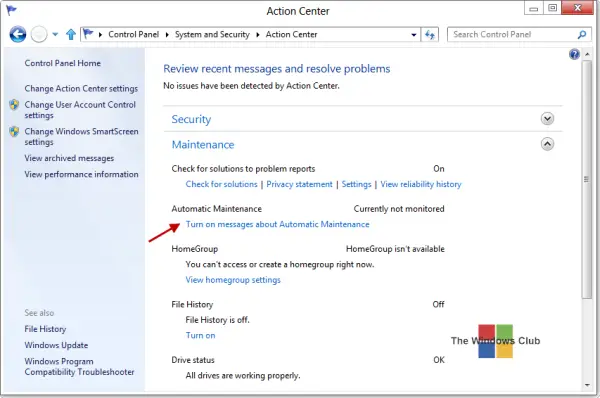
This will let Windows monitor Automatic Maintenance and give you any messages via the Action Center icon in your taskbar.
You can also execute the following commands in Windows Terminal to start or stop Automatic Maintenance:
Start Windows Automatic Maintenance:
MSchedExe.exe Start
Stop Windows Automatic Maintenance:
MSchedExe.exe Stop
Why does Windows 11/10 Automatic Maintenance take so long?
At times, many users find that it runs for hours together with no signs of stopping. If you face this issue, here are a few things you could try:
- Stop Automatic Maintenance manually.
- Run sfc /scannow to start the system file checker. Restart your computer at the end, when you are asked to
- Use CCleaner to clear your PC junk, including your Page file, Prefetch files, etc.
- Disable your start-up items temporarily, including your antivirus software.
- Start Automatic Maintenance manually and see if it helps.
Once done, you may re-enable your start-up items and your antivirus software.
If this doesn’t help, maybe it’s some hardware, possibly RAM, issue.
Read: Maintenance in progress message in Windows
Disable Automatic Maintenance in Windows 11/10
Using Task Scheduler
To disable Automatic Maintenance, you will have to open Task Scheduler > Task Scheduler Library > Microsoft > Windows > TaskScheduler.
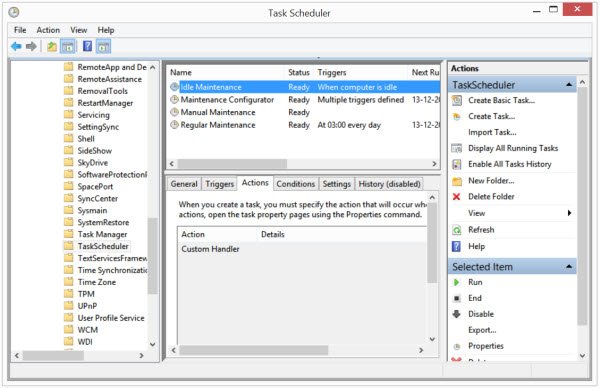
Here, right-click on Idle Maintenance, Maintenance Configurator, and Regular Maintenance and select Disable.
Using Windows Registry
You can also disable Automatic Maintenance in Windows 11/10 using the Registry.
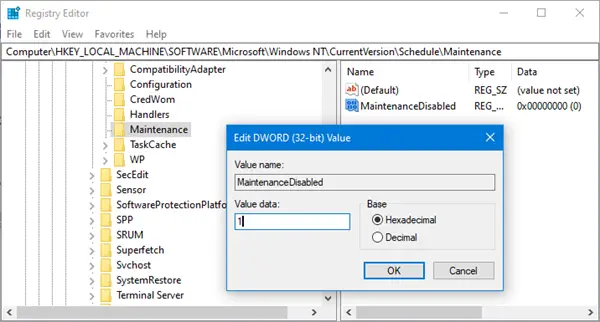
Open Registry and navigate to the following key:
HKEY_LOCAL_MACHINE\SOFTWARE\Microsoft\Windows NT\CurrentVersion\Schedule\Maintenance
On the right side, create a DWORD value and name it MaintenanceDisabled and give it a value as follows:
- 1 – To Disable
- 0 – To Enable
Save and exit the Registry.
TIP: This post will help you if you receive Windows is unable to run Automatic Maintenance message when you try to run it.
Tasks executed by Automatic Maintenance
Automatic Maintenance is designed to address and resolve these issues:
- Resource utilization conflicts
- Deadline scheduling
- Energy efficiency
- Transparency to the user
I have not been able to find out the exact number of system tasks that it carries out, and in the order they are executed – nor is there any way currently, to select or de-select the maintenance tasks – but I am sure Defragmentation, checking for Microsoft software updates, security scanning, system diagnostics, malware scanning, Disk Error Checking, checking Clock or System Time, checking if history, error reports, and logs are currently taking too much disk space – and addressing these issues if required, etc. must be some of the tasks being executed.
When asked about the tasks being run, Dave Dixon of Microsoft replied:
You can see this quickly by typing “schtasks /query” that should list all scheduled tasks for a system.
So, you may open an elevated CMD type schtasks /query and hit Enter. You will be able to see the output of the tasks.
Read: How to list all Automatic Maintenance Tasks in Windows 11
Should I disable automatic maintenance?
If you can do the maintenance work manually, there is no need to turn on the automatic maintenance functionality. However, if you think it will consume some of your valuable time, you can enable automatic maintenance. Whether you use Windows 11, Windows 10, Windows 8/8.1, or Windows 7, you can find the same option on your PC.
How do I schedule Windows automatic maintenance?
To schedule the automatic maintenance on an older version of Windows, Windows 7, you need to follow the aforementioned steps. However, in Windows 11 and Windows 10, things have changed a little bit. Now, you do not need to go to the Action Center. Instead, you can find the same Maintenance option after opening the Security and Maintenance section.
Now, read how to maintain Windows in good running condition.
