
We all know that Windows 11/10 has an inbuilt antivirus named Windows Defender. However, in Windows 11/10 there is no direct link to open Windows Defender, like we open say, Explorer. So if you want to do a quick scan, you must first search for Windows Defender, open the program and then run the scans.
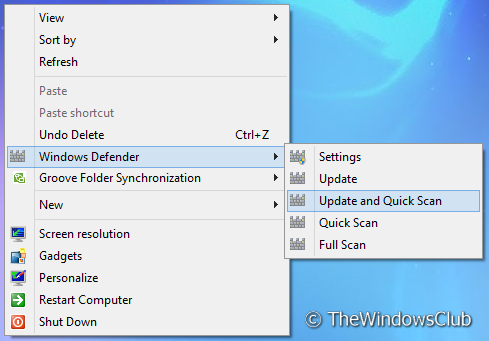
How to add Windows Defender to Context Menu
In this article, we’re going to tell how you can add some of the important features of Windows Defender to the desktop right-click context menu using Registry Editor., This will allow you to directly access the Windows Defender features.
To do so:
1. Press Windows Key + R combination, type put Regedt32.exe in Run dialog box and hit Enter to open the Registry Editor.
Add Windows Defender to context menu and create a cascading menu
2. Navigate to the following location:
HKEY_CLASSES_ROOT\DesktopBackground\Shell\WindowsDefender
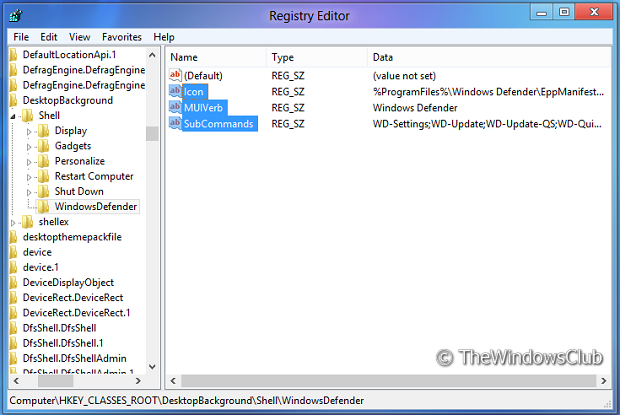
3. In the right pane, create three strings in with corresponding data:
Icon: %ProgramFiles%\\Windows Defender\\EppManifest.dll
SubCommands: WD-Settings;WD-Update;WD-Update-QS;WD-QuickScan;WD-FullScan
MUIVerb: Windows Defender
Add Windows Defender Settings option to context menu
4. Now go to the following location:
HKEY_LOCAL_MACHINE\SOFTWARE\Microsoft\Windows\CurrentVersion\Explorer\CommandStore\shell\WD-Settings
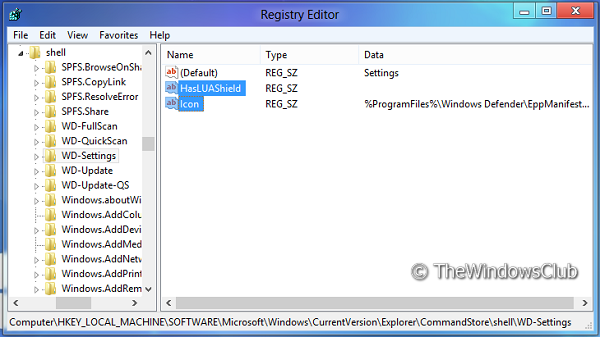
5. In the right pane, use the corresponding data for the strings (If you don’t find any string, create one):
Default: Settings
HasLUAShield: <Leave Blank>
Icon: %ProgramFiles%\\Windows Defender\\EppManifest.dll
6. Create a subkey command in the left pane under:
HKEY_LOCAL_MACHINE\SOFTWARE\Microsoft\Windows\\CurrentVersion\Explorer\CommandStore\shell\WD-Settings
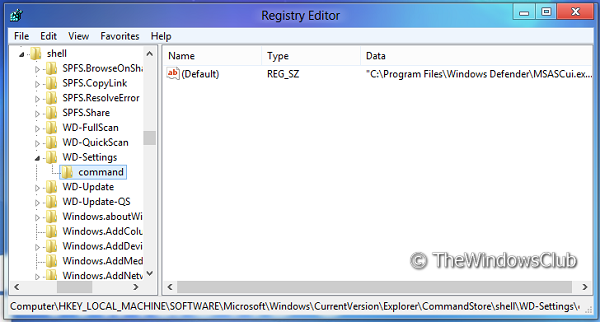
Insert the following data for Default string in the right pane:
"C:\\Program Files\\Windows Defender\\MSASCui.exe\" -Settings
Add Update Windows Defender option to context menu
7. Now go here:
HKEY_LOCAL_MACHINE\SOFTWARE\Microsoft\Windows\CurrentVersion\Explorer\CommandStore\shell\WD-Update
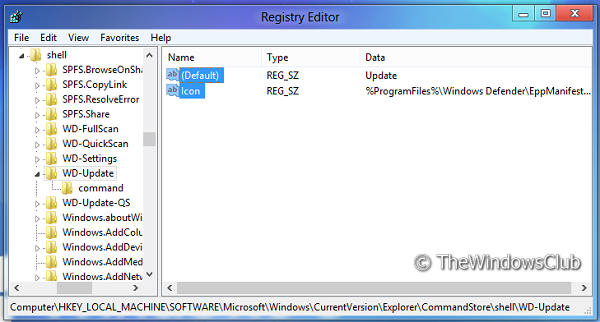
Put the following data:
Default : Update
Icon: %ProgramFiles%\\Windows Defender\\EppManifest.dll
8. Next, create a sub key command under in left pane under
HKEY_LOCAL_MACHINE\SOFTWARE\Microsoft\Windows\CurrentVersion\Explorer\CommandStore\shell\WD-Update
Put the following data for Default string in the right pane:
"C:\\Program Files\\Windows Defender\\MSASCui.exe\" -Update
Add Update and Quick Scan option for Windows Defender to context menu
9. Next, move here:
HKEY_LOCAL_MACHINE\SOFTWARE\Microsoft \Windows\CurrentVersion\ Explorer\CommandStore\shell\WD-Update-QS
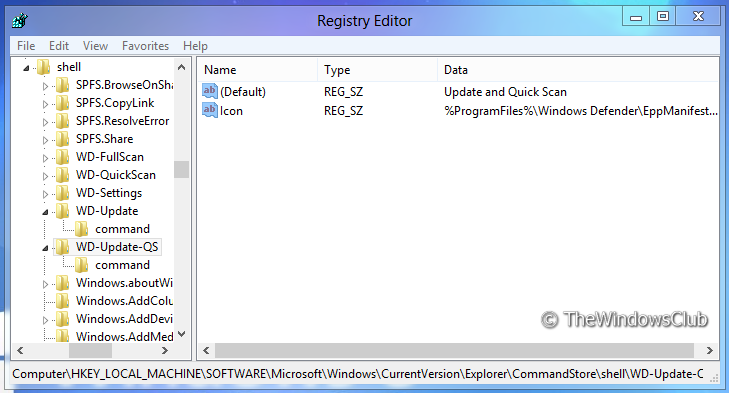
Put the following data:
Default: Update and Quick Scan
Icon: %ProgramFiles%\\Windows Defender\\EppManifest.dll
10. Create a sub key command under in left pane under (Similar to step 6):
HKEY_LOCAL_MACHINE\SOFTWARE\Microsoft Windows\CurrentVersion\Explorer\CommandStore\shell\WD-Update-QS
Put the following data for Default string in the right pane:
"C:\\Program Files\\Windows Defender\\MSASCui.exe\" -UpdateAndQuickScan
Add Windows Defender Quick Scan option to context menu
11. Now its time for the following location:
HKEY_LOCAL_MACHINE\SOFTWARE\Microsoft\Windows\CurrentVersion\Explorer\CommandStore\shell\WD-QuickScan
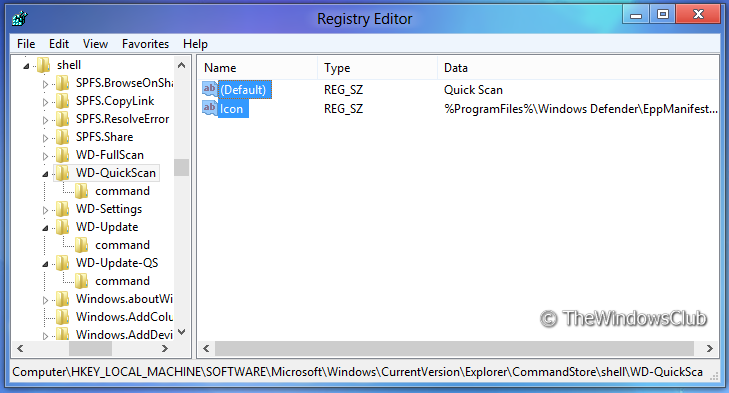
Use the following data:
Default – Quick Scan
Icon– %ProgramFiles%\\Windows Defender\\EppManifest.dll
12. Create a sub key command under in left pane under (Similar to step 6).
HKEY_LOCAL_MACHINE\SOFTWARE\Microsoft\Windows\CurrentVersion\Explorer\CommandStore\shell \WD-QuickScan
Put the following data for Default string in the right pane:
"C:\\Program Files\\Windows Defender\\MSASCui.exe\" -QuickScan
Add Windows Defender Full Scan option to context menu
13. Finally, navigate here:
HKEY_LOCAL_MACHINE\SOFTWARE\Microsoft\Windows\CurrentVersion\Explorer\CommandStore\shell\WD-FullScan
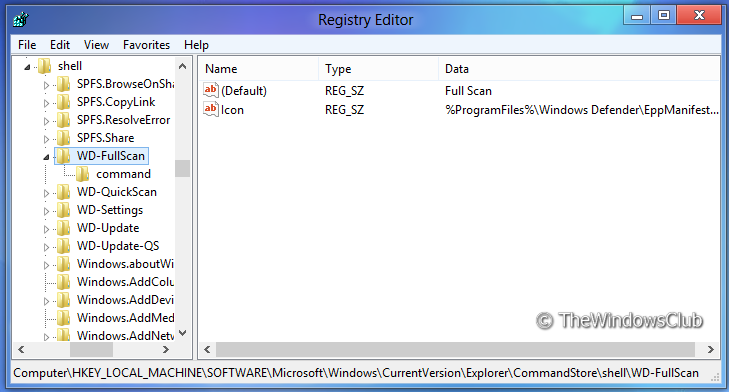
Use the following data:
Default: Full Scan
Icon: %ProgramFiles%\\Windows Defender\\EppManifest.dll
14. Create a subkey command under in left pane under (Similar to step 6):
HKEY_LOCAL_MACHINE\SOFTWARE\Microsoft\Windows\CurrentVersion\Explorer\CommandStore\shell\WD-FullScan
Put the following data for Default string in the right pane:
"C:\\Program Files\\Windows Defender\\MSASCui.exe\" -FullScan
You can now go to your Desktop and check the right-click context menu. It should be similar to what is shown in the first image of this article. The benefit of the manual method is that you can add only those options which you need.
Related: How to add Windows Security cascading Context Menu item.
NOTES:
- If you do not want to do this work, I have created a registry fix that will let you add or remove these entries easily. You can download it by clicking HERE.
- You can also add Windows Defender features to Context Menu using our Ultimate Windows Tweaker.
How to add Scan with Windows Defender option to Context Menu?
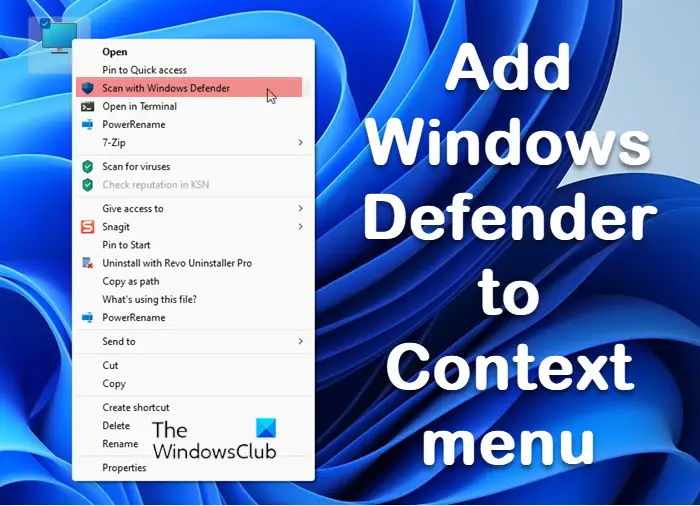
The easiest way to add the add Scan with Windows Defender option to Context Menu in Windows Defender on Windows 11/10, the easiest way is to download and add these entries to your Registry. The download also includes a .reg file to remove the entry.
How do I open Windows Defender app in Windows 11?
Type ‘Windows Security’ in Start search and click on the Windows Security option you see. Switch to the Virus and threat protection tab, and you will see Windows Defender Dashboard here.
Hope this will make life a bit easy for you while using Microsoft Defender.
