
The faint or washed-out text that appears in the background of your content is a watermark. Its purpose is to mark the authenticity of the maker. Office applications like Microsoft Word allow you to insert a watermark in its documents, and the best way to work with watermarks in Word is on a PC, rather than in a web browser or mobile app.
Add watermark to Microsoft Word documents
To insert a watermark in a Microsoft Word document and customize the font, layout, etc., follow these instructions. Like headers and footers, a watermark usually appears on all the pages of your document except the cover page. However, you can choose to:
- Insert watermark on a single page of Word
- Insert watermark on all pages of Word
- Insert a Picture Watermark
A watermark can be a logo, stamp, or signature superimposed onto an image with a great deal of transparency.
1] Insert watermark on a single page of Word
Open Microsoft Word and click where you would like to place the watermark on the page.

Next, from the Ribbon menu, select the ‘Design’ tab and choose ‘Watermark’ from the ‘Page Background’ section.
Hit the drop-down arrow to choose the desired layout and then right-click it and select Insert at Current Document Position.

Instantly, the watermark will appear as a text box, as shown in the image above.
Read: How to add a watermark to PowerPoint slides.
2] Insert watermark on all pages of Word
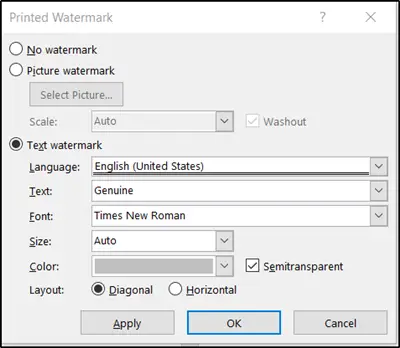
If a watermark fails to appear on some pages of Microsoft Word, you can put the watermark on all pages via ‘Custom Watermark’ option. For this,

Switch to the ‘Design’, select ‘Watermark’ > Custom Watermark.
Read: How to remove a Watermark in Microsoft Word
3] Insert a Picture Watermark
You can also choose to add a Picture Watermark. For this, just check the Picture watermark option and press the ‘select a picture‘ button.
Thereafter, select a picture for watermark from one of the following options,
- Clip Art from Office.com (Offers royalty-free photos and illustrations)
- Bing Image Search (Searches the desired image from web)
- From a file (browse the file on your computer or local network)

Once you find the desired image, select it and hit ‘Insert’ button.

Then, check the background of the document; you should find the selected picture added as a watermark there.
Read: How to Add a Watermark in Microsoft Excel
These tools will help you add Watermark to Image online free.
