
If you download a lot of documents, images, music, and photos every day, you will end up with a large number of files in your Downloads folder, and you may have to manually move or sort them into the appropriate folders.
Auto-sort & move files in folders in Windows PC
Digital Janitor is a freeware program for Windows, that sorts and moves files in the folder depending on where the user wants a certain file type to go, freeing up your time.
To use this freeware, you have to create rules, based on which the sort will be performed. Within seconds the folder that you wanted to sort is clean, and all the files will be moved to the respective folders. Or you can also use the default set of rules or create your own!
How to use Digital Janitor
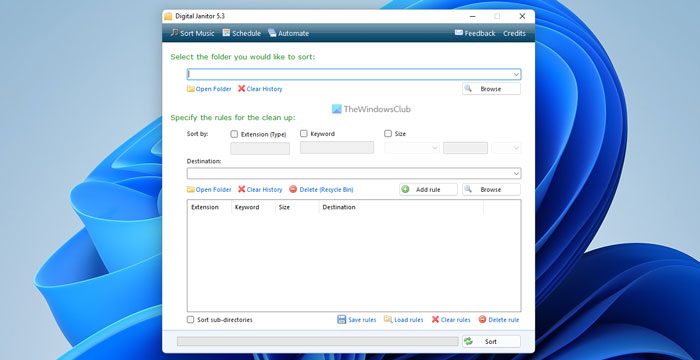
To sort files in folders, you have to provide the paths to source and destination folders. After that, you have to create Rules in the software. Now, you are ready to sort your files into the targeted folder.
To provide the path to the source folder (the folder containing your files), click on the Browse or Open folder buttons and then select the folder. Alternatively, you can directly paste the path to the source folder into the required field. Repeat the same process for the Destination folder.
Now, you have to specify Rules to sort your files. To do so, you can select any of the following options. Multiple selection is also allowed.
- Extension type: If you want to sort your files based on the file extensions, enable this checkbox.
- Keyword: If you want to sort your files by file names or by a particular keyword, select this option.
- Size: Select this option if you want to sort your files based on their size. It has further two options, namely, Smaller than and Greater than. Select any one of these options, then enter the file size. Now, select Gb, Mb, or Kb from the drop-down.
When you are done, click on the Add rule button. All the added rules will appear in the box provided below the Destination folder path. Now, click on the Sort button. After that, the software will quickly move all files that match the applied rule to the target folder.
Note that if you have created multiple rules, Digital Janitor will execute them sequentially. You can delete a specific rule by selecting it and clicking the Clear rules link.
Digital Janitor download
Visit its Download Page where you can read more about Digital Janitor and download it.
Great for download junkies!
How do I sort Downloads into folders?
In Windows 11/10, you can sort files by their types, names, dates, sizes, etc. But if you want to organize your Downloads into folders, you’ll need a third-party program. You will find many free programs for this purpose.
How do I sort my Downloads alphabetically?
In Windows 11 and Windows 10, you can easily sort your Downloads alphabetically. For that, you do not need to install third-party programs on your PC. First, open the Downloads folder and click the Sort option. Then, choose the Name option from the menu.
