
We are pleased to release Handy Shortcuts. This freeware portable app will help you create the oft-used desktop shortcuts for your Windows 11/10 desktops easily.
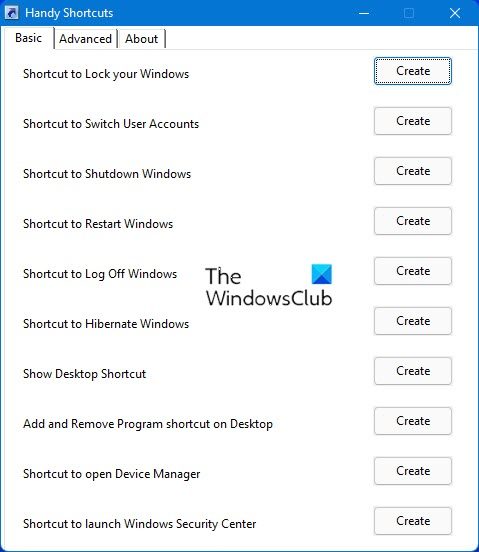
Create Desktop Shortcuts with Handy Shortcuts
With a click it can create the following shortcuts on your Windows desktop:
Lock WorkStation, Switch Account. Shutdown, Restart, Log Off, Hibernate, Show Desktop, Uninstall Programs, Device Manager, Security Center, Windows Defender, Windows DVD maker, Flip 3D, Launch Screen-saver, Disable Windows Firewall, Enable Windows Firewall, Clear Clipboard, Connect to Internet, Safely Remove Hardware and a Master Control Panel.

Handy Shortcuts has been created by Ritesh Kawadkar for The Windows Club, and works on Windows 11/10 too, as long as those features are still present,
You may want to check out our other freeware releases like FixWin, Ultimate Windows Tweaker, etc HERE.
How do you quickly change desktops in Windows?
To quickly change desktops in Windows, use keyboard shortcuts: press Windows Key + Ctrl + Left Arrow to move to the previous desktop, and Windows Key + Ctrl + Right Arrow to switch to the next one.
Can I make my own shortcuts in Windows?
Yes, you can create custom shortcuts in Windows by right-clicking on a program or file, selecting “Properties,” and navigating to the “Shortcut” tab. Assign a key combination in the “Shortcut key” field, and click “OK.” This lets you quickly access programs and files with personalized keyboard shortcuts.
