
Windows Firewall helps protect your PC from hackers and malware. It is a powerful tool that lets you fine-tune protection and notifications for different network profiles, such as Home, Work, and Public. When you are connected to a public network, such as a library or a coffee shop, you may want to block all incoming connections for security. A Firewall safeguards your system against unwanted traffic, whether at home or at work.
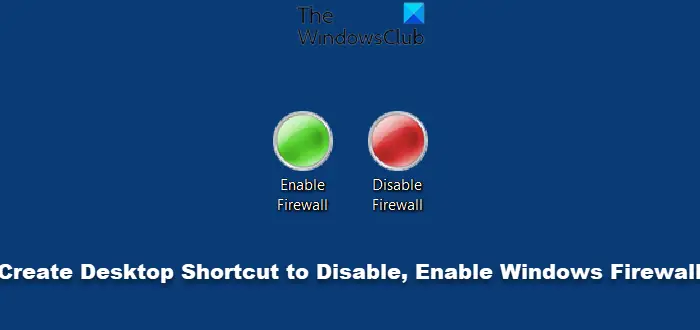
If you frequently need to disable or enable the Windows Firewall, you may want to create a desktop shortcut instead of navigating through the Control Panel. You may find this especially handy if the firewall is blocking any of your running tasks.
Disable or Enable Windows Firewall desktop shortcut
You can create a desktop shortcut as follows in Windows 11/10.
Right-click on your desktop > New > Shortcut. Now, we will use the netsh advfirewall firewall command.
To disable firewall, type or better still, copy-paste the following in the Location field.
netsh advfirewall set currentprofile state off
Click Next > Name it Disable Firewall > Finish. Give it a suitable icon.
To enable the Firewall copy-paste instead:
netsh advfirewall set currentprofile state on
and name it Enable Firewall. Again give it a suitable icon.
You will have to Run it as Administrator. When you click both, a black CMD window will appear and then disappear, showing the letters OK.
Thus, you can easily disable or enable Windows Firewall on your Windows computer.
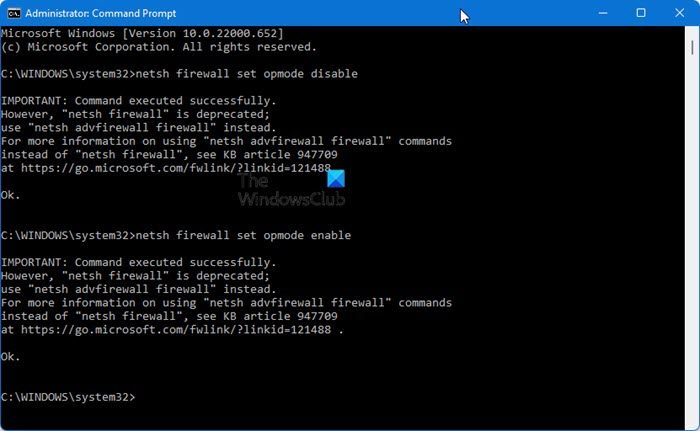
NOTE: Earlier, you could also use the netsh firewall command. However it has been deprecated now.
To disable firewall, use:
netsh firewall set opmode disable
To Enable the Firewall use:
netsh firewall set opmode enable
But this no longer works now and if you do, you will see the following message.
Speaking of desktop shortcuts, you might want to check out Handy Shortcuts, – our freeware that lets you create tons of shortcuts in a click. Go here to learn how to lock Windows PC and create its desktop shortcut.
Read: How to open Windows Firewall
Is it safe to disable Windows Firewall?
No, it is not. The default settings of the Windows Firewall can protect against programs and remote access to your Windows PC. If you are testing something, it is ok to disable it temporarily, but enable it as soon as possible. That said, the best way to troubleshoot issues with the Firewall is to identify the program, add it as an exception in the firewall settings, rather than disabling security.
