
OneNote is a program that allows users to save their notes and other important information they want to organize or protect from peeping eyes, and it’s easy to use.
OneNote tutorials for beginners
Here is a list of top basic OneNote tutorials and tips to help you get started quickly.
- Create a Table
- Using a Calculator
- Add Pages
- Recording the audio of a meeting
- Protect Data.
1] Create a Table
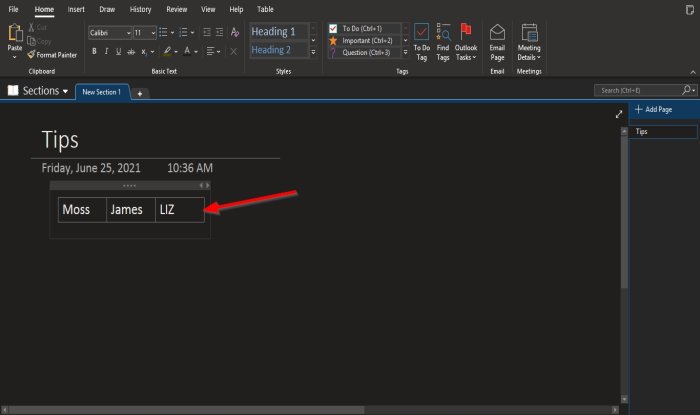
Making a table in OneNote is simple to do. First, type a text and press the Tab key on the keyboard; do this whenever you want a cell for each text.
Read: How to record Audio or Video with OneNote
2] Using a Calculator
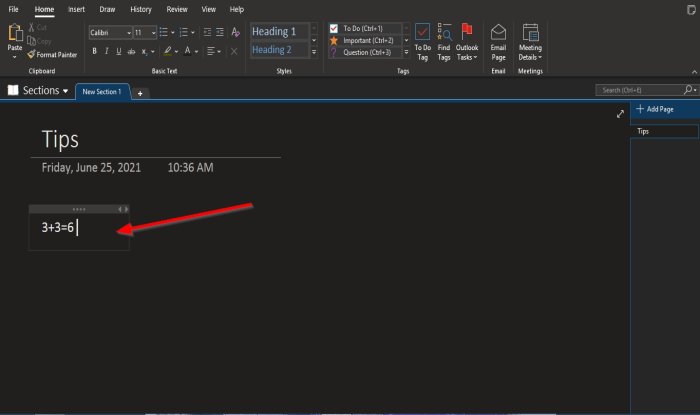
OneNote can automatically calculate numbers. To use the calculator in OneNote, type the numbers you want to calculate, for instance, 3+3=, and press the Space key after the “=” sign.
3] Add Pages
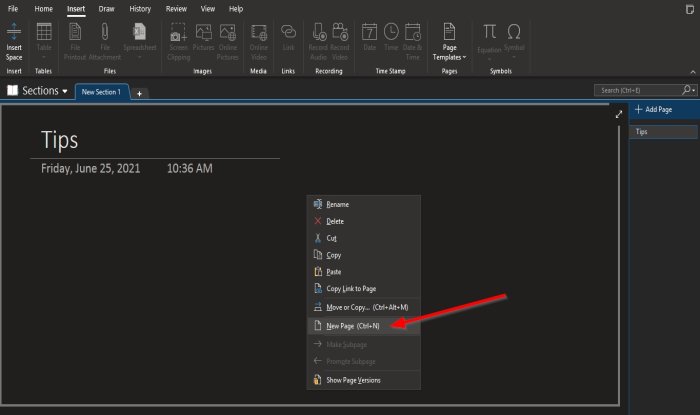
You can easily add pages in OneNote by right-clicking the page and selecting New Page.
4] Recording the audio of a meeting
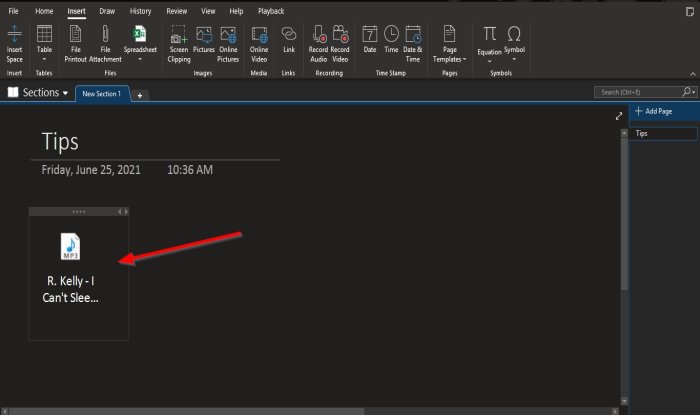
You can record an audio of a meeting, synchronize it with your notes, or drag audio or videos onto your notebook pages. Once the audio or video file is drag onto the page. An Insert File dialog box will pop up. Click Attach File, and you will see the file on the page.
5] Protect Data
Want to protect your information? OneNote has a feature that can protect valuable information, such as website logins, Bank Account Information, and Journals with private information; we will discuss a simple trick in this tutorial to quickly set a password to protect your data.
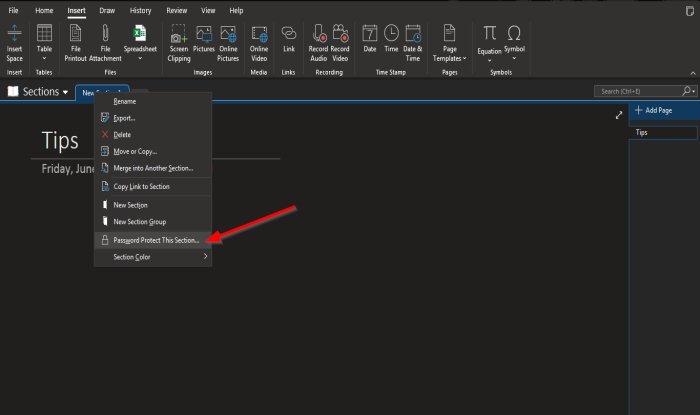
Right-click the Section tab, then select Password Protect This Section. A Password Protection pane will appear on the right. Set your password, then confirm it, then click OK.
We hope this Basic OneNote 365 tutorial helps you understand the basics; if you have questions about it, let us know in the comments.
Read next: OneNote features you may not be using but should be using.
Do let me know if you have something to share.
Go here to see more Microsoft OneNote Tips and Tricks and some OneNote productivity tips.
