
According to some gamers, the WOW add-ons are showing an error. This error means there is an issue with the add-ons you have installed in your game. In this article, we are going to see what you can do if you get Your AddOns are experiencing a large number of LUA errors in World of Warcraft.
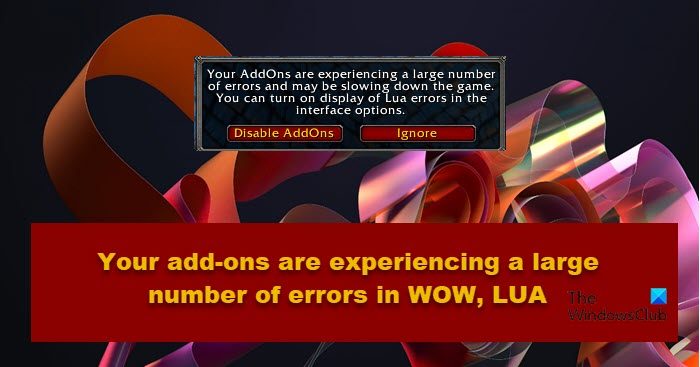
Your AddOns are experiencing a large number of errors and may be slowing down the game. You can turn on display of Lua errors in the interface options
Why are my add-ons not working WoW?
Generally, the WoW add-ons won’t work if they are corrupted or incompatible. Apart from faulty add-ons, the corrupted game interface or files of WoW can also make add-ons not work properly. Also, if you have some add-ons that are not coded to work with a particular version of the game, then it could also be the reason that your add-ons are not working.
How many add-ons for World of Warcraft?
There are thousands of third-party add-ons available to modify the user interface of World of Warcraft and add functionality to the default UI. While some are standalone add-ons, other add-ons require additional add-ons to work. You can either manually install add-ons or use the standalone CurseForge app (available for Windows, Linux, and Mac) to install them for WoW.
Your AddOns are experiencing a large number of errors in WOW
If Your AddOns are experiencing a large number of LUA errors in World of Warcraft, check out the following solutions to resolve the issue.
- Delete the faulty add-on
- Repair Corrupted Game Files
- Reset WOW User-interface
- Add-ons location should be correct
- Reset Console Variables
Let us talk about them in detail.
1] Delete the faulty add-on
There is no hard-and-fast rule for identifying the culprit, but you can try removing all add-ons one by one; if, after removing a certain add-on, your issue is resolved, you know what the culprit is. The faulty add-on may be corrupted or simply incompatible with your game. Also, one of the most common troublemaking add-ons is Cartographer, which enables Cartographer mode. So, if you have that add-on, it’s better to remove it.
You can also use BugGrabber and BugSack addons from curseforge.com/wow/bug-grabber and curseforge.com/wow/bugsack respectively. These two addons will allow you to know the reason for the error making it easier for you to resolve it.
2] Repair Corrupted Game Files
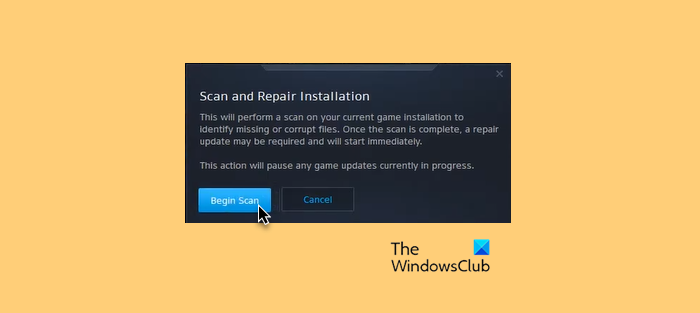
If some of the game files got corrupted, you will see the error message in question. We can use the Battlle.Net launcher to scan and repair those files. Follow the prescribed steps to do the same.
- Launch Battle.net and navigate to World of Warcraft.
- Go to Options and click on Scan and Repair.
- Click on Begin Scan.
Hopefully, this will do the job for you.
Related: Fix Battle.net Scan and Repair Loop on Windows PC
3] Reset WOW User-interface
The issue can occur due to a problem in the User interface of World of Warcraft. We need to reset it to resolve the issue. But before that, close all the instances of WOW. For that, open Task Manager, right-click all processes related to WOW, and select End Task.
Now, go to the location where you have installed World of Warcraft. If you don’t know where it’s located, open Battle.net, and click on World of Warcraft > Options > Show in Explorer. You will be redirected to the correct location. It will look something like the following.
- C:\Program Files (x86)\World of Warcraft
- C:\Program Files\World of Warcraft
- C:\Users\<username>\PublicGames\World of Warcraft
Once you have reached the correct destination, rename the following folders.
- Cache folder to Cache_Old
- Interface folder to Interface_Old
- WTF folder to WTF_Old
Finally, open the game and see if the issue is resolved.
4] Add-ons location should be correct
When installing add-ons, it is recommended to always store them in the subdirectory of the main folder. It will help the game recognize the installed add-on and avoid confusion. If you have made this mistake earlier, just copy the addon from an incorrect folder and paste it into the subdirectory of the main game folder.
5] Reset Console Variables
You should skip this method if you don’t have console variables in your game. But if you do have them and are seeing the error code in question, then try resetting and removing them to resolve the issue.
To do that, you need to enter the following commands in the Chatbox of WOW.
/console cvar_reset
/console cvar_default
Hopefully, this will do the trick for you.
That’s it!
Also Check: World of Warcraft is not launching or starting on Windows PC
