
Xbox is a cherished and prized possession for gamers. Gaming is exciting with this console. But what if the Xbox controller keeps disconnecting? In fact, it can happen with Windows PC as well, as the controller works with it too. Many Xbox users and PC gamers have reported that their controller keeps disconnecting and requested possible fixes. If you’re facing the same issue, don’t worry; we have provided some solutions you can try.
In this article, I will provide you with solutions. However, before we could get to that, it’s essential to know why the Xbox controller keeps disconnecting in the first place. So, let’s have a look at that.
Why Does The Xbox Controller Keep Disconnecting?
It can be very frustrating when your Xbox controller keeps disconnecting during gameplay. The interruption caused can even make you lose a winning match. So, you’re definitely irritated and want to know why your controller keeps disconnecting.
There can be several reasons why the Xbox controller becomes disconnected. You may be playing too far away from the console, the batteries might have got discharged, or your controller firmware must have become obsolete and needs an update.
All these reasons come with possible and easy fixes. Here’s a detailed list of the fixes you can try to stop your Xbox controller from disconnecting.
Xbox Controller Keeps Disconnecting
There are many different solutions that you can try to stop your Xbox controller from getting disconnecting during your game. Here’s a list of what you could do.
- Move closer to the Console or PC
- Change the batteries of the controller.
- Reconnect the Controller.
- Power Cycle the Xbox Console.
- Update the Controller Firmware.
- Replace the Controller.
Now that you have an overview let’s dig into more details about following these fixes.
1] Move Closer to the Console or PC
This fix mainly works when you are not using the wire to connect with a PC or Xbox. When using wireless controllers, ensure the controller is within the console’s range. If the controller keeps disconnecting, you’re probably moving out of the range that your console can catch. Since the console loses the availability of the controller, the controller gets disconnected.
The easiest thing you could do here is just moving closer to the console and see if it gets connected again. Check the range within which the controller remains connected and stay within that range.
Another thing that you need to ensure is that the controller is facing the front of the Device. So, check how the console is placed and adjust it if necessary.
2] Change the Batteries of the Controller
If the batteries in your controller are running low, it will get disconnected. When the battery power drops to a certain percentage, the Xbox controller disconnects periodically to notify the user that it needs to be charged.
So, when you’re facing the issue of the Xbox controller getting disconnected repeatedly, check the battery levels on the indicator on the home screen of your console, the Xbox Game Bar, or the Bluetooth device list on your PC. If the battery is indeed low, recharge the battery pack or replace the batteries altogether. That would solve the issue.
3] Reconnect the Controller
When using wired controllers, the frequent disconnection issue can arise due to loose connections or faulty cables. In this case, you can try reconnecting the controller to establish a better connection.
Just unplug the wire and plug it back to the console or PC. That should do the work. If it doesn’t fix the problem, try using a different cable to plug in your connector.
When using Wireless mode, it could be due to connectivity issues between the device and the controller. So, you may want to re-establish the connection by pairing it again. For reconnecting your wireless controller, follow the steps below:
Reconnect with Xbox
- Press and hold the connect button on the connector and wait for the Xbox button to flash.
- Repeat the same to turn on the controller once more.
- See if the controller got reconnected and remains connected or not.
Reconnect with Windows PC
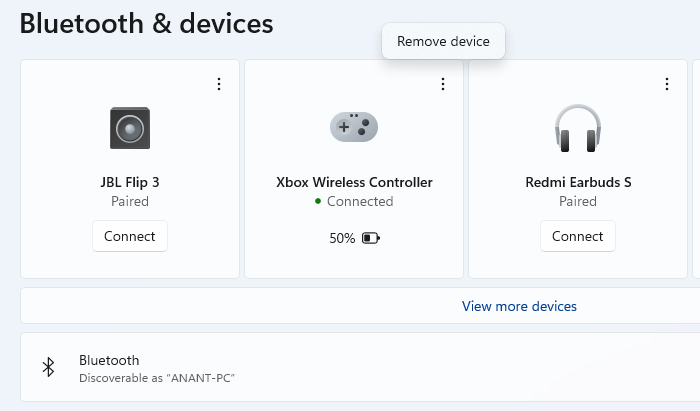
- Go to Settings > Bluetooth and Devices
- Locate the Xbox Controller in the paired device list
- Click on the menu, and remove it.
- You should notice that the guide button on the Controller starts blinking.
- Press the Pairing button on the controller
- On PC, click on Add a Bluetooth device, and select one of the options
- You should see the controller in the list. Click to add and pair.
Most probably, the connector shall stay connected after you follow these steps.
4] Power Cycle the Xbox Console
Sometimes, issues can arise with the Xbox console. Therefore, restarting the console itself can help resolve the controller disconnection issue.
You can try powering cycling your console, which involves turning it off and then back on. To power cycle the Xbox console, follow these steps:
- Press and hold the power button (Xbox button) on your console until it turns off.
- Wait for at least 30 seconds.
- Press the power button once again to turn it back on.
Once the console is powered on, try connecting your Xbox controller to it and check if the issue is resolved.
The same can be applied to the PC by first shutting down, waiting for a few seconds, and then finally restarting.
5] Update the Controller Firmware
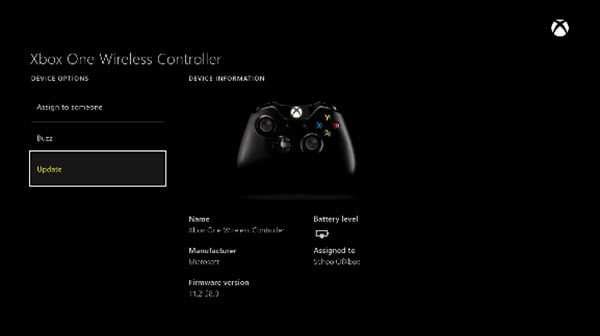
The Xbox keeps releasing updates for the controller firmware. So, it would be best if you kept up with them. When a new controller firmware is released, the older one becomes obsolete. So, if you’ve not updated the controller firmware, the frequent disconnection issue may come, and updating the controller firmware would resolve the same.
If you’re wondering how you could update the firmware, here are the steps for the same.
- Connect the controller and console with a USB cable.
- Sign in to Xbox Live.
- Press the Menu button on the controller and click on Settings.
- From the Settings menu, select Device and Accessories.
- Select the controller having the issue and click on Update.
- In the confirmation window, click Continue.
If the controller firmware is not outdated, the system shall notify you that No Update is Required. Otherwise, the update will begin. Hold on until the update is complete. After that, connect back to the controller and check if the issue is resolved.
6] Replace the Controller
If none of the above solutions work, try using a different controller and see if it continues to get disconnected. Suppose the frequent disconnection issue gets fixed when you connect another controller, the controller that kept getting disconnected needs a replacement.
However, if the issue persists even with another controller, the Xbox console itself may be the problem. So, you may want to put it for servicing. If it’s the PC, you may try another Bluetooth adaptor.
Once your Xbox has been serviced, check out the controller again, and you can be sure of a great gaming experience without any disconnection issues whatsoever.
Those mentioned above are the fixes for the Xbox controller that keeps disconnecting issue. One of the fixes is surely going to work out for you. Try it out, resolve the issue, and go back to enjoying streaming on your Xbox console.
How Long Until an Xbox Controller Turns Off?
Xbox Controller stays connected with the console or PC for up to 10 minutes when left idle and is already connected. If you turn on the controller and cannot connect over Bluetooth, it will turn off early.
Related: Xbox One Controller keeps disconnecting
How to Power Cycle Xbox Controller?
- Press and hold the Xbox Guide button for 5-10 seconds until the controller turns off.
- Wait a few seconds
- Then press and hold the Guide button again to turn the controller back on.
Gaming on Console and is entertaining. However, when issues arise, such as internet disconnection, console malfunction, or the problem described in this article, the gaming experience is interrupted and can cause frustration. Finding the right fix for the problem at hand is the only way to gain back control of your excellent and fun-filled gaming experience.
