
If you want to create word clouds on your Windows computer, then you can try some best free word cloud generator software and online tools covered in this post. Instead of generating a simple word cloud with a basic horizontal and vertical layout, these tools let you use different shapes, background colors, and other options to make a better word cloud.
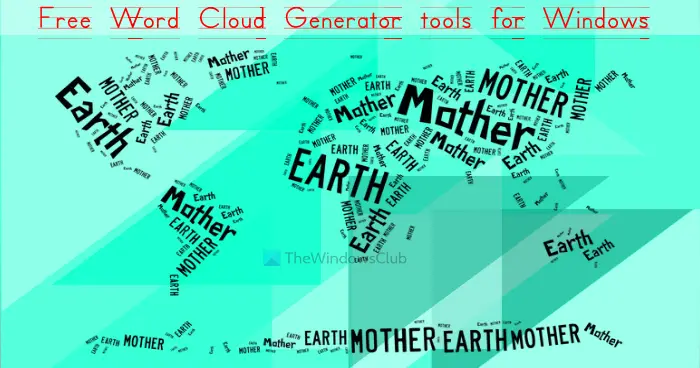
A word cloud (also known as a tag cloud or text cloud) is a collection of words that provides a visual representation of text data. In a word cloud, words are visible in different colors and sizes based on their importance or occurrence/frequency. The more a word appears in the data, the bolder and bigger it appears in the word cloud. While creating a word cloud manually could be boring and time-consuming, the tools covered in this post make it interesting and meaningful.
Best Free Word Cloud Generator software and online tools for PC
This post includes the following word cloud generator software and online tools for PC:
- Wordaizer
- Tag Cloud Maker
- WordClouds.com
- WordCloud Generator
- Word Cloud Generator.
Let’s check all these word cloud generators one by one.
1] Wordaizer
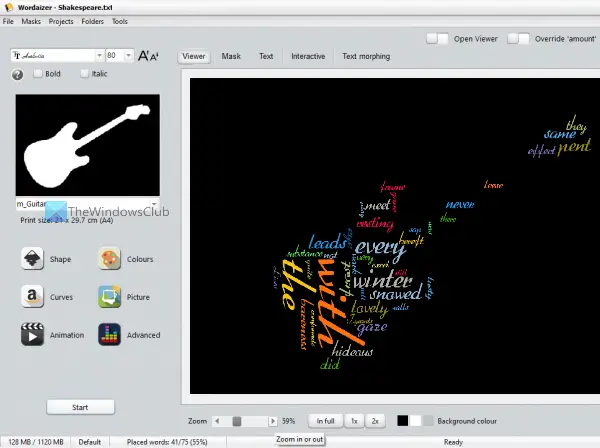
Wordaizer software lets you create large tag clouds in almost any shape. There are pre-added shapes (like Guitar, Earth, Graph, Heart, etc.) available to choose from or you can create a custom shape of your choice using its Mask feature.
Here are some of its other interesting features for creating a word cloud:
- You can set text amount, font size, add custom words, set canvas size (A4, A2, A0, 2A0, etc.), minimum word length, and size range, etc., for word cloud shape to get a satisfactory output
- You can also set text formatting to change text size, use any available fonts and make text bold, italic, etc.
- Create and set a color palette of your choice to show colors in your word cloud
- Insert a picture or image (GIF, JPG, TIFF, ICO, EMF, PNG, etc.) and use colors from that picture. If you want, you can also use that picture as a mask
- A curve shape setting can also be used for words. Apart from that, text curve type can be set to circular, crossword, wave, or parabolic
- An option to choose a custom background color for word cloud is also there
- You can access a Text section where it will show an overview of all the words that are used or placed in the word cloud. A list is given for all those words and you can also edit that list to remove/edit words
- When the output is ready, you can save the word cloud as a PDF file, or as a BMP, SVG, PNG, JPG, or transparent PNG image
- All the word cloud data can be saved for later use
- All the settings adjusted by you can also be saved as a *.mpr project file that you can load whenever needed.
To create a word cloud using this tool, open its interface, and use the File menu to add a text file. You can use any of the example test files provided by this tool or add a text file of your choice. Once the text file is added, select a mask or shape from the drop-down menu present on the left-middle part of its interface.
Use the Start button and it will process the text file to generate the text cloud. Use different shapes and see how the output looks. You can also customize the output by changing colors, and shape settings, accessing and editing the text list, changing the curve shape, etc. Use the available menus to make these customizations. When your word cloud is ready, save it as an image or PDF using the File menu.
Overall, the tool works well, but here are a few things to notice:
- Some features, like video recordings, word cloud animations, etc., are available in the paid plan but can be used for free for the first 15 days. After that, such features will be locked or limited
- This tool works well in full-size mode. It is so because when I tested this tool, its Start button to create a word cloud was visible in that mode only
- A Viewer option to preview the word cloud is also there. But when I opened that viewer, it covered the tool interface with a black box. If that happens with you too, then use the Start button to remove it.
2] Tag Cloud Maker
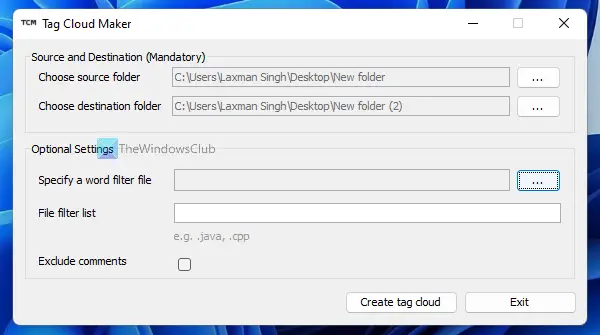
Tag Cloud Maker has a basic interface. It can help you create a word cloud from source code or DOC, TXT, or other supported file formats. If you want to exclude some words from the output, then you can provide a TXT file containing all those words (one word per line). You will have the option to add a custom TXT file or use a standard word filter file (common English words, Java keywords, or CPP keywords file) provided by this tool.
For using this tool, you need to download its ZIP file from sourceforge.net. Extract that archive into a folder and execute the TagCloudMaker.exe file. Java Runtime is needed to run this tool. If Java Runtime is not installed, then it will open its link in your default browser so that you can install Java Runtime and run this tool.
When the tool is installed, open its interface and add the source folder using the given icon/button. After that, set a destination folder. You can also add a word filter file or skip this option. Finally, press the Create tag cloud button, and you will get the output word cloud.
There are no other options like set background color, text size, text color, word cloud shape, etc. Only a simple word cloud is generated in an HTML file where you can easily identify the strength of words or tags by color and size.
3] WordClouds.com
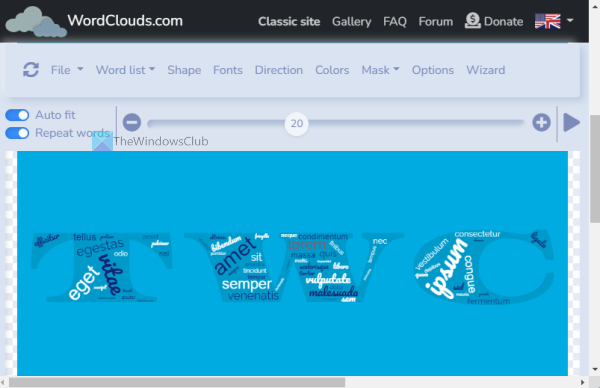
WordClouds.com is one of the best free tag cloud creators or word cloud generator tools on this list. Tons of features are provided by this tool which you will like for sure. It also offers unique features you won’t find in similar tools. Different menus let you access and use the available features. Let’s have a look at some important and interesting features:
- This tool provides a shape library to create a word cloud using the available icons, colored shapes, from maps, custom text, or a shape image
- You can also create a text cloud from a CSV file or by extracting text from a webpage, PDF document, TXT file, or office document (DOCX, ODT, PPT, XLSX, etc.)
- Select and add fonts to use in your word cloud
- Automatically shrink words that don’t fit
- Set a direction such as horizontal and vertical, random, diagonal and vertical, uphill, etc., for words used in the word cloud
- Set word colors
- Use a mask and set mask opacity
- Set text padding, add text shadow, set minimum word size, and adjust word margin with a slider, etc.
- Save your work as a WCLD2 format file to your computer so that you can resume the work by adding the same file whenever needed
- Export the word cloud as a video file (MP4), PDF, HTML file, or as an image (PNG, JPG, WebP, and SVG).
Menus like Shape, File, Word list, Fonts, Direction, Colors, Mask, etc., let you access and use these features. So, once you have accessed its homepage, you can begin and finish your work, from adding the source text to finalizing the word cloud and downloading the output to your computer, using the given menus.
Also read: Best free Slide Presentation Maker software for Windows.
4] WordCloud Generator
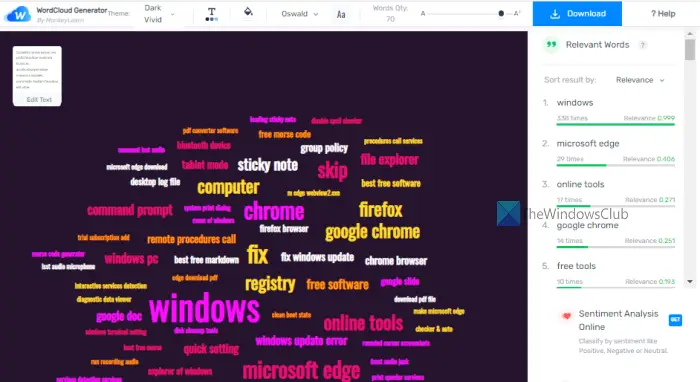
WordCloud Generator is an online tool that lets you make a word cloud from a TXT/CSV file or you can add source text in the given box. You can quickly generate a beautiful word cloud using the available features. This tool lets you:
- Select a single color for all the words for your word cloud
- Choose a custom background color or make a transparent background
- Select a theme to automatically set background color and text color. 5 different themes are available to choose from
- Select a font like Open Sans, Rubik, Oswald, Quicksand, etc.
- Edit the input text
- Set word quantity using a slider
- Download a data sheet as a CSV file. That file will contain the number of words, count (number of times a word appears), and relevance/frequency of those words
To use this tool, open its homepage from monkeylearn.com. There, either use the Upload text file button or add source text (up to 200000 characters) in the available area and use the Generate cloud button. After that, the tool will automatically process the text and display a word cloud. It doesn’t let you generate a word cloud with specific shapes but it is possible to change the word cloud layout by adjusting word quantity.
You can also use other options from the menu toolbar at the top of the interface. Once your word cloud is ready, press the Download button to save it to your computer as a PNG or SVG file. You can also download the source text datasheet there.
5] Word Cloud Generator
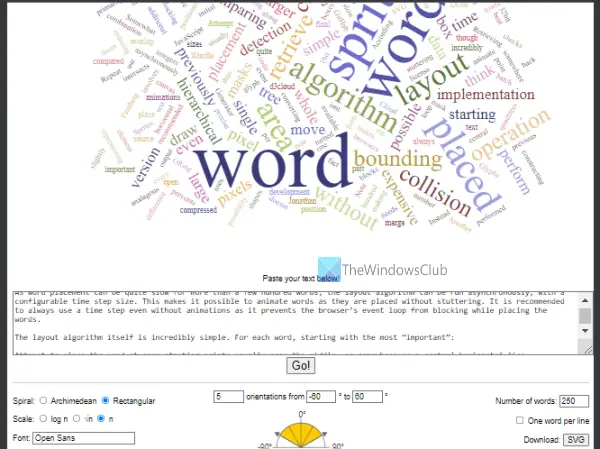
This online Word Cloud Generator tool is very simple and you can generate a text cloud in a matter of seconds. A few useful options are provided by this tool. You can set orientation and angles, the number of words, shape, font (by typing the name of the font you want to use), scale, etc.
To access the homepage of this tool, visit jasondavies.com. There, enter the source text and press the Go! Button to generate a word cloud with default settings. You can further adjust the word cloud using the options provided.
As soon as you use an option, the word cloud shape is adjusted accordingly. If that doesn’t work for some reason, then you need to use the Go! button again to view the changes.
When the word cloud is ready, you can download it as an SVG file to your computer.
Does Microsoft have a word cloud generator?
Microsoft doesn’t come with its own word cloud generator tool. But a few plugins can help you create a word cloud using one of its products. For example, you can use an add-in named Pro Word Cloud to create a Word Cloud in Microsoft PowerPoint or Word. Install the add-in, access and use the tools it provides, and generate a word cloud.
What is the best free word cloud generator?
There exist some free software as well as online word cloud generator tools that can help you generate a beautiful word cloud. While some tools have a few options, other tools come with options like creating a custom-shaped word cloud, downloading the word cloud as an MP4 file, changing background and text color, using colors from a picture, and exporting the word cloud as SVG or PDF file, etc. To find the best free word cloud generator, look at the features the tool offers. We have also created a list of such word cloud generator tools in this post. You can review that list and start using the one that works best for you.
Read next: How to create a Word Cloud in Excel.
