
WMIC is a command-line tool for performing Windows Management Instrumentation (WMI) operations. The WMI supports scripting languages that let users manage their servers and personal computers running Windows operating systems. You can run WMI commands to query your system-related information, like the model or the serial number of a Windows computer, MAC address, Network Interface Card description, RAM size, disk drive details (model number, name, serial number), etc. To run the WMI commands, you have to launch the Command Prompt as an administrator. Some users are experiencing issues with the WMIC. According to them, when they execute the WMIC command, instead of showing the desired result, it displays WMIC is not recognized as an internal or external command, operable program or batch file error message.
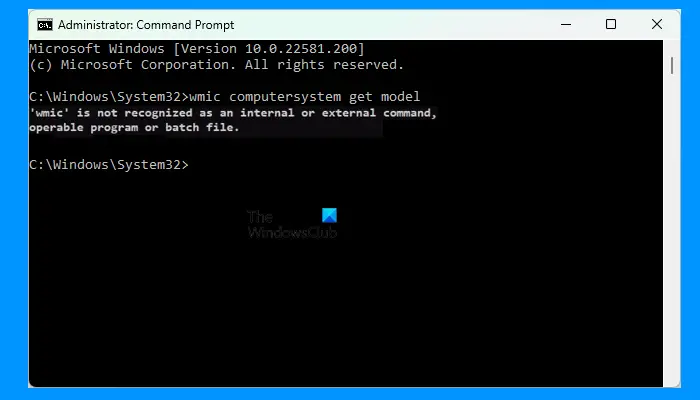
The complete error message that appears on the screen is:
‘wmic’ is not recognized as an internal or external command, operable program or batch file
Although WMIC or Windows Management Instrumentation Command-line is deprecated from Windows 10 and is no longer in active development for Windows 11, you can use it on your computer. This post shows how to install WMIC in Windows 11 using Settings, PowerShell, or CMD.
WMIC is not recognized as an internal or external command
If you receive the above error message while executing the WMIC command to your computer, you can try the following fixes-
- Check the status of the Windows Management Instrumentation Service
- Define an Environment Variable
Let’s see the above fixes in detail.
1] Check the status of the Windows Management Instrumentation Service
The issue occurs if the WMI (Windows Management Instrumentation) service is not running or stopped. You can check the status of the WMI Service in the Windows 11/10 Services app. If the service is stopped, start it. The following steps will help you with that:
- Launch the Run command box by pressing the Win + R keys.
- When the Run command box appears on your screen, type
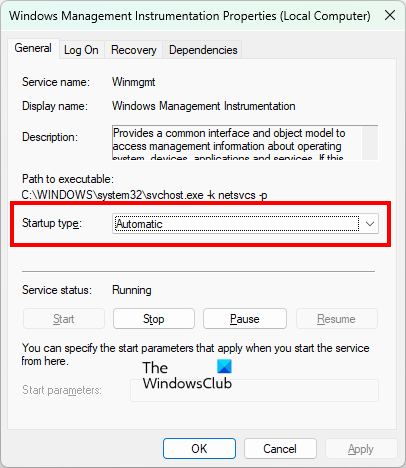
services.mscand click OK. This will open the Services app. - In the Services app, look for the Windows Management Instrumentation service. Its status should show Running and Startup Type should show Automatic.
- If the service is stopped, right-click on it and select Properties.
- Under the General tab, select Automatic in the Startup Type drop-down.
- Now, click on the Start button.
- Click Apply and then OK.
2] Define an Environment Variable
If the WMI Service is already running or if after starting the WMI Service, the error still persists, the problem is occurring because the WMIC program is not available in the system path. To fix the issue, you have to add the path to the WMIC executable to the System Variable.
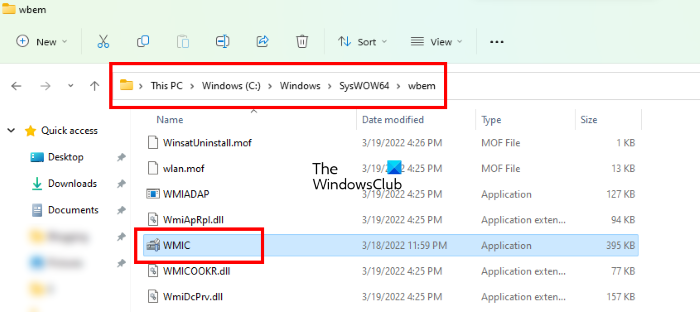
By default, the WMIC.exe is located at the following location on a Windows computer.
C:\Windows\SysWOW64\wbem
You have to add this path to the Environment Variable to fix the problem. The following steps will guide you on how to do that.
- Click on Windows Search and type environment variable.
- Select Edit the System Environment Variables from the search results.
- The System Properties window will appear on your screen.
- Select the Advanced tab and then click on the Environment Variables button on the bottom right side.
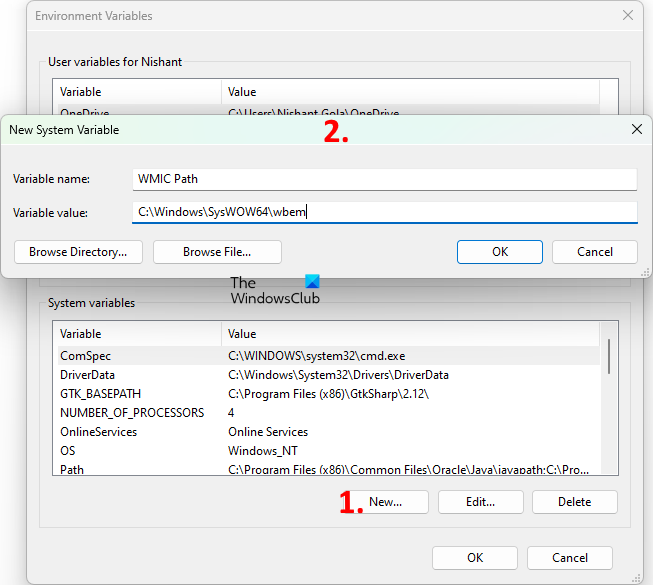
- You will see two sections, namely, User Variables and System Variables. You have to define the new Environment Variable in the System Variables section. Click on the New button under the System Variables section.
- Type the Variable name and paste the above path in the Variable value field.
- Click OK to close the New System Variable window. Click OK again to close the Environment Variables window.
After defining the Environment Variable, restart your computer. This should fix the issue.
Read: Check up Hard Disk Health natively using WMIC.
WMIC No instances available on Windows 11
Microsoft has deprecated WMIC in newer versions of Windows, and hence, you may see this error.If you want to use WMIC, you will have to install it first. If you’re relying on it for scripts or monitoring, it’s best to migrate to PowerShell’s Get-CimInstance or Get-WmiObject. However, if you already have WMIC installed and still see this message, repair the WMI repository by running these commands in an elevated Command Prompt:
net stop winmgmt
winmgmt /resetrepository
net start winmgmt
The “No instances available” message doesn’t always mean something is broken; it can also mean that the class you queried has no data on your system.
How do you fix WMIC is not recognized as an internal or external command?
If you receive the “WMIC is not recognized as an internal or external command” error when running WMIC in Command Prompt, first check whether the Windows Management Instrumentation Service is running. You can check this in the Services app on your Windows 11/10 device. If you find the service stopped, start it and set its Startup Type to Automatic.
The error states that the WMIC is not recognized as an internal or external command. Windows displays this error message when it cannot find WMIC in the system path. To solve this problem, you have to define a System Variable by adding the path of the WMIC executable file.
What is WMIC in command prompt?
WMIC is a command-line tool used to perform WMI (Windows Management Instrumentation) operations via the Command Prompt. A user can execute the WMIC command to get the information of their system, like MAC address, Network Interface Card details, disk drive details, etc.
Hope this helps.
Read next: WMIC command give Access is denied error when connecting remotely.
