
Some users may notice an error where the Windows Server Essentials Email Server service stops and refuses to start because of the .NET Framework. The Windows Server Essentials Email Service is not a full mail server but a service that manages the integration between your server and a third-party email provider like Microsoft 365 or an on-premises Exchange Server. In this post, we are going to see what to do to resolve the issue.
The service failing to start, often with errors like Error 1067 or a .NET Framework error, is typically caused by the fact that the service relies on specific configuration data (metadata) about the email provider. If this data is missing or becomes corrupted, for instance, due to an incomplete setup, a sudden power loss, or a failed update, the service will crash on startup. A common specific error is a System.ArgumentNullException with the parameter providerServiceInfo being null. The service may have dependencies on specific Windows features, such as certain components of the .NET Framework (like WCF Services HTTP Activation), that are not installed or are malfunctioning.
Windows Server Essentials Email Server Service not starting
If the Windows Server Essentials Email Server Service stops or is not starting, running or working, follow the solutions mentioned below.
- Restart the Dependent Service
- Reconfigure or Disable the Service
- Check and repair .NET Framework
- Use Process Monitor for Deep Diagnosis
Let us talk about them in detail.
1] Restart the Dependent Service
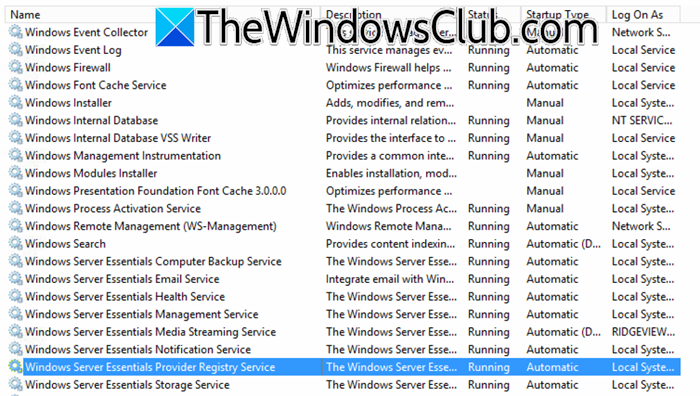
Restarting the parent service forces a refresh of the service components and can temporarily clear the state that is causing the Email Service to fail. This is a known workaround that has resolved the issue for many users. To do the same, you can follow the steps mentioned below to do the same.
- First of all, make sure that the Essentials Dashboard is closed.
- Now, open Services.msc.
- Look for Windows Server Essentials Provider Registry Service, right-click it, and select Restart. This action will also restart the dependent Email and Management services.
- Afterwards, try starting the Windows Server Essentials Email Service again.
Finally, check if the issue is resolved.
2] Reconfigure or Disable the Service
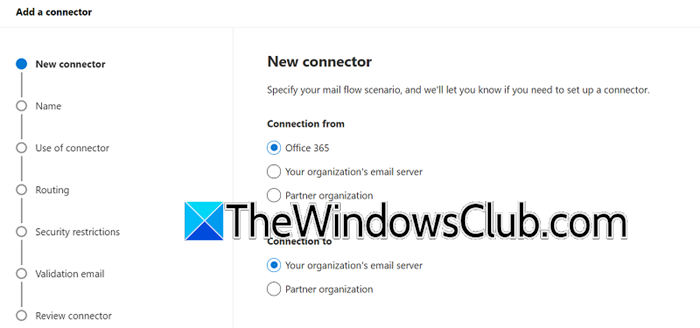
If you do not use the server’s email integration features (e.g., for client backups only), the simplest solution is to disable the non-essential service. In case you do need it, re-running the setup wizard recreates the correct configuration from scratch. If the quick restart doesn’t work, the problem likely lies with the service’s configuration.
If you do not need Email integration, follow the steps mentioned below.
- Open Services.
- Look for Windows Server Essentials Email Service.
- Set its Startup type to Disabled and stop the service if it’s attempting to run. This will prevent the error and is a safe fix if the feature is unused.
If you need Email integration, follow the steps given below.
- Open the Windows Server Essentials Dashboard.
- Navigate to the section for setting up Microsoft 365 or Exchange Server integration.
- If a provider is already listed, remove or disconnect it.
- Re-run the email integration wizard and complete the sign-in and setup process. This recreates the provider entries that the service needs to start properly.
Finally, check if the issue is resolved.
3] Check and repair .NET Framework
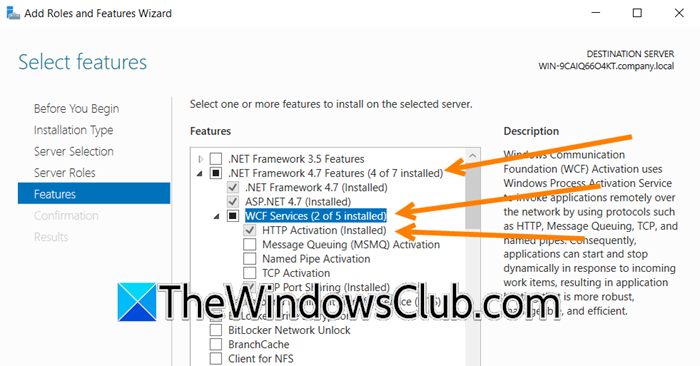
The .NET Framework is a software development platform made by Microsoft. It includes a large library of ready-to-use code and a runtime environment called the Common Language Runtime (CLR) that runs applications. Many Windows services, such as the Essentials Email Service, are built on this framework and require its components to function properly. Repairing the .NET Framework is helpful because the service host is a .NET application. If important .NET components are missing or damaged, the application cannot run correctly. To repair the .NET Framework, you can follow the steps mentioned below.
- Open Server Manager.
- Click on Add Roles and Features.
- Go to the Features tab, and ensure that the .NET Framework 4.x Features > WCF Services > HTTP Activation is installed. Install it if missing and reboot.
- You can also run the System File Checker (sfc /scannow) in an elevated command prompt to repair general system file corruption.
Finally, check if the issue is resolved.
4] Use Process Monitor for Deep Diagnosis
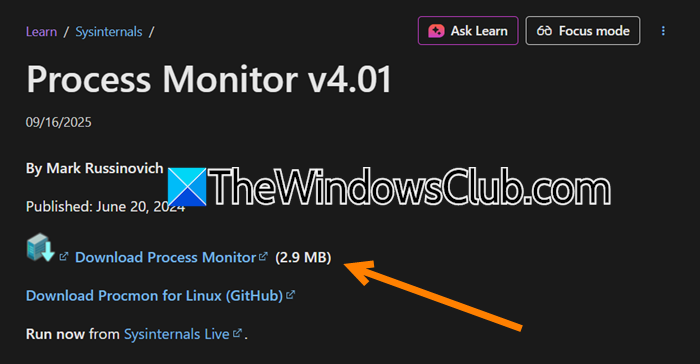
Process Monitor checks the service’s startup process in real-time to identify exactly which file or registry key it is failing to access, providing a precise target for your repair efforts. You can follow the steps mentioned below to do the same.
- Download Process Monitor from learn.microsoft.com.
- Run it with administrative privileges, set a filter for the process name SharedServiceHost.exe, and then attempt to start the email service.
- Analyze the log for any ACCESS DENIED or FILE NOT FOUND errors immediately before the service stops.
I hope these steps help you resolve the issue with your server.
What happens when the server service in Windows Server is stopped?
When the Server service is stopped in Windows Server, all shared network resources, such as file shares, named pipes, and printer queues, become inaccessible to other users and computers on the network. The server itself will no longer be able to respond to Remote Procedure Call (RPC) requests that depend on this service. Effectively, the server is disconnected from the network for resource sharing, though local operations and non-SMB dependent services may continue to run.
Read: How to remove Roles and Features in Windows Server
What are the limitations of Windows Server Essentials?
Windows Server Essentials is designed for small businesses and has key limitations, primarily a hard cap of 25 users and 50 devices. It also lacks access to the full feature set of the Standard and Datacenter editions, such as extensive virtualization rights, and it cannot join an existing domain as a member server, only as the root domain controller.
