
Windows Recovery Environment allows users to repair their computers when they cannot boot into Windows. It is stored on a separate partition hidden by default and has no drive letter. You can enable or disable it as per your requirements. However, enabling the Windows Recovery Environment on a BitLocker-encrypted drive shows the “Windows RE cannot be enabled on a volume with BitLocker Drive Encryption Enabled” error. In this article, we will show you how to fix this error.
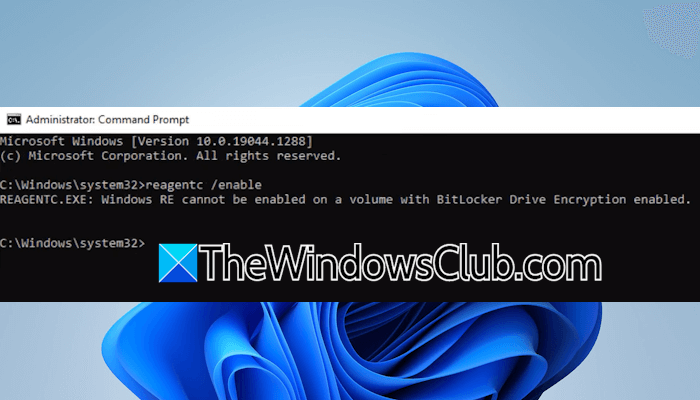
Windows RE cannot be enabled on a volume with BitLocker Drive Encryption Enabled
The error “Windows RE cannot be enabled on a volume with BitLocker Drive Encryption Enabled” prevents you from enabling the Windows Recovery Environment. WinRE is an important recovery environment, allowing you to fix your computer in unbootable conditions. Therefore, it is important to fix this error.
Use the following fixes for this error:
- Disable your BitLocker drive encryption
- Create a new Healthy Recovery Partition
All these fixes are explained below in detail.
1] Disable BitLocker drive encryption
The first step is to turn off BitLocker drive encryption. To disable BitLocker Drive Encryption, open Command Prompt as an Administrator and execute the following command:
manage-bde -off C:
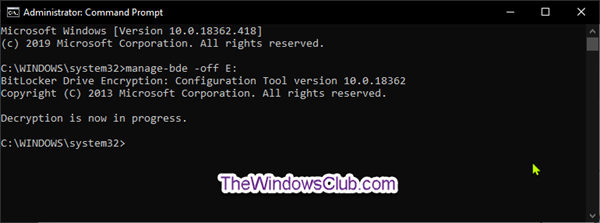
The above command will disable BitLocker Encryption on your C drive. After turning it off, run the command to enable the Windows Recovery Environment. If this works, you can enable the BitLocker Drive Encryption later.
2] Create a new Healthy Recovery Partition
If the above fix does not work, you can create a new partition and use it as the Healthy Recovery Partition. To create a new Healthy Recovery Partition, follow these instructions:
- Open the Disk Management.
- Right-click on your C drive or another drive that has more space.
- Select Shrink Volume.
- A new window will appear. Enter the size of new partition. The minimum preferred size for Recovery Partition is 1 GB. Hence, enter the value 1024. This will create a new partition with Unallocated space.
- Now, right-click on the Unallocated space partition and select New Simple Volume. Click Next and follow the on-screen prompts to assign a new drive letter.
The new volume will be used as the Recovery Environment. Now, follow these steps:
Click on Windows Search and type Diskpart. Select the Diskpart tool and click Yes in the UAC prompt. Now, type the following commands and hit Enter after entering each command:
list disk

select disk #

list partition
In the above commands, replace # with the correct disk letter. Diskpart will show you all the partitions of the selected disk. One of these partitions is the newly created partition. Select that partition by entering the command below:
select partition #
Here, you have to mention the correct partition number in place of #. Now, execute the following command to activate it as a recovery partition.
set id=27
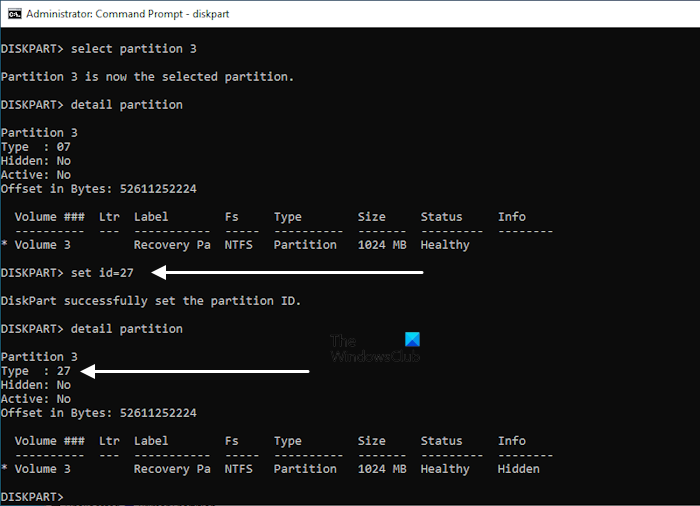
The above command is for the disk with an MBR partition table. If your disk uses the GPT partition style, use the following two commands. Press Enter after entering each of these commands.
set id=de94bba4-06d1-4d40-a16a-bfd50179d6ac
gpt attributes=0X8000000000000001
Now, you can run the command to enable Windows Recovery Environment. The command should work this time.
That’s it. I hope this helps.
How to enable WinRE while BitLocker is on?
You cannot enable WinRE while BitLocker is on. For this, first, you have to turn off the BitLocker protection for your C drive. After that, you can enable WinRE. You can turn on BitLocker drive encryption once you enable Windows Recovery Environment.
Why disable BitLocker encryption?
BitLocker encryption is a security feature in Windows 11/10 that protects your data from unauthorized access. You can lock your hard drive partitions containing confidential files with BitLocker. Hence, it is not suggested to disable BitLocker encryption if your device supports BitLocker. However, it may become a headache if you do not have the recovery key. Therefore, before enabling BitLocker encryption, retrieve and save the recovery keys.
Read next: This volume is locked by BitLocker Drive Encryption, Code 10.
