
If Windows keeps assigning a drive letter to the recovery partition on your system, this post will show you how to fix it. A recovery partition is a special partition that contains the Windows Recovery Environment (WinRE) and some critical system files, intended for troubleshooting purposes or performing a factory reset. It’s normally hidden and does not have a drive letter assigned to prevent accidental modification.
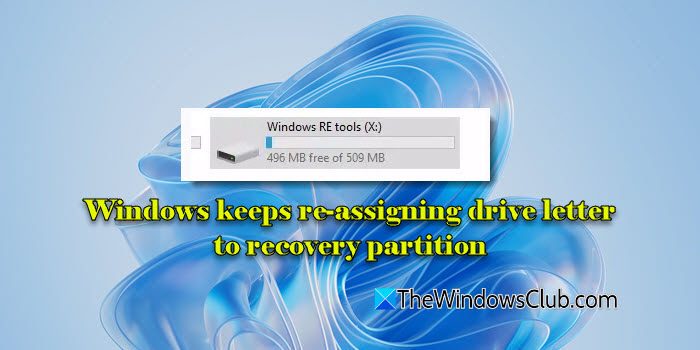
However, some users report that Windows is automatically providing a drive letter to this hidden partition, and it’s showing up in the File Explorer. This is quite risky, as it could potentially cause severe system problems if you actually run low on disk space and accidentally delete or corrupt data. If you are experiencing this problem, this guide will explain why it’s happening and how you can prevent Windows from automatically assigning a drive letter to the recovery partition.
Why does Windows keep assigning a drive letter to the recovery partition?
Every partition on a disk has metadata that tells the operating system what kind of partition it is and how it should be treated. The recovery partition has special attributes like do not mount or hidden that indicate that it is not to be mounted or visible to users. However, these attributes can be accidentally deleted when you perform a disk cloning operation, update Windows, or use third-party partition tools. When this happens, Windows may treat the recovery partition like a regular volume and assign it a drive letter.
Windows keeps re-assigning drive letter to recovery partition [Fix]
To fix Windows if it keeps re-assigning a drive letter to the recovery partition, use these solutions:
- Remove the drive letter using Diskpart
- Set the partition as Hidden with Diskpart
- Delete the Volume Mount Point
- Modify Registry
Let us see this in detail.
1] Remove the drive letter using Diskpart
DiskPart is a built-in command-line tool that allows you to manage disk partitions in Windows directly from the Command Prompt. To use it to remove the drive letter from the recovery partition, follow these steps:
Click on the Start menu and type ‘cmd’. Then right-click on Command Prompt and choose Run as administrator.
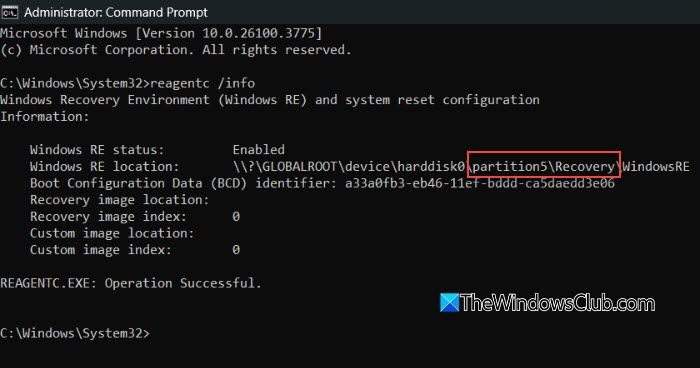
Before proceeding, you can run reagentc /info to check the current status and location of the Windows Recovery Environment (WinRE).
If the recovery partition appears as a volume (with a drive letter), run:
diskpart
list volume
select volume X
remove letter=Z
Replace X with the volume number of the recovery partition. Replace Z with its drive letter (e.g., F, D, etc.). This will remove the drive letter and hide the partition from File Explorer.
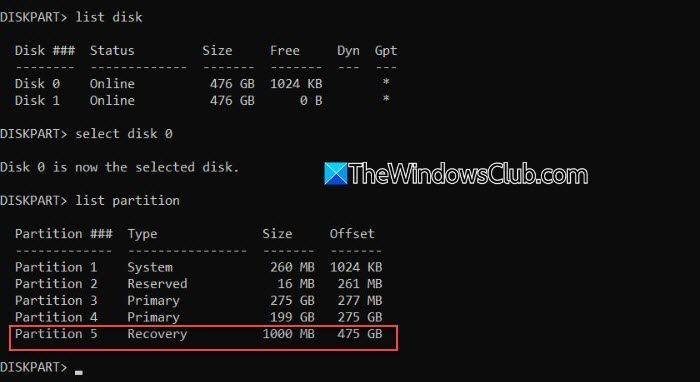
If the recovery partition does not appear as a volume, access it at the partition level:
diskpart
list disk
select disk X
list partition
select partition X
Next run:
list volume
Identify the volume that matches the size of the recovery partition. Once matched, you’ll see the drive letter (if any) in the Ltr column.
Then run:
remove letter=Z
Replace Z with the actual drive letter. Once you’re done, type exit to close the Diskpart tool. Close the Command Prompt window and reboot your PC.
The recovery partition should no longer appear in File Explorer.
2] Set the partition as Hidden with Diskpart

If the recovery partition keeps reappearing in File Explorer with a drive letter, especially after a reboot or update, it indicates that the partition is not properly hidden or protected. To prevent this, follow these steps:
Open Command Prompt with Administrator privileges, then launch DiskPart and select the disk and recovery partition, as explained in Solution 1.
Once the correct partition is selected, run the following commands:
set id=de94bba4-06d1-4d40-a16a-bfd50179d6ac override
The above command sets the correct partition type ID for the recovery partition.
Next run:
gpt attributes=0x8000000000000001
This applies GPT attributes that mark the partition as hidden and read-only.
Note: This method works only on GPT-partitioned disks (UEFI systems).
These changes ensure the recovery partition is properly recognized by Windows, remains hidden from File Explorer, and is protected from modification, preventing Windows from assigning it a drive letter again.
3] Delete the Volume Mount Point
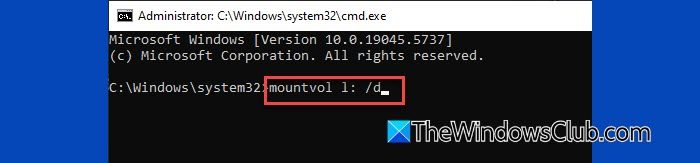
You can use the mountvol command to remove the Recovery Partition mount on your system.
Open and elevated Command Prompt. In the Command Prompt window, type the following command and press Enter:
mountvol [driveletter]: /d
After executing the command, the recovery partition will no longer appear in File Explorer.
4] Modify Registry
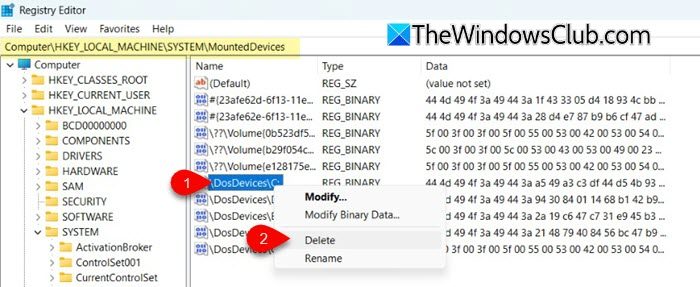
This method removes the saved drive letter association from the registry.
Note: Modifying the Windows Registry can affect system stability if not done correctly. Always back up the registry before making changes.
Press Win + R to open the Run dialog. Type regedit and press Enter to open the Registry Editor.
Navigate to the following path:
Computer\HKEY_LOCAL_MACHINE\SYSTEM\MountedDevices
On the right pane, you will see several entries starting with \DosDevices\. Each of these represents a drive letter assigned to a volume (e.g., \DosDevices\F:). Identify the one that matches the recovery partition’s drive letter, right-click it, and select Delete.
Close the Registry Editor and restart your computer.
I hope this helps.
Read: How to delete Recovery Partition in Windows.
Drive letter changed by itself
If the drive letter changed by itself after a system restart or when reconnecting an external disk, use Disk Management to manually reassign the drive letter, or use DiskPart to assign a persistent drive letter via the command line. If a corrupted system partition is the root cause, you may need to use the bcdboot command to recreate the system partition boot files.
How do I stop Windows from assigning drive letters?
To stop Windows from assigning drive letters to the recovery partition, you can hide the partition by setting the correct recovery partition type and GPT attributes using Diskpart. Alternatively, you can remove the drive letter using Diskpart or mountvol, or delete the DosDevices registry entry linked to the partition.
How to permanently assign a drive letter?
To permanently assign a drive letter, open Disk Management, right-click the drive, and select Change Drive Letter and Paths. Click Add, then assign a preferred letter. Windows will remember this assignment across reboots, as long as the drive’s ID doesn’t change.
Read Next: Hard Disk Partition not showing up in Windows.
