
In this post, we will see what the Windows Health and Optimized Experiences Service is, why it consumes high disk usage and whether it is safe to disable it.
What is Windows Health and Optimized Experiences Service in Windows 11
Windows Health and Optimized Experiences (whesvc) is a background service that starts automatically every time you boot Windows. Its Startup type is Automatic (Delayed Start) and its function is to monitor your CPU, thermals, and battery and then send this data to Microsoft every 15 minutes. This service has been built for laptop battery management.
It carries out the following functions:
- Tracks the stability of Windows components, drivers, and apps to detect issues.
- Helps Windows adjust background processes and resource usage to keep your PC in an optimal state.
- Collects non‑personal diagnostic data and sends it to Microsoft for troubleshooting.
Why does Windows Health and Optimized Experiences Service show high disk usage?
Windows Health and Optimized Experiences Service may show high disk usage under the follwing circumstances:
- It will temporarily spike disk usage while running scripts, logging diagnostics or adjusting settings. This is normal.
- If the Capability Access Manager service creates .db-wal files of hundreds of GBs, which are linked to system health monitoring, Windows Health and Optimized Experiences Service may end up consuming high disk usage.
- Extended Telemetry activity may also result in high disk usage. WHESVC may run extended checks and log more data, especially if the Telemetry settings are set to “Full”.
How to fix Windows Health and Optimized Experiences Service high disk usage?
- Check if Windows Update KB5095093 is installed on your system.
- Next, navigate to
C:\ProgramData\Microsoft\Windows\CapabilityAccessManagerand delete the CapabilityAccessManager.db-wal file. - Go to Settings > Privacy & security > Diagnostics & feedback and set diagnostic data to Required only to limit Diagnostic Log Collection.
- Run DISM and SFC scans to fix potentially corrupted system files.
- If this does not resolve the issue, you may consider disabling the Windows Health and Optimized Experiences Service.
How to disable Windows Health and Optimized Experiences Service
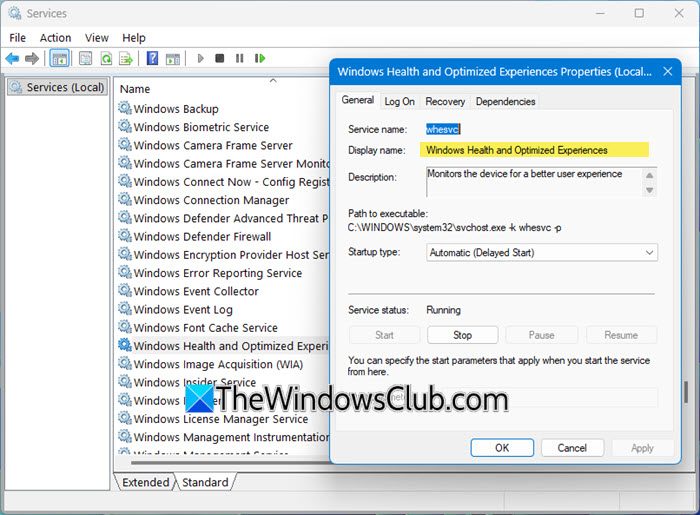
To do this, open Windows Services Manager and locate the Windows Health and Optimized Experiences Service.
Change its Startup type to Disabled, click Apply > OK and restart your computer.
How to fix Windows Health and Optimized Experiences Service high CPU usage?
Is it safe to disable Windows Health and Optimized Experiences Service?
You can safely disable the Windows Health and Optimized Experiences Service, but it’s generally not recommended unless you’re troubleshooting an issue. This service is designed for laptop battery management. If you are on a desktop gaming PC, it does little for you beyond running in the background.
