
Microsoft has released Microsoft Defender Browser Protection extension for Google Chrome browser. With this extension, Microsoft aims to bring the Microsoft SmartScreen filter to Google Chrome as well. This means that the same level of security for Google Chrome that they provided for Microsoft Edge is now possible.
Microsoft Defender Browser Protection extension for Chrome
This extension works in a pretty straightforward manner. The extension keeps track of which websites you visit. I understand that this is not something a normal user wants. But Microsoft is required to track a user’s internet traffic. For people who have concerns about this, Microsoft has made it clear that they don’t track users individually but collect this data anonymously. This means that all data uploaded to the cloud will be untrackable and will not be shared with anyone outside the relevant service.
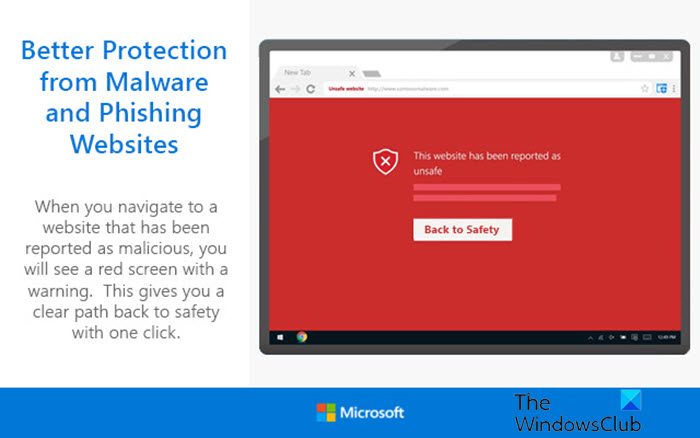
So, while you get the extension installed on your Google Chrome browser, and you visit a malicious website, Microsoft’s Extension will check in an instant if that website is safe to be visited. This is done using a comprehensive list of URLs for malicious content across the Internet. So, when you visit such a malicious website, the extension will show you a Red screen just like it does on Microsoft Edge. It will inform you that the link you are trying to visit is unsafe. And that you should return to a safer website. Additionally, if you think Microsoft has mistakenly flagged that website as malicious, you can visit the website at any time by disregarding the prompt.
Says, Microsoft,
The Windows Defender Browser Protection extension helps protect you against online threats, such as links in phishing emails and websites designed to trick you into downloading and installing malicious software that can harm your computer.
Add Microsoft SmartScreen filter to Google Chrome
To get started, you will need to download and install this extension in Google Chrome. For this, you will have to follow this link to the Chrome Web Store.
Once there, you should click on Add to Chrome. Hitting this button will download the extension to your Google Chrome browser.
After the download is complete, you will see a prompt from Google Chrome asking whether you want to install this extension in your browser.
When you hit the Add Extension button, this extension gets installed on your browser, and you are ready to go!
After you install this extension, there is nothing more that you need to do. As you can see in the screenshot below, the extension pop-up shows no additional settings other than enabling or disabling protection. This means that you need to worry about nothing and just let the cloud service do all the work.
If you still wish to test the extension before using it in real-world scenarios, Microsoft has you covered as well. Just head to this demo.smartscreen.msft.net website, using Edge, or Chrome with this extension, that Microsoft has built in order to try out different vulnerabilities and exploits that this SmartScreen filter can block and try out its capabilities on your own.
Let us know if you have installed the Microsoft Defender Browser Protection extension for Edge or Chrome.
Now look at Windows Defender Application Guard Extension for Chrome, Edge & Firefox.
