
The Active Directory Web Services (ADWS) error Windows could not start the service on Local Computer prevents remote AD management via tools like Active Directory Administrative Center or PowerShell. This service is critical for domain controllers to expose AD data over web services, and when it fails, administrators lose essential management capabilities.
Windows could not start the Active Directory Web Services service on Local Computer.
Error 1053: The serice did not respond to the start or control request in a timely fashion.
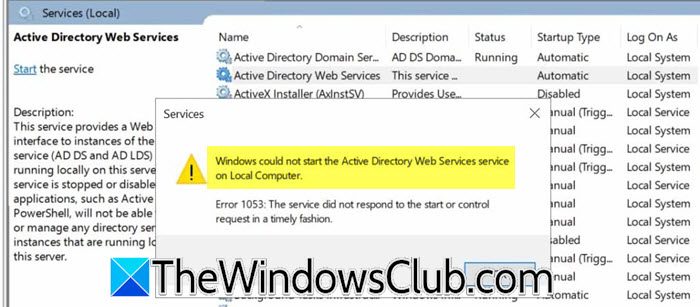
Windows could not start Active Directory Web service on Local Computer
Error 1053 occurs when ADWS takes more than 30 seconds to complete its start routine. Common triggers include: the Active Directory Domain Services (NTDS) still starting up when ADWS tries to connect, high CPU/disk I/O from other services (e.g., DFSR, KDC), a corrupted HTTP URL reservation on port 9389, or missing .NET Framework optimizations. The service account (Network Service) may also be waiting for DNS or NETLOGON, causing a startup deadlock.
If Windows could not start the Active Directory Web service on the local computer, follow the solutions mentioned below.
- Increase the service startup timeout via the registry
- Verify and restart dependency services
- Set a service dependency on NTDS and HTTP services
- Clear and recreate the HTTP URL reservation (port 9389)
- Re-register ADWS performance counters and .NET assemblies
Let us talk about them in detail.
1] Increase the service startup timeout via the registry
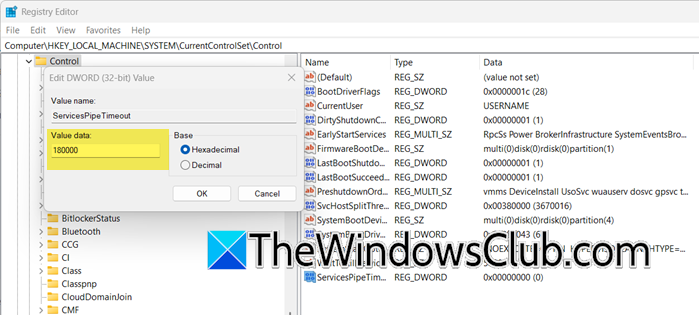
Windows has a default 30-second wait for services to respond. Extending this to 60–120 seconds gives ADWS enough time to complete the connection to the AD database, even under heavy boot load. To increase the time, we are going to make some registry changes; before that, create a registry backup.
Now, in the Registry Editor, go to the following location.
HKLM\SYSTEM\CurrentControlSet\Control
Create a new DWORD (32-bit) named ServicesPipeTimeout.
You need to set its value to 180000 (decimal) for 180 seconds. Now, reboot the server.
2] Verify and restart dependency services
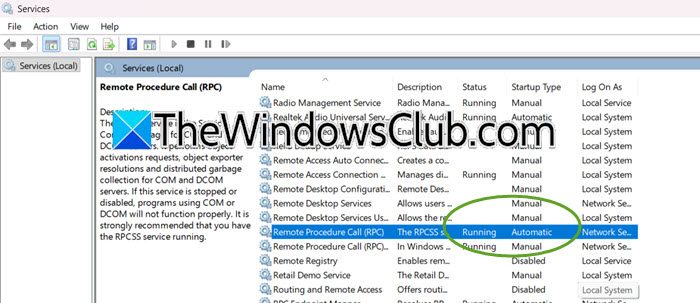
ADWS depends on Remote Procedure Call (RPC), HTTP Service, and Active Directory Domain Services. If any of these are stopped or delayed, ADWS fails to start. Forcing them to run and changing ADWS to manual start prevents race conditions.
You need to follow the steps mentioned below to do the same.
- Open Services.msc.
- Now, check and ensure the following services are Running and are set to Automatic.
- Remote Procedure Call (RPC)
- HTTP Service
- Active Directory Domain Services (NTDS)
- Set ADWS startup type to Manual (not Automatic).
- Click Apply.
Start ADWS manually. If it works, change it back to Automatic (Delayed Start) to avoid boot-time timeouts.
3] Set a service dependency on NTDS and HTTP services
We will set up a service dependency for ADWS on the NTDS (Active Directory database) and HTTP.sys services. This change will ensure that ADWS waits for both the NTDS and HTTP services to be fully running before it starts. This will help us avoid any early launch errors.
To do the same, open Command Prompt as an admin and run the following command.
sc config ADWS depend= NTDS/HTTP/RPCSS
Then, run sc qc ADWS to verify, and finally, run net stop ADWS && net start ADWS to restart the service.
4] Clear and recreate the HTTP URL reservation (port 9389)
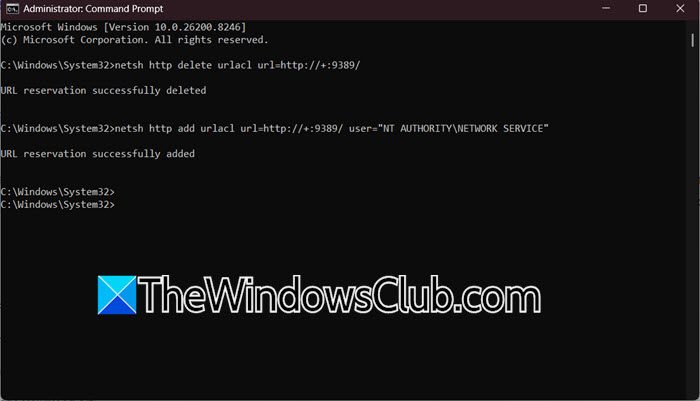
A corrupted or missing URL reservation causes ADWS to hang while trying to bind to its endpoint, timing out. Resetting it removes any conflicting IIS or third-party web service bindings.
Open Command Prompt as an administrator and then run the following commands.
Delete the existing URL
netsh http delete urlacl url=http://+:9389/
Add a correct reservation for Network Service.
netsh http add urlacl url=http://+:9389/ user="NT AUTHORITY\NETWORK SERVICE"
Restart ADWS: Restart-Service ADWS -Force
Finally, check if the issue is resolved.
5] Re-register ADWS performance counters and .NET assemblies
ADWS relies on .NET Framework 4.x. If NGEN (Native Image Generation) is pending or performance counters are broken, the service can stall during initialization.
Run PowerShell as Administrator.
Run ngen update (waits for .NET native image optimization).
Re-register ADWS counters using the following commands.
unlodctr ADWS

lodctr "C:\Windows\System32\adwsctrs.ini"
Reboot and test the service.
Hopefully, with the help of these solutions, you will be able to resolve the issue.
Read: Unable to reset user password in Active Directory
How to fix Windows could not start the Windows Update service on local computer?
To fix Windows could not start the Windows Update service on local computer, extend the service timeout by opening Registry Editor, navigating to HKLM\SYSTEM\CurrentControlSet\Control, creating a DWORD ServicesPipeTimeout, setting decimal value to 180000, and rebooting. If unresolved, run net stop wuauserv, rename C:\Windows\SoftwareDistribution to SoftwareDistribution.old, then net start wuauserv.
Read: How to install Active Directory and add users
How do I enable Active Directory on my PC?
You cannot turn a standard Windows 11 Pro PC into a domain controller without Windows Server. Instead, install RSAT tools: go to Settings > Apps > Optional Features > Add a feature, search for “RSAT: Active Directory Domain Services and Lightweight Directory Tools”, install it, then open Active Directory Users and Computers from the Start menu.
