
When a user forgets their domain password or their password expires, it’s the duty of the IT admin to reset it. However, we are noticing a peculiar issue where the admin is unable to reset a user’s password in Active Directory due to various reasons that we will discuss in this post, along with their respective solutions.
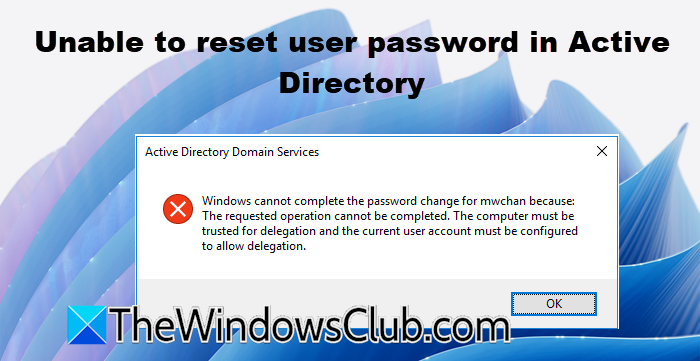
The System cannot find the path specified
Windows cannot complete the password change for mwchan because:
The requested operation cannot be completed. The computer must be trusted for delegation, and the current user account must be configured to allow delegation.
Why isn’t Microsoft letting me reset my password?
Several factors can prevent a successful password reset in Active Directory. First, password policies might not be applied correctly. For example, a new password may not meet complexity, length, or history requirements, even if it looks okay.
Second, delays in sharing information between Domain Controllers (DCs) can cause problems, especially with the Primary Domain Controller (PDC) emulator. A recent password change may not reach all DCs in time.
Third, the administrator trying to reset the password might not have the right permissions to change the user’s password. Finally, there may be issues with the user’s account itself in the directory.
Fix Unable to reset user password in Active Directory
If you are unable to reset a user’s password in Active Directory, follow the solutions mentioned below.
Let us talk about them in detail.
1] Reset using PowerShell
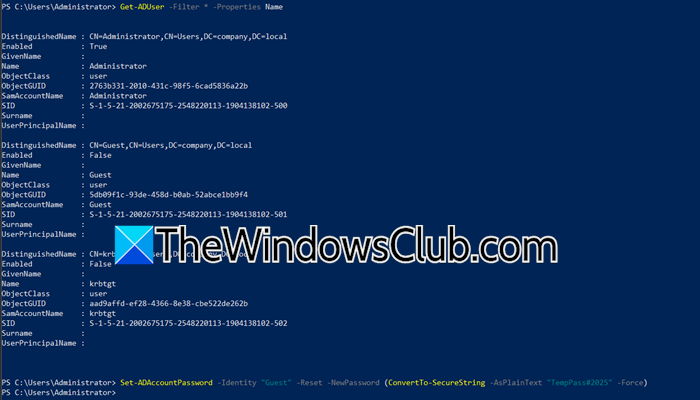
With the help of PowerShell, we get a more direct and verbose alternative to the graphical ADUC tool. It often returns clearer error messages, enabling precise identification of whether an issue stems from permissions, policies, or the user object itself. Additionally, checking effective permissions on the user account offers concrete proof of access rights, shifting the investigation from speculation to certainty.
You need to open PowerShell as an admin on your domain controller or workstation and run the following command to import the Active Directory Module.
Import-Module ActiveDirectory
This module is part of RSAT. If it fails, ensure RSAT: Active Directory Domain Services and Lightweight Directory Services Tools is installed.
If you want to fetch the list of users, run Get-ADUser -Filter * -Properties Name.
Set-ADAccountPassword -Identity "Guest" -Reset -NewPassword (ConvertTo-SecureString -AsPlainText "TempPass#2025" -Force)
Use the Set-ADAccountPassword cmdlet. Replace “Guest” with the actual username and “TempPass#2025!” with a compliant temporary password.
If it succeeds, the issue might have been a transient glitch with ADUC.
If it fails, the error message is your key clue:
- Access is denied: This confirms a permissions issue. Proceed to Part B.
- The password does not meet the length, complexity, or history policy…: The password is the problem, even if it looks good. Try a more complex one.
- The server is unwilling to process the request: This can indicate a finer-grained password policy (FGPP) issue or a problem with the account’s state.
Let’s move on to the next solution to check permissions.
2] Check effective permissions
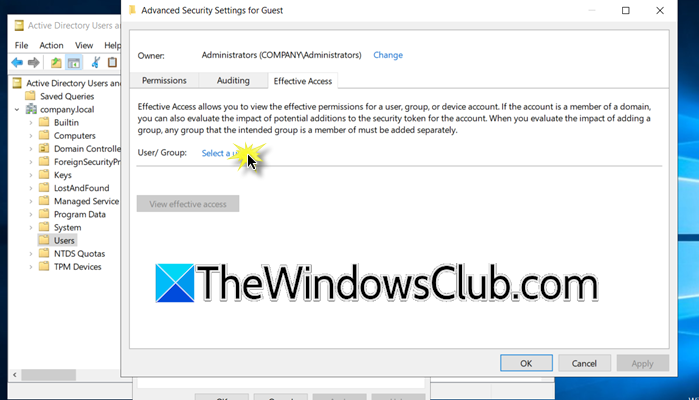
Now, we need to check your effective permissions on the user object. Use the following steps to do the same.
- Open ADUC (Active Directory Users and Computers) and navigate to the user account that cannot be reset. Go to the Domain Controller name > Users, and find the account.
- Right-click on the user account and select Properties.
- Click on View > Advanced Features (tick it).
- Go to Security > Advanced.
- Now, go to the Effective Access tab.
- Click Select a user, type your own admin username, and click OK.
- Click View effective access. The system will now calculate and display all permissions you have on this object.
- Scroll through the list and look for the Reset password permission. Check if it is granted or denied.
- If it is granted, the issue may not be permissions but something else (like policy or replication).
- If it is denied or simply not listed, this confirms you lack the necessary rights. The solution will involve having a higher-level administrator grant you the “Reset Password” permission on the user object or their parent OU.
Start by using PowerShell and an Effective Access check to find out why ADUC failed. This way, you gather evidence and focus on the actual root cause instead of guessing. Then, check the PDC or review password policies as the next logical steps based on what you discover.
Read: The users account has expired on Windows 11
3] Check Domain Controller Connectivity and DNS
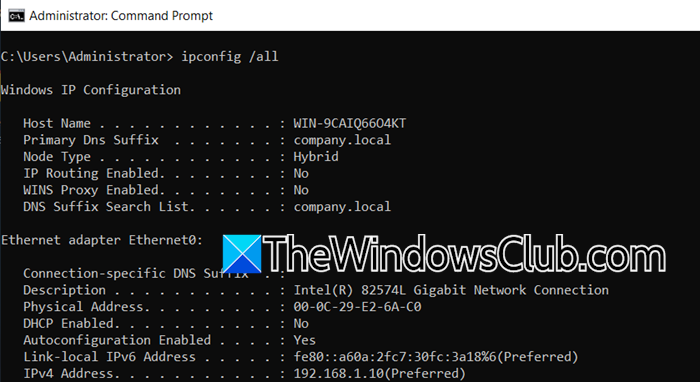
If the solutions mentioned earlier fails, the issue often lies in network connectivity or name resolution between your management workstation and Domain Controllers, especially in multi-site or complex configurations. The error “The system cannot find the path specified” usually means your computer can’t locate or communicate with a Domain Controller to process the password change request. There are several steps you can take to verify connectivity.
Open Command Prompt as an admin and run ipconfig /all. Now, run nslookup yourdomain.com to verify it resolves to your Domain Controller IPs.
You should also ping your domain, using ping yourdomain.com. If this fails, try pinging a specific Domain Controller by name and IP address. Check if necessary ports are open, particularly port 389 (LDAP) and 636 (LDAPS).
You can force connection to specific Domain Controller using the following PowerShell command.
Set-ADAccountPassword -Identity "username" -Server "DC01.yourdomain.com" -Reset -NewPassword (ConvertTo-SecureString -AsPlainText "TempPass123!" -Force)
Additionally, check the Active Directory Web Services.
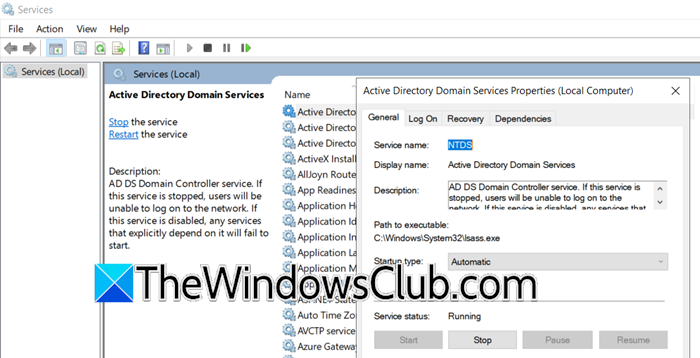
For that, log onto a Domain Controller and open Services app. Then, verify that Active Directory Web Services is running. If not, start the service and set it to Automatic startup.
Read: How to install Active Directory and add users
4] Verify and Modify Fine-Grained Password Policies
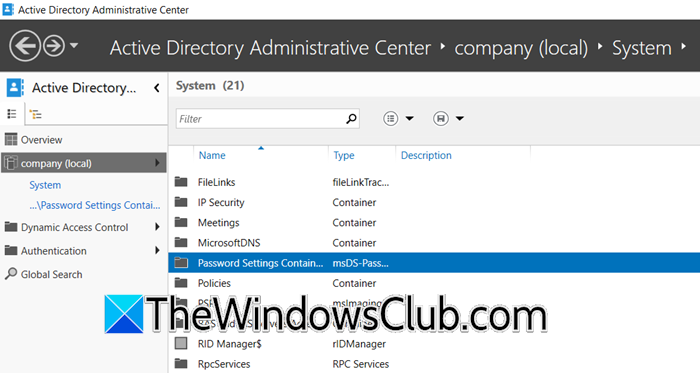
Sometimes, the issue stems from Fine-Grained Password Policies (FGPP) that apply specific requirements to certain users or groups. These policies can override the default domain policy and may block password resets if the new password doesn’t meet their unique criteria, even if it complies with your standard domain policy.
Follow the steps mentioned below to resolve the issue.
- Open Active Directory Administrative Center (dsac.exe) from your Domain Controller or management workstation with RSAT installed.
- In the left pane, navigate to your domain and expand the System folder, then select Password Settings Container.
- Review existing password settings objects (PSOs) in the center pane. Double-click each to examine their properties.
- Check which PSO applies to the user by examining the “Directly Applies To” section. You can also use PowerShell to check applied PSOs:
Get-ADUserResultantPasswordPolicy –Identity “username”
- If the user is affected by a restrictive FGPP, you have two options:
- Modify the PSO to adjust password requirements, or
- Remove the user from the security group that the PSO applies to
Create a temporary exemption by adding the user to a group that has a more lenient FGPP or no FGPP at all.
Hopefully, with the help of these solutions, your issue will be resolved.
Read: How to set Permissions in Active Directory for Users
How to reset user password in Active Directory?
To reset a user password in Active Directory, open Active Directory Users and Computers (ADUC), navigate to the user account, right-click it, and select Reset Password. Enter and confirm the new password, then check User must change password at next logon to ensure they set a private password immediately. This is the standard administrative method for password resets.
Also Read: Account getting locked out frequently in Active Directory.
