
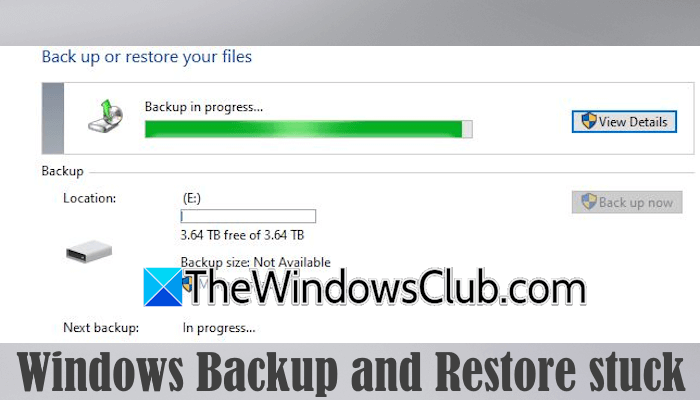
Windows Backup and Restore is a built-in tool in Windows 11/10 computers that allows users to back up their hard drive partitions as disk image files. The time this tool takes to create a backup image of the selected hard drive partition depends on the amount of data in that partition. However, some users reported that Windows Backup and Restore get stuck at a certain percentage. Sometimes, it gets stuck at 97%, 12%, etc. If you encounter such a problem, this article will help you.
Windows Backup and Restore stuck
Use the following fixes if the Windows Backup and Restore tool gets stuck at a certain percentage like 97%, 12%, etc. while creating a system image:
- Repair your system image files
- Run the chkdsk scan
- Disable your antivirus and firewall
- Try in the Clean Boot state
- Exclude unnecessary folders
- Use another program
All these fixes are explained in detail below.
1] Repair your system image files
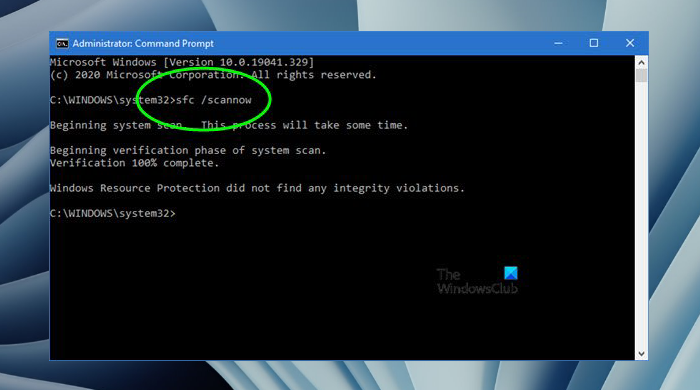
The problem might be occurring due to the corrupt system image files. Use the built-in tools, System File Checker, and DISM to scan and repair the corrupted system image files. The scan will take time; do not interrupt it.
2] Run the chkdsk scan
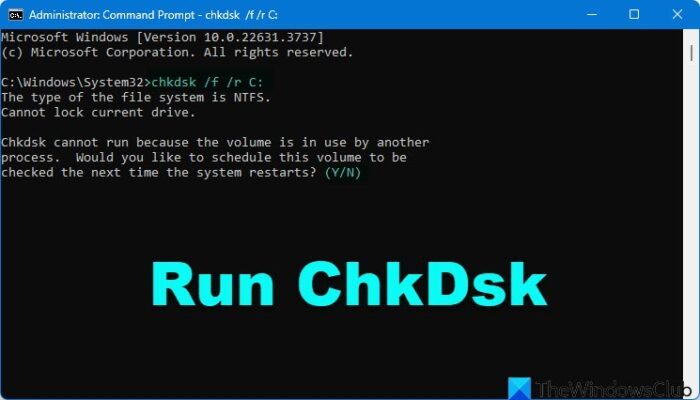
There might be some bad sectors or logical errors on your hard drive, causing the backup process to get stuck at a certain percentage. Scan both the hard drive partitions (the one you are backing up and the one you are saving the backup to) using the Chkdsk utility.
3] Disable your antivirus and firewall
Your antivirus or firewall might be conflicting with the Windows Backup and Restore tool, causing the backup process to freeze at a certain percentage. We suggest you temporarily disable your antivirus and firewall, then run Windows Backup and Restore. If this works, you can enable your antivirus and firewall after the backup process is completed.
4] Try in the Clean Boot state
A third-party background application or service might be causing this problem. To check this, disable all the startup apps, and then start your system in a Clean Boot state.
Follow these steps:
- Open the Task Manager.
- Go to the Startup apps tab.
- Right-click on each startup app and select Disable.
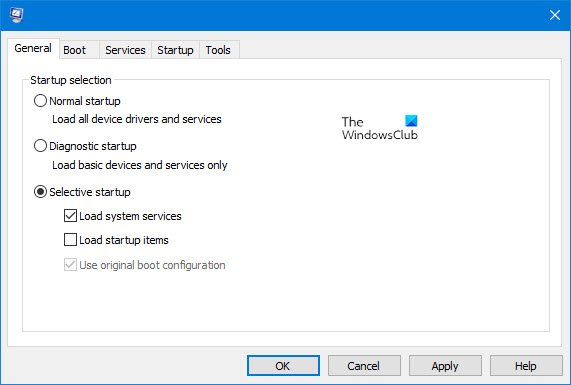
Now, launch MSConfig and disable all the third-party services to enter the Clean Boot state. Be careful while disabling the third-party services. If you disable all the services by mistake, your system will become unstable, and you will not be able to use it. In such a case, you may have to reinstall Windows.
Once you are in Clean Boot, run Windows Backup and Restore to create a backup image of the selected hard drive partition. If the tool works fine, this means a third-party service is responsible for this problem.
The Clean Boot state is used to identify the conflicting third-party service or program. We can identify it by following the hit-and-trial method in the Clean Boot state. However, it is not possible in this case because creating a backup image takes a lot of time. Therefore, if the Windows Backup and Restore tool works fine in the Clean Boot state, let it complete the process. When the backup image is created, you can exit the Clean Boot state and boot into normal mode.
Since the tool worked fine in Clean Boot but got stuck in normal mode, run it in Clean Boot the next time you want to create a backup image.
5] Exclude unnecessary folders
You can also try excluding unnecessary folders while creating a backup image using Windows Backup. Use these instructions:
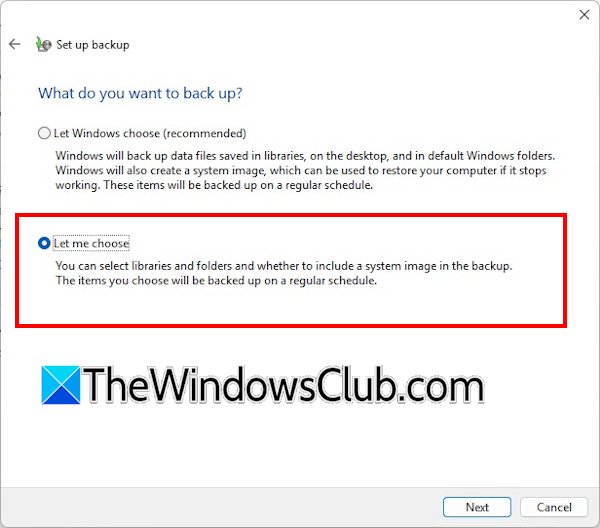
- On the Backup and Restore page in the Control Panel, click Change Settings under the Backup section.
- The Set up backup dialog box will appear on your screen. Click Next.
- On the “What do you want to back up” screen, select Let me choose and click Next.
- Expand Data Files, then expand your user name.
- Now, expand Libraries > Additional Locations.
- Uncheck the AppData, Contacts, and Searches checkboxes. These checkboxes are already selected in the C drive branch.
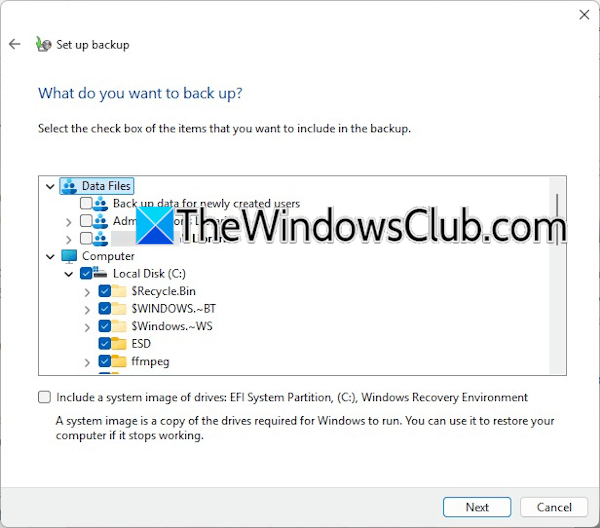
After performing the above steps, expand Computer > Local Disk C. Select all the checkboxes. Now, here you can deselect the checkboxes for the folders of programs you have uninstalled from your system. This will let Windows skip unnecessary files when creating the backup image, reducing the time.
6] Use another program
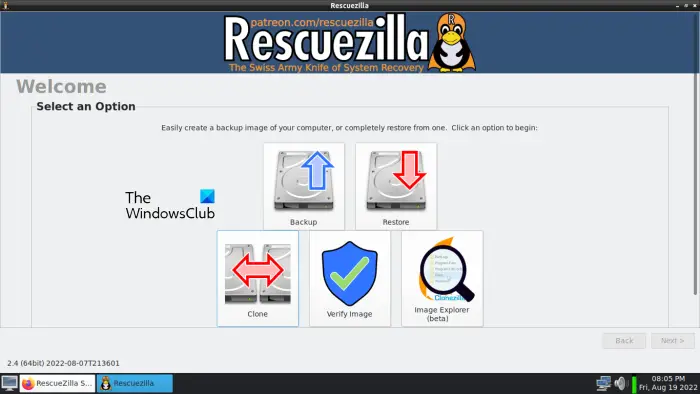
If the problem persists, you can use a third-party program to create a backup image of your hard drive partitions. RescueZilla is a completely free backup and restore tool for Windows that allows users to create backup images of their hard drive partitions.
That’s it. I hope this helps.
Windows Backup is stuck on creating a system image
If Windows Backup is stuck on creating a system image, there might be some logical errors or bad sectors on your hard disk. Scan your hard disk with a built-in utility, Chkdsk. Also, disable startup programs. If it does not help, run the backup in a Clean Boot state.
What to do if Windows restore is stuck?
If the System Restore gets stuck, you can try to hard reset your system. First, force shut down your computer, then disconnect all the peripherals and the power cord. Now, press and hold the power button for 30 seconds. Turn on your computer and run System Restore again.
Read next: AOMEI Backupper Standard: Free backup software for Windows.
