
Losing data on your system can be a nightmare, especially if it is your work computer. Thus, backing up your system from time to time is important. Usually, most users aren’t conscious of this. Imagine for a second that all your work and precious files which you had accumulated over the years, disappear in the blink of an eye. Most people do not bother to back up their data regularly, although Windows includes fine Backup Tools. The Windows operating system includes built-in tools that let you backup and make copies of your files and create a system image. Windows also includes a System Image Backup Tool, with which you can now backup or clone an image of your disk. But if you are looking for a free third-party free backup software, check out AOMEI Backsupper Standard free software.
AOMEI Backupper Standard free backup software
While Windows has its own system to backup files, folders, systems, and drives, the procedure is a little complicated. Also, people prefer doing it through third-party applications than delving into the settings.
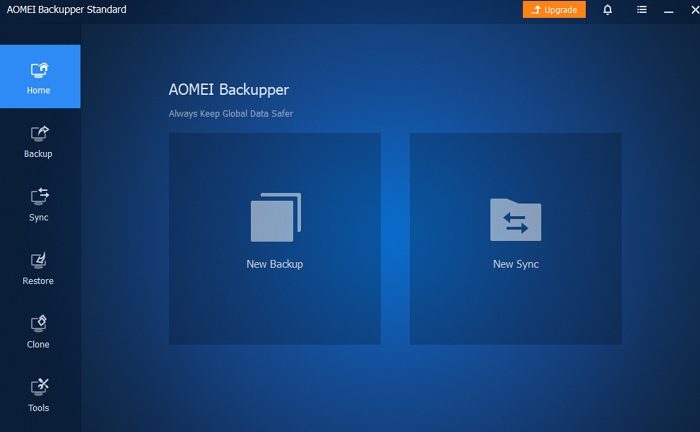
AOMEI Backupper has been in the market for quite a long but has somewhat changed with time. In the latest version there are 4 functions of the tool: Backup, Sync, Restore, and Clone.
The Home tab of the top of the list helps you check the list of backups and sync them. The benefit of syncing using the tool over copying to an external hard disk is that you get the files at the same location in Windows.
- Backup
- Sync
- Restore
- Clone
The functions of the AOMEI Backupper Standard tool are as follows:
1] Backup
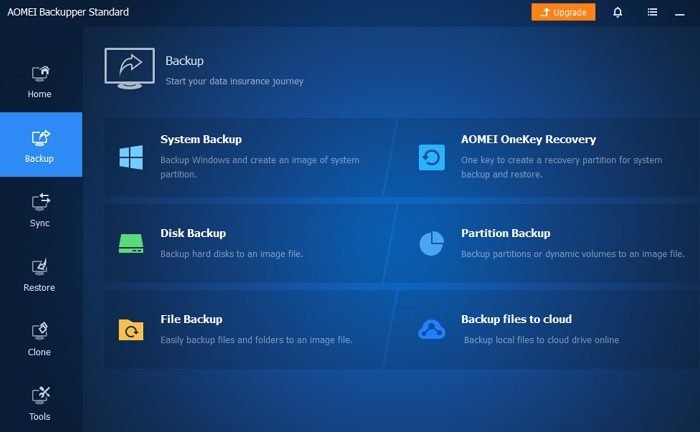
The tool offers various backup types. The options include System Backup, Disk Backup, File Backup, Partition Backup, and Backup to Cloud. All you need to do is open that option and click the browse option. Select the entity you wish to backup and choose the compression size. The backup can be initiated.
You can also use it to Backup Network Drive to Local Drive.
2] Sync
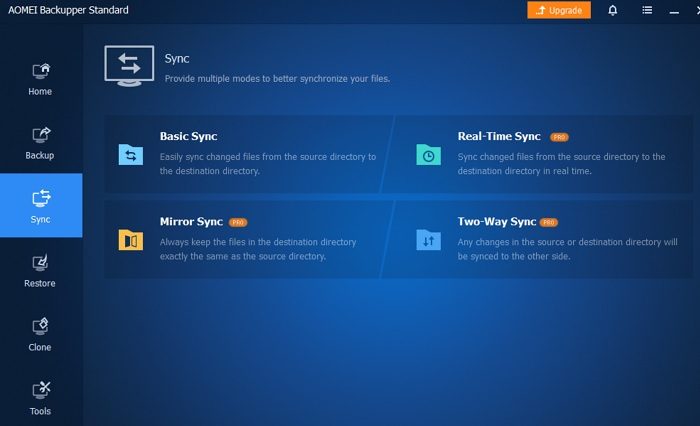
One part is backing up your data, and the other is to sync it in the right manner. The AOMEI Backupper Standard tool is very helpful for syncing data correctly. The options for syncing include Basic Sync, Real-Time Sync, Mirror Sync, and Two-Way Sync. In case of basic sync, the data is synced from the source directory to the destination directory. With Real-Time sync, files are synced in real time. Mirror sync differs from Basic sync in that with the latter, the files remain unchanged, while with the former, they are updated. Lastly, Two-way sync is the kind of sync in which the files can be synced either way between the destination and source directories. Plus, any changes to files in either of the directories is replicated to the other one.
3] Restore
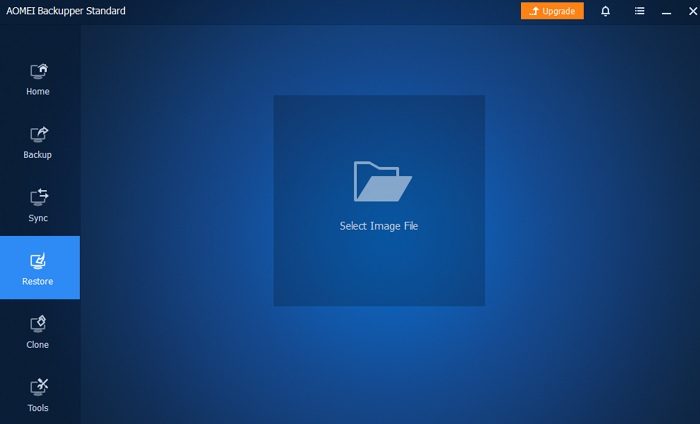
The option to Restore is relatively new with the AOMEI Backupper Standard tool. But it is quite important for those who wish to save their data in the form of an image file. In case you ever lose all data on your system and wish to retrieve it from the image file, simple upload it using the Restore option in the AOMEI Backupper Standard tool.
4] Clone
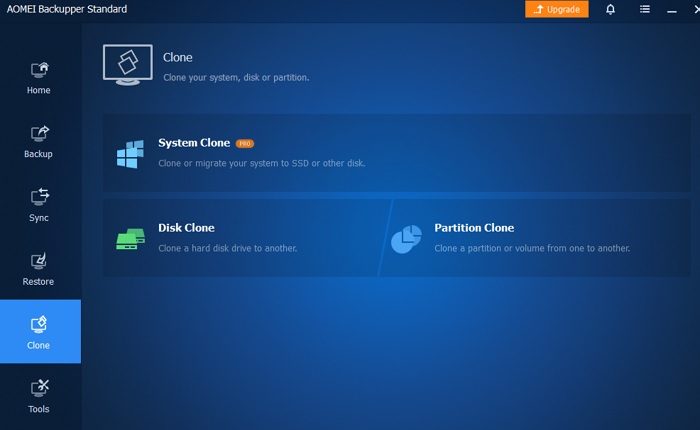
One thing is backing up your system and files to another external drive, and one thing is creating a clone of it in an external hard disk. In the newer version of the AOMEI Backupper Standard tool, you can clone a disk or a partition.
AOMEI Backupper Standard free software download
The AOMEI Backupper Standard tool would be very helpful in resolving the backup issue on your system. The original tool can be downloaded from here.
TIP: AOMEI Image Deploy Free will help you to deploy System Images to multiple computers.
Is AOMEI Backupper Standard Tool good?
The AOMEI Backupper Standard tool is great for regular backup needs and has received good ratings on review platforms. It is highly advisable for novices. At the same time, the AOMEI Backupper Standard tool is free for disk and partition cloning. However, if you wish to clone the entire system, you must purchase the premium package.
Is AOMEI Backupper Standard tool safe?
AOMEI Backupper Standard is a backup and recovery tool generally considered safe to use. It is a popular tool with a good reputation, and many users have widely used it without any reported issues or significant concerns. Of course, as with any software, exercising caution and trusting the source you are downloading is always a good idea. You should also keep your antivirus software up to date and scan any downloaded files for viruses or other malware before using them.
Related link: Best professional Backup and Data recovery software for Windows.
