
AOMEI Image Deploy is a free batch image deployment tool that enables you to deploy system images to multiple computers or clone multiple computers across a local area network. Suppose you want to install a system image that includes patches, drivers, and other fixes on more than 50 computers at your office or workplace. It would take an impractical amount of time to do that, but using Image Deploy, you can carry out the entire process in just minutes, and all the computers will be deployed simultaneously.
AOMEI Image Deploy Free Review
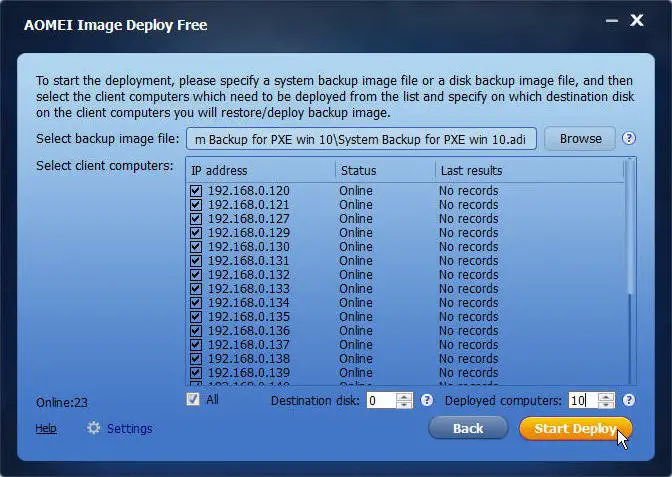
Although the program requires some technical understanding, it is easy to operate once you become familiar with it. The wizard-like interface makes the tool easier to use. A server needs to be created for batch deployment of the image.
In the first step, start the server by enabling the WinPE service using Image Deploy and then connect all the computers to the same local area network. Set the ‘Network Boot’ as the boot priority in the BIOS settings and you are ready to go.
What is WinPE
According to Microsoft,
Windows PE (WinPE) is a small operating system used to install, deploy, and repair Windows for desktop editions (Home, Pro, Enterprise, and Education), Windows Server, and other Windows operating systems.
The server interface displays the number of devices currently connected and their corresponding IP addresses. Check the confirm checkbox and hit the next button to select the system image to be deployed to the connected devices. The system image should have been created by AOMEI Backupper and no other backup images are supported yet. Then select the computers you want to install the system image to and hit the ‘Start Deploy’ button.
The deployment will start, and the computers will be installed with the system image simultaneously. The tool comes with a real-time monitoring service that displays the deployment progress as a percentage for each computer.
AOMEI Image Deploy comes in two variants: free and paid. Suppose you want to deploy the image to 20 computers or fewer simultaneously, and the hardware configurations of all the computers are similar. In that case, the free version of the tool is sufficient for you.
Overall, the tool is great and can shorten your task and save time to a good extent. Installing a system image to multiple computers has never been that easy.
Click here to download AOMEI Image Deploy. The tool supports Windows 11/10 and Server (including 32/64-bit, R2/SBS systems).
How do I create a system image on multiple computers Windows 11?
To create a system image for multiple computers in Windows 11 or Windows 10, you need to use a third-party tool. Although there are many apps available for this purpose, consider checking out AOMEI Image Deploy. It is fully compatible with Windows 11/10 PCs and comes with numerous options, allowing you to customize the image before deployment.
What are the steps to deployments on multiple computers?
If you use AOMEI Image Deploy, the process is fairly straightforward. Before getting started, you must select the backup image file that you want to deploy. Next, connect to the computer on which you want to deploy, select it, and click the Start Deployment button.
Can I use AOMEI Backupper on multiple computers?
Yes, you can use AOMEI Backupper on multiple computers to deploy the system without any problem. No matter whether you want to deploy the system image or clone multiple computers, you can do that with the help of this application. For your information, it is compatible with both Windows 11 and Windows 10.
You can use their AOMEI Backupper to create the system backup images and then use them with Image Deploy if you wish.
