
Protected Extensible Authentication Protocol, better known as PEAP is a protocol that adds an extra layer of security to wireless LANs and point-to-point connections with PEAP passwords. The protocol can be used by small- to medium-sized organizations and is designed to provide more secure authentication for 802.11 WLANs (wireless local area networks) that support 802.1X port access control.
Weaknesses in 802.11 Wired Equivalent Privacy (WEP) allow an attacker to capture encrypted frames and analyze them to determine the encryption key. PEAP addresses the shortcomings of 802.11 security, however. Unlike the WPA and WEP protocol that we use for our home Wi-Fi connection, PEAP does not possess the property of remembering the network credentials automatically.
Every time we connect to the same network for PEAP, we are required to furnish a little more information like username and domain along with the usual password to connect. Doing so every time becomes quite a task. Here is a way to make your Windows remember PEAP Wi-Fi Network Authentication.
Make Windows remember PEAP Wi-Fi Network Authentication
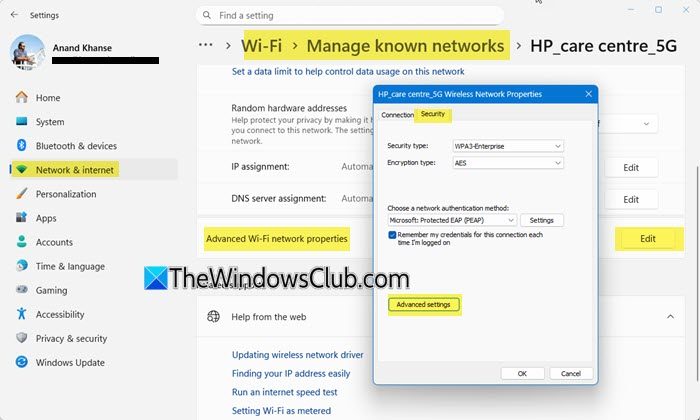
To make Windows remember PEAP Wi-Fi credentials, open Network and Sharing Center, select Properties, uncheck “Automatically use my Windows logon name,” and set the authentication mode to “User Authentication” in Advanced Settings. You should also ensure “Connect automatically” is checked in network properties.
Now let us see this in detail.
Open Windows Settings> Network & internet > WiFi > Manage known networks.
Select the desired network and then locate Advanced Wi-Fi network properties and click the Edit button against it.
Next, when in the Wireless Network Properties window, click open the Security tab and choose ‘Advanced Settings’.
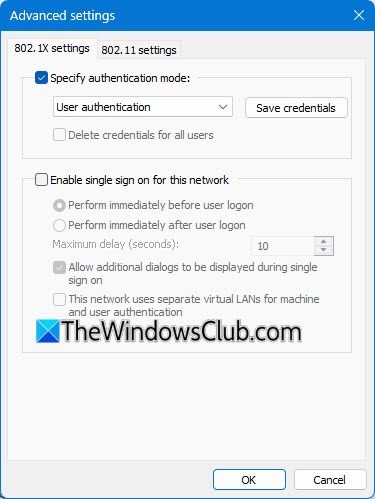
Then, under the ‘Advanced Settings’ window click open the first tab – 802.1x tab and check if the ‘User Authentication’ has been enabled under the ‘Specify authentication mode‘. If not, select it from the drop-down menu and hit the ‘Replace/Save credentials’ button.
On being taken to the ‘Windows Security’ window enter the network credentials and save the settings. Thereupon, you will be forced to disconnect from the network, if you are already connected to it.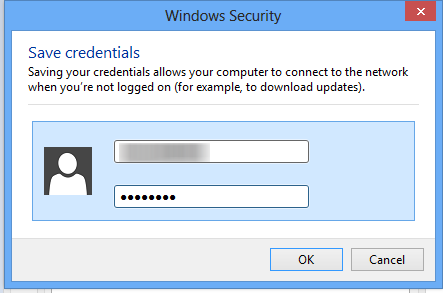
Now, the next time you try to connect to the network, Windows 11/10 will automatically use the credentials you saved and use it to allow you to log in.
Hope that helps!
PEAP credentials are lost after restart in Windows 11
If the PEAP credentials are lost after a restart in Windows 11, try one of these suggestions:
- Remove and re-adde the Wi-Fi profile.
- Reset network stack. Run
netsh int ip resetandnetsh winsock reset. - Reinstall Wi-Fi drivers.
Hope something helps.
