
If you are using Windows 11 and notice that drag and drop on the Taskbar is not working, then you are not alone. The feature was temporarily removed in earlier versions of Windows 11 but was reinstated due to user demand. In this guide, we will explore some practical solutions and workarounds to resolve this issue.
Why is my drag and drop stuck on screen Windows 11?
Drag and drop may be stuck on the screen in Windows 11 due to a Windows Explorer glitch, corrupted system file, or third-party interference. It can also be due to disabled registry settings. In the next section, we will discuss this in more detail by exploring their solutions.
Windows 11 Taskbar drag and drop not working
If the Windows 11 Taskbar drag-and-drop feature is not working, try the solutions mentioned below.
- Restart Windows Explorer
- Manually re-enable Drag and Drop via Registry Editor
- Run SFC and DISM
- Check third-party interference
- Create a new user profile
- Use a system restore
Let’s get started with the troubleshooting guide.
1] Restart Windows Explorer
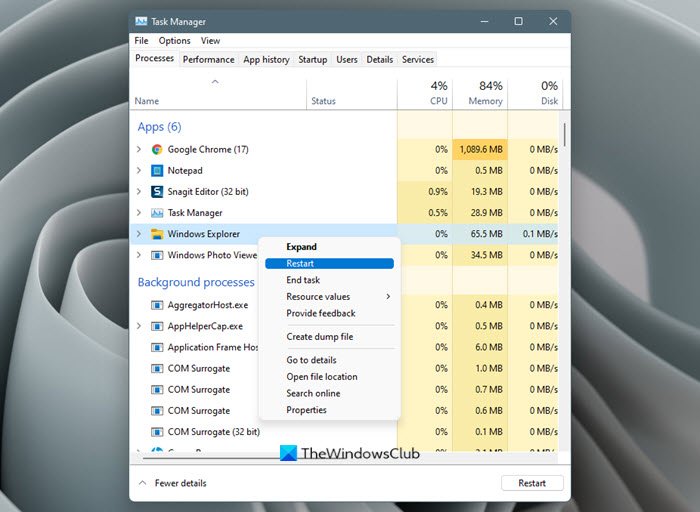
Restarting Windows Explorer is a common troubleshooting step for taskbar-related issues. This refreshes the core graphical interface of the Operating System without requiring full system reboot. To do the same, click Ctrl + Shift + Esc to open Task Manager, and navigate to the Process tab. Here, find and right-click on Windows Explorer and select Restart option. Try dragging a file to the taskbar again. If it remains in the same condition, proceed to the next solution.
2] Manually re-enable drag and drop via Registry Editor
Windows 11 may occasionally disable this feature through system updates or configuration changes. In this solution, we will manually re-enable drag and drop through the Registry Editor. Here’s how to do the same.
- Click Win + R to open the Run dialog box, type regedit and hit Enter to open the Registry Editor.
- Navigate to the location mentioned below, and look for a DWORD named Undockingdisabled.
Computer\HKEY_LOCAL_MACHINE\SOFTWARE\Microsoft\Windows\CurrentVersion\Shell\Update\Packages
- If it exists, and is set to value 1, double-click on it, change the value to 0, and click Ok. However, if the value doesn’t exists, right-click in the empty space, and select New.
- Select DWORD (32-bit) value, and name it exactly Undockingdisabled.
- Next, double-click on it, set the value to 0, and click OK.
Close all Registry Editor windows, and reboot the device for changes to take place. After restarting, try dragging a file to the task to test if it works. Proceed to the next solution if the issue persists.
3] Run SFC and DISM
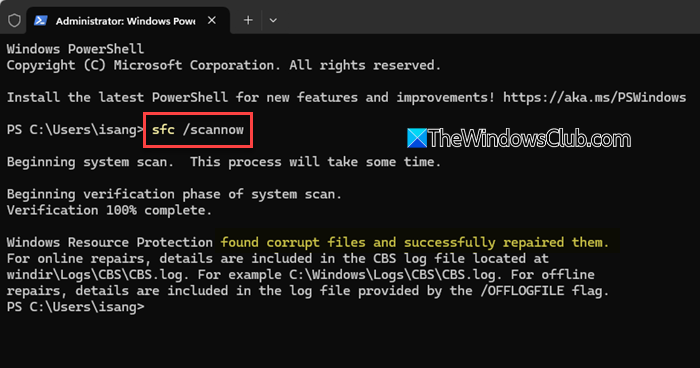
Windows system files may be corrupted, and running SFC and DISM addresses this deeper system-level corruption. This runs a comprehensive scan to identify and resolve corruption. Follow the steps mentioned below to run SFC and DISM.
- Click Win + X and select Terminal (Admin) or Command Prompt (Admin). Click Yes when prompted by UAC.
- To run SFC, run the following command, and wait for the process to complete:
sfc /scannow
- Once the process is completed, run the following command to run DISM:
DISM /Online /Cleanup-Image /RestoreHealth
Close the Command Prompt, and reboot the device. After the reboot, test the drag-and-drop functionality. Execute the solution if you still can’t drag and drop files.
4] Check third-party interference
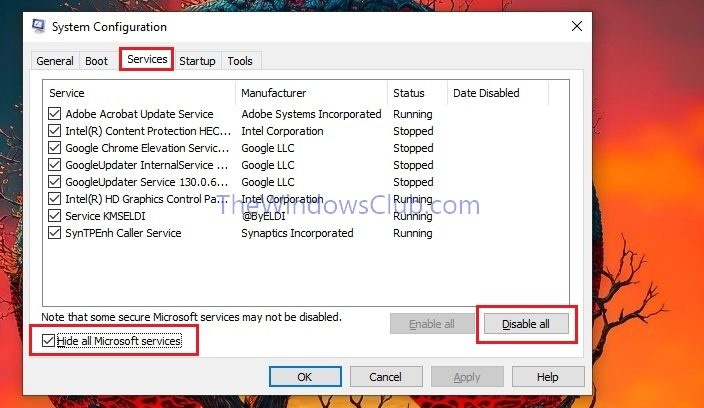
If drag and drop still fails after the repairs, the problem is likely due to interference from third-party software. Third-party apps and services, especially those that modify system behavior, can conflict with the Windows 11 taskbar. Let’s go ahead and boot into Clean Boot.
- Click Win + R to open the Run dialog box, type msconfig, and press Enter. Hit the yes button when prompted.
- Navigate to the Service tab, check the box, Hide all Microsoft Services, and then select the Disable all option to disable all third-party services.
- Select Apply and OK, and then go to the Startup Tab. There, click on Task Manager, right-click on all of the third-party services, and select Disable.
- Close Task Manager, go back to the System Configuration, close it, and click on the Restart button when prompted.
This will prompt the device to boot with minimal drivers and services. Try dragging a file or app to the taskbar, and if it works, a third-party app/ service is the culprit. To identify the conflicting app, reopen the system configuration, reenable half of the disabled services, restart, and test drag and drop. If the issue returns, the conflicting services are in the enabled batch; if not, they’re in the other disabled half. Repeat the process until the culprit is identified, and then decide whether to disable or uninstall it.
5] Create a new user profile
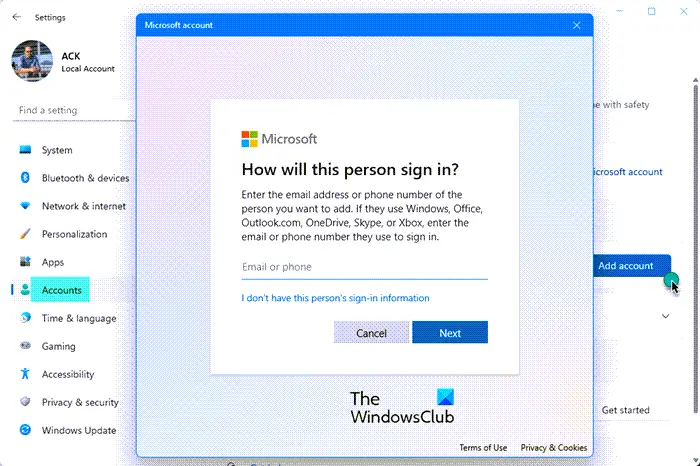
One reason could be a corrupted user profile. Creating a new local profile helps determine if the issue is tied to the account. Once created, check if the issue is resolved.
Read: Fix maximized window won’t drag in Windows
6] Use a system restore
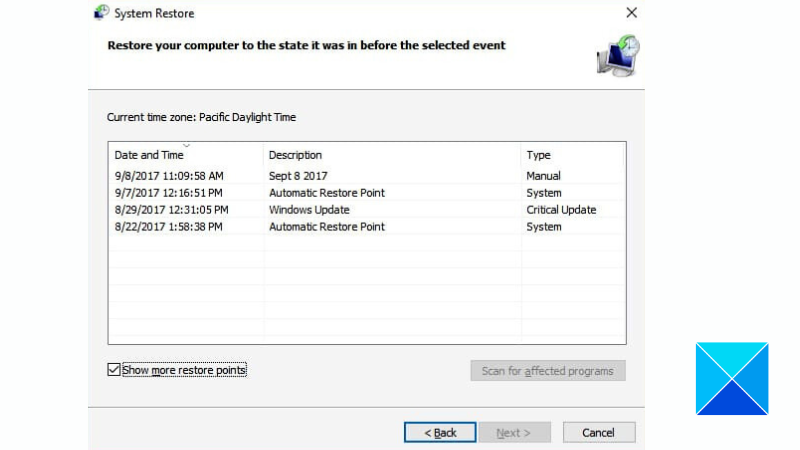
The last resort is to use System Restore to revert the PC to an earlier state where taskbar drag-and-drop was working properly.
- Click Win + S, type Create a restore point, and open it.
- In the System Restore Properties window, click on the System Restore button, and click Next.
- Select the Restore point from when drag and drop were working perfectly, and click Next.
- Click Finish and Yes after reviewing the restore point details.
Wait for the process to complete and the device to reboot, and then hopefully, the drag-and-drop functionality will no longer be troublesome, and you will be able to use Drag and Drop on Windows 11 Taskbar.
Related: Drag and drop not working in Windows 11
How do I fix the unresponsive taskbar in Windows 11?
The Windows 11 taskbar can become unresponsive due to several common causes. Incorrect settings and an outdated Windows version are one such reason. To resolve this problem, ensure Windows installation is completely up-to-date, as Microsoft frequently releases patches for known issues.
Read: How to enable or disable Drag and Drop Snap to Grid in Windows 11.
