
Ever since Microsoft announced Windows 11, the compatibility and readiness of our PCs to upgrade to Windows 11 are in discussion. Windows 11 requires certain requirements that must be met to install it on our PC.
Microsoft released a PC Health Check tool earlier to find if our PCs are compatible with Windows 11. It had to be withdrawn after it failed to give proper reasons for why certain PCs are incompatible. Then came the third-party WhyNotWin11 and Checkit tools that attempted to tell PC users if their hardware would be compatible with Windows 11 or not.
With the Ashampoo Windows 11 Compatibility Check, we can determine whether our PC is compatible with Windows 11. Not only does it give us the compatibility result, but it also provides proper reasons and possible solutions to make our PC compatible. In simple terms, the Windows 11 Compatibility Check is a friend who checks whether our PC meets Windows 11 requirements, and if not, it guides us on how to make changes to our PC.
Is my computer compatible with Windows 11?
You can check the compatibility of your computer with Windows 11 using Windows 11 Compatibility Check, PC Health Check, WhyNotWin11, and Checkit tools. With these tools, you can know the reason why your computer is not compatible with Windows 11, in case of non-compatibility.
How to use Windows 11 Compatibility Check Tool
Download the Windows 11 Compatibility Check program and install it on your PC, just like any other program. Having done that:
- Open the Windows 11 Compatibility Check Tool
- Click on the Check Now button
- You will see the results.
- Fixes for the issues that are making your PC incompatible are also suggested.
Let’s get into the details of the process.
After installing the Windows 11 Compatibility Check, open it. On the program’s window, click on the Check Now button to start checking your PC.
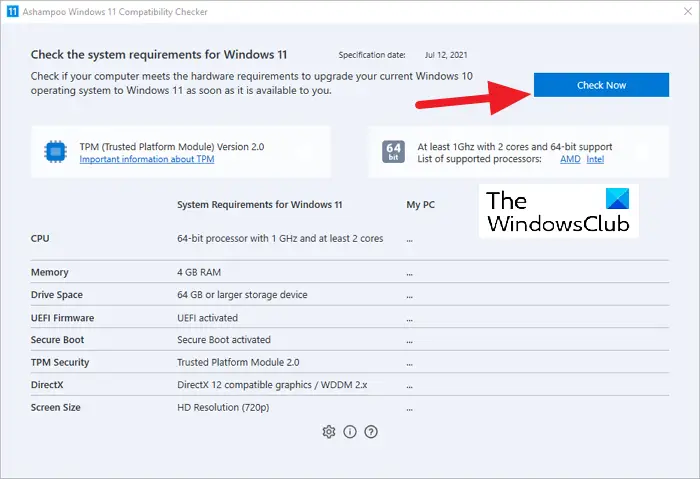
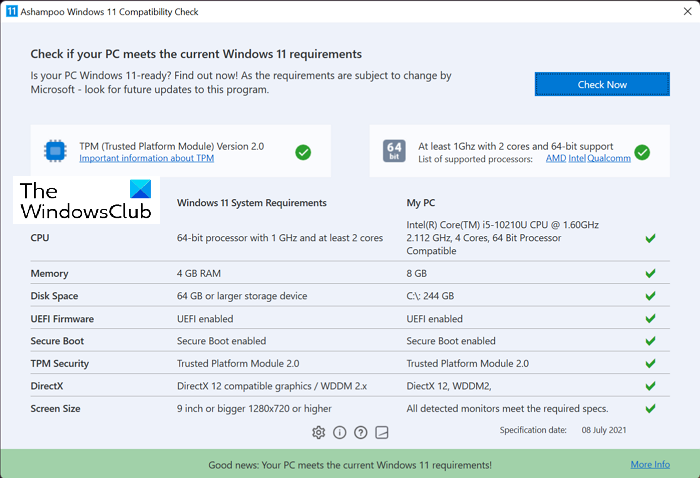
The process will run for a few seconds and you will see tick marks (✔️) opposite the components of your PC.
If all the components are ticked with a green mark, your PC is compatible with upgrading to Windows 11.
If any of the components of your PC does not meet the required criteria to install Windows 11, you will see a cross mark (❌) opposite it.
Even one cross mark can make your PC incompatible with installing Windows 11.
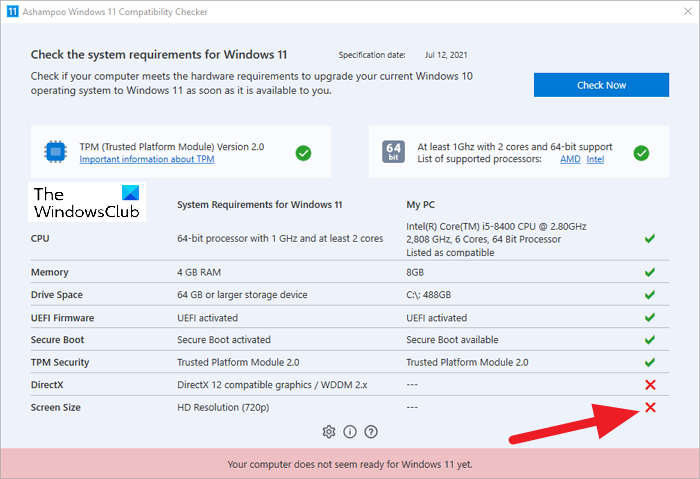
You need to make the necessary changes highlighted by the Windows 11 Compatibility Check to make your PC compatible with Windows 11.
You can download the program from Ashampoo.com and install it on your PC.
This is how you can check if your PC is compatible with Windows 11 or not and fix the shortcomings using Ashampoo Windows 11 Compatibility Check.
Will there be a free upgrade to Windows 11?
Yes, there is a free upgrade to Windows 11 for every PC which is currently running on Windows 10. Microsoft does not charge a penny to upgrade your PC to Windows 10. Your PC must have a legitimate and legal copy of Windows 10, and it should meet all the hardware requirements to install Windows 11.
Is it safe or legal to install Windows 11 through Windows 11 Check & Enable?
Yes, you can install Windows 11 on an ineligible PC with Windows 11 Check & Enable, but remember that your PC might face some compatibility issues. Also, the devices that do not meet the set requirements don’t get any of the official updates, including the security updates. Still, if you want to install Windows 11 on your PC, it is recommended to take a complete system backup.
How to fix the “This PC does not currently meet Windows 11 system requirements” error?
If you are getting, “This PC does not currently meet Windows 11 system requirements” error while installing Windows 11, you can try upgrading using the Windows 11 Installation Assistant.
Other similar Windows 11 compatibility checker tools that may interest you:
PC Health Check Tool | WhyNotWin11 | Checkit | Windows 11 Requirements Check Tool.
